
ToolHUD
Requires macOS 26 or later
ToolHUD puts the features of your favorite apps one click away. Press a shortcut or click the mouse in any app, and a ring of buttons opens around the pointer. Click a button and it runs. It's designed to work with the apps on this site, running their features directly by name, and with just about any other app that has a global keyboard shortcut, because a button can press any key combination for you. No subscription, no license key, no account.
Free. Signed and notarized by Apple.
New: Activity. See how many actions you run in Settings, for this Mac or added up across all your Macs.
Works with

TextLens
ClickLens
CaptureLens
PasteLens

DiskLens
M3 Tracker

NetworkToggle
StayMounted

WindowKeeper
DockMirror
Desktop Bins Widget
And just about any other app with a global keyboard shortcut.
A ring of tools at your pointer
Press Control-Option-Command-Space in any app. The HUD opens around the pointer without taking focus, so the app you were using stays in front and keeps its place.
A button runs only when you click right on it, so a stray move of the mouse never sets anything off, and a few points of margin forgive a near miss. Letting go of the shortcut leaves the HUD open until you choose. You can also press a button's number (or its letter, on the button pad), or use the arrow keys and Return.

Halo, the default look. The button under the pointer lifts and glows, and the center says what it will do.
Ten looks to choose from
Settings, Appearance has ten looks: eight rings and two button hubs. They all choose buttons the same way, so you can switch whenever you like, and each one casts a soft shadow so it stands out on a busy desktop.
Opacity, size, where the HUD opens (at the pointer or in the middle of the screen), a sound and a trackpad haptic are yours to adjust.
Halo: translucent slices, and the one under the pointer lifts and glows.

Orbit: round buttons that spring out from the pointer.
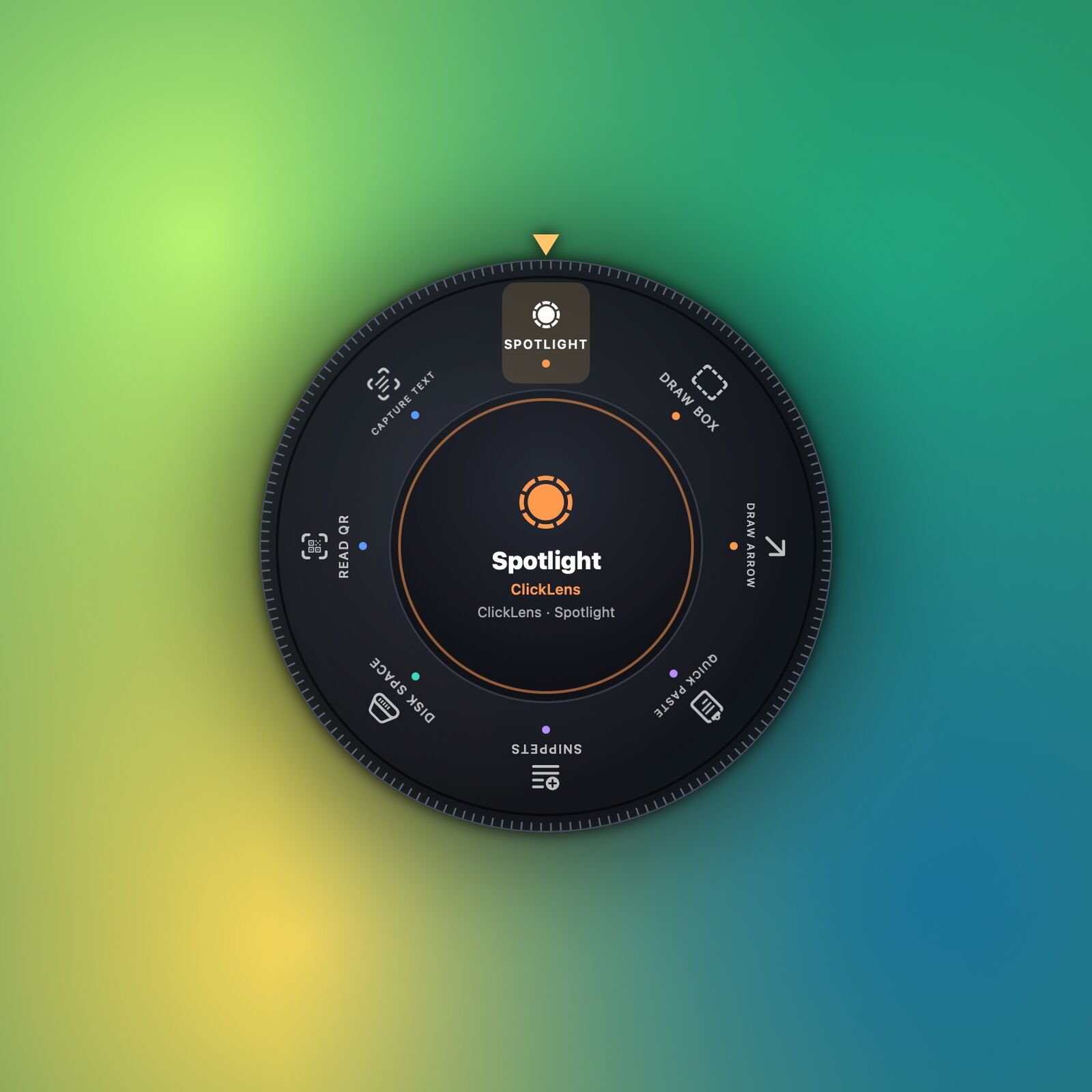
Dial: a rotary bezel that turns as you scroll or use the arrow keys.

Stargate: the chevrons are the buttons, and the gate opens when one locks.
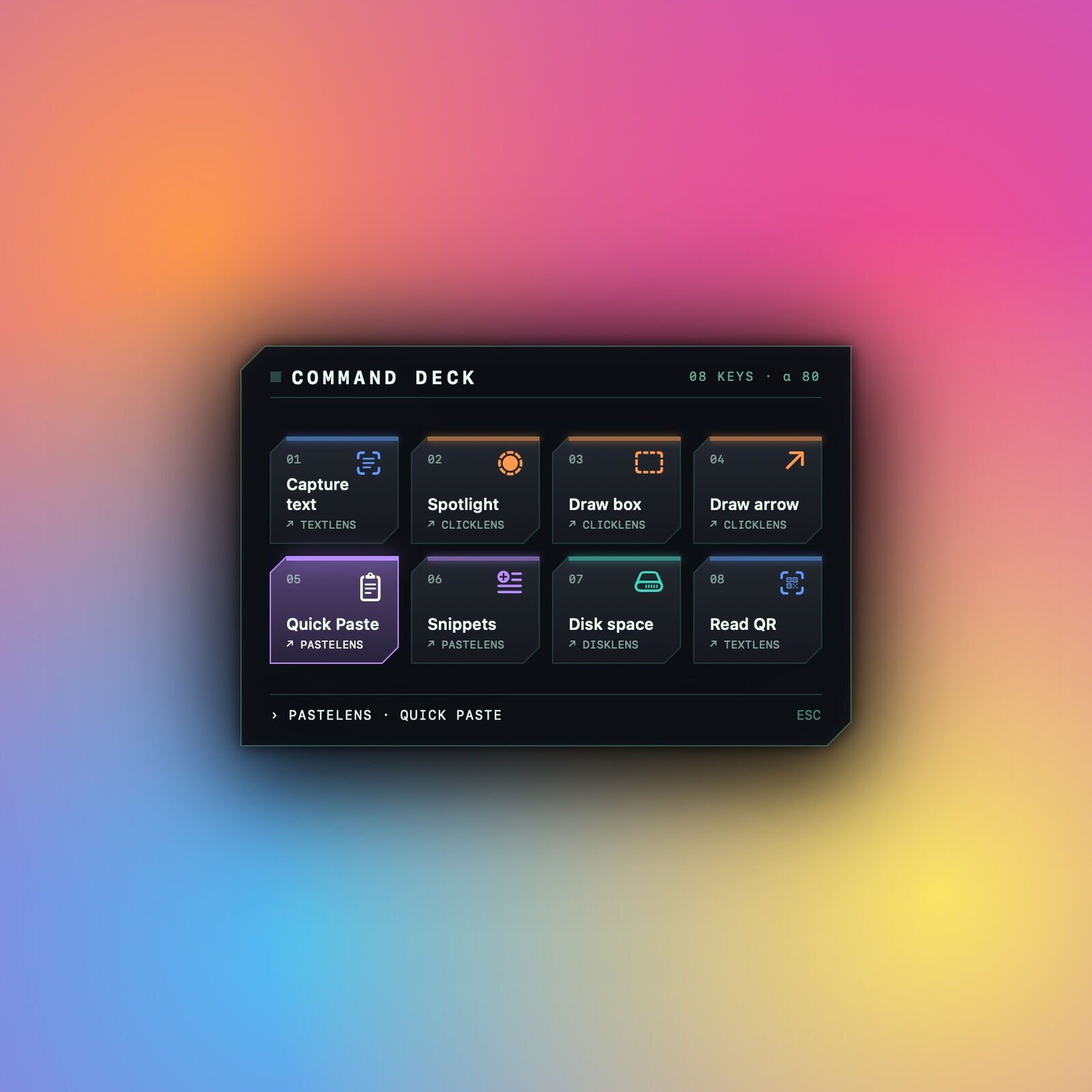
Command Deck: a panel of keycaps with app-colored lights.
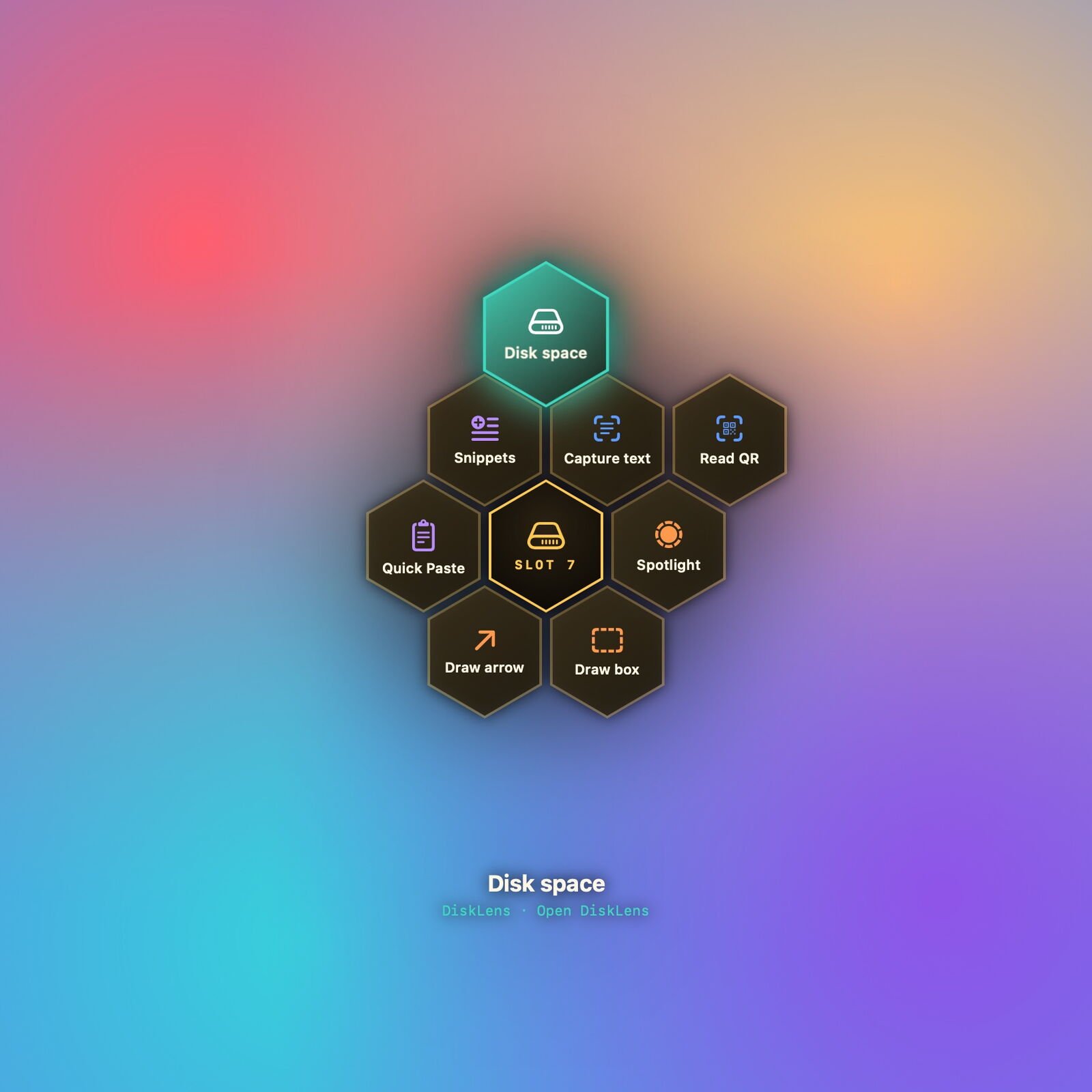
Hive: honeycomb cells packed around a center hex.
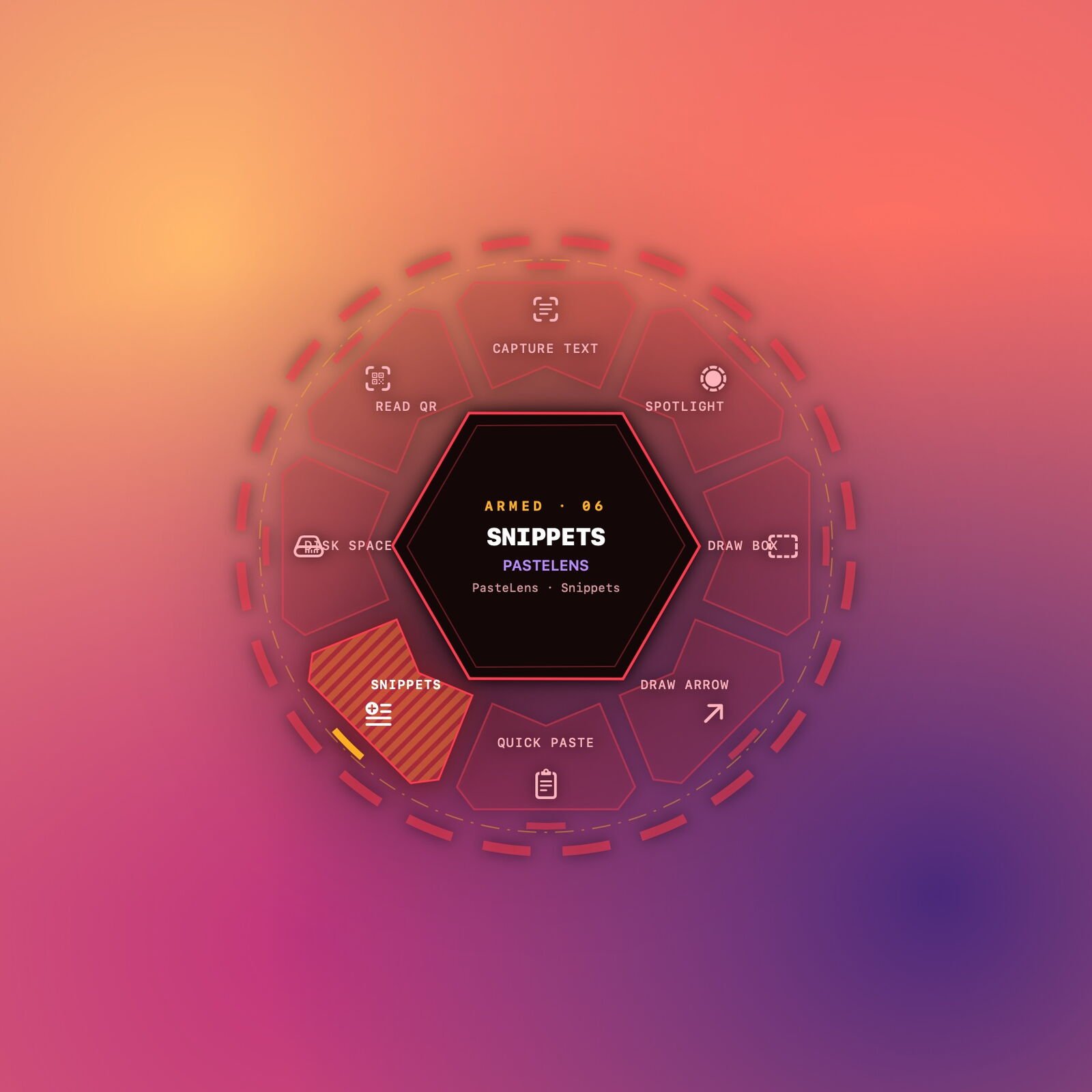
Red Alert: crimson blades with hazard stripes on the armed one.

Constellation: star buttons joined by lines that draw themselves in.
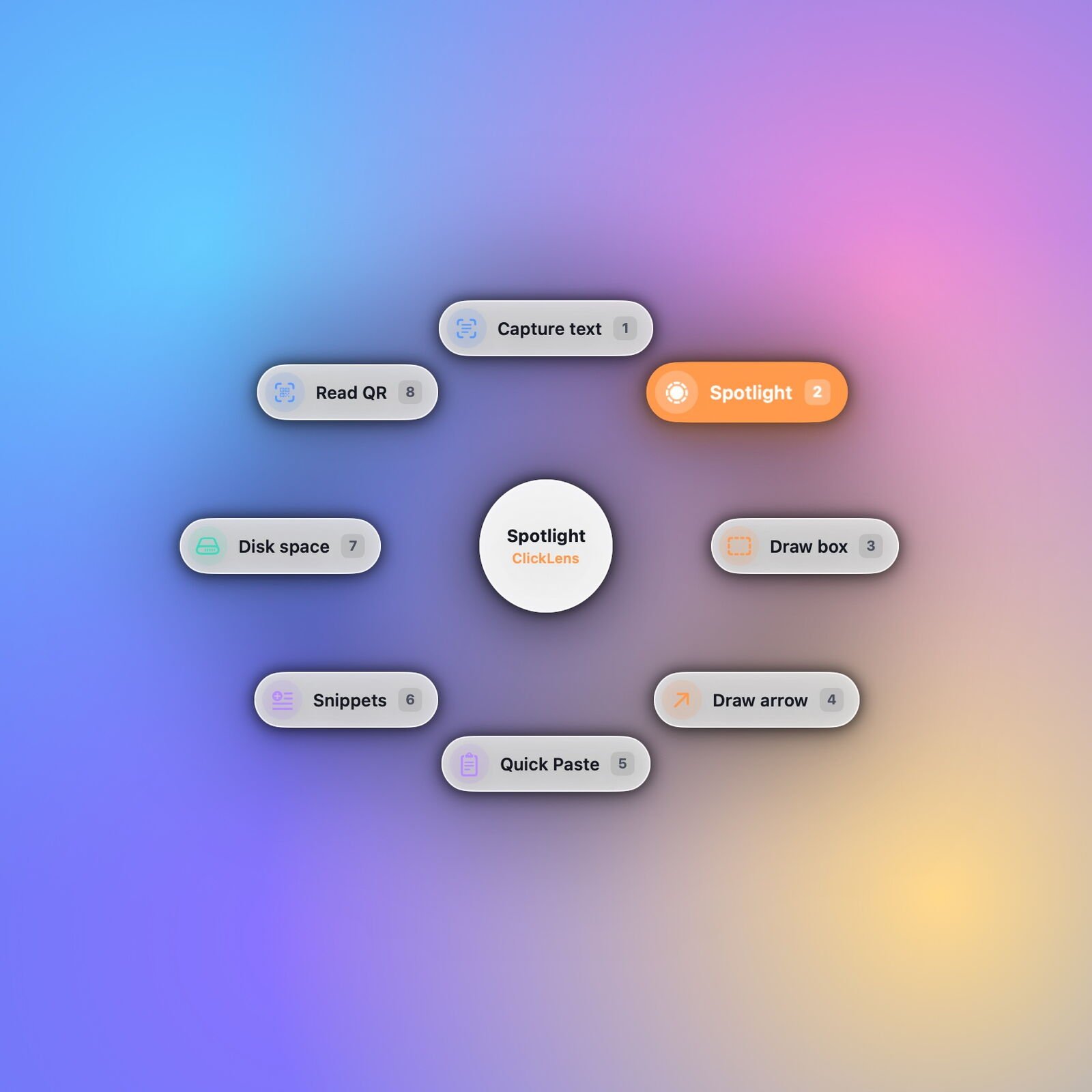
Glass Pills: labeled pills, the easiest to read at a glance.
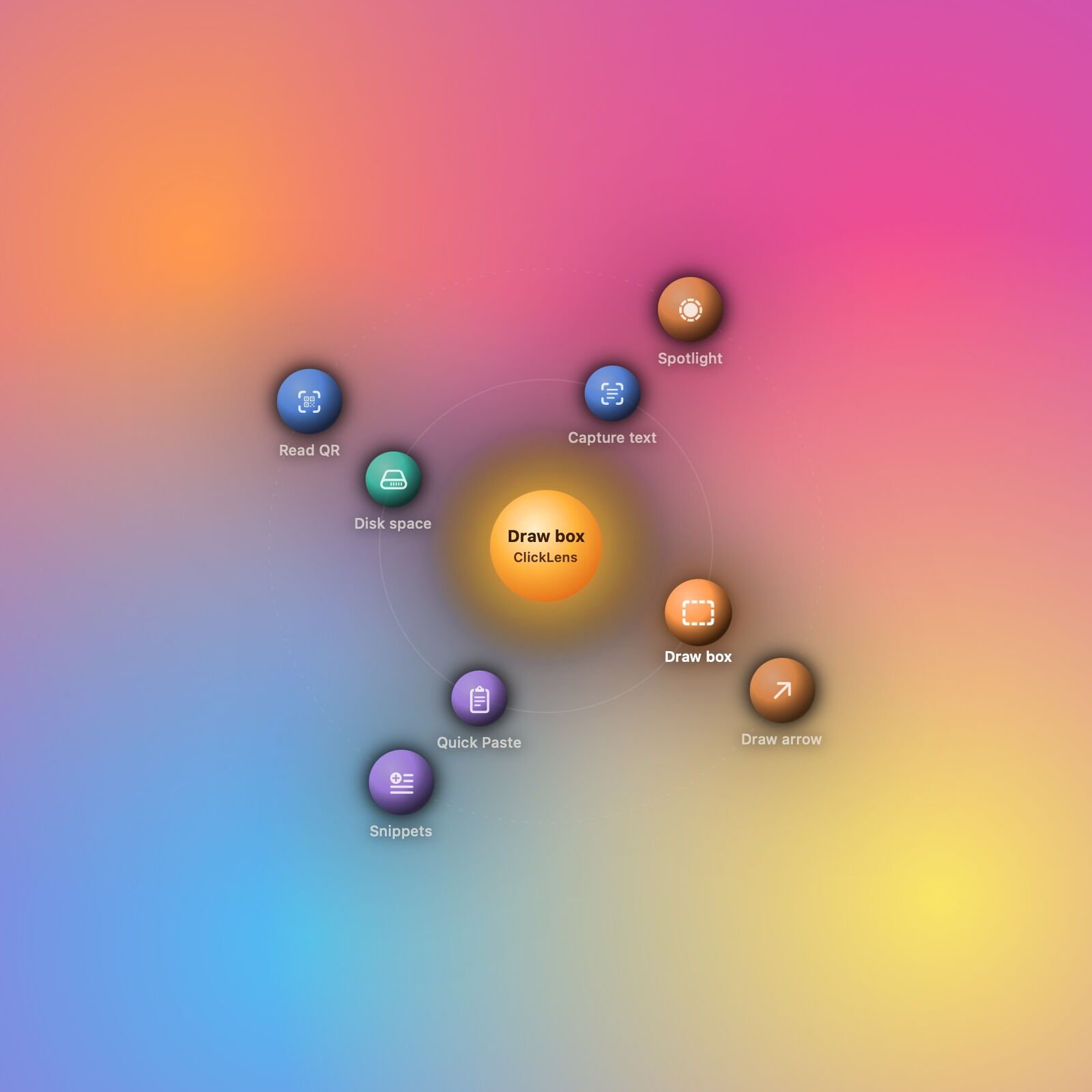
Planetary: planets drift around a sun and hold still when you reach for one.

Settings, Appearance: every look, drawn live with your own buttons.
More buttons with the button pad
The ring holds up to 12 buttons. When you want more, turn on the button pad in Settings, Appearance, and up to 8 more buttons sit beside the HUD: in a column on the left or right, or in a row above or below.
The pad takes on the look you choose: round coins beside the Halo, keycaps beside the Command Deck, comb cells beside the Hive, blades beside Red Alert, moons beside Planetary, and so on. Click a pad button or press A, S, D, F, G, H, J or K. Its buttons have their own list under Pad in Settings, Buttons, and they sync and export with the rest.

Halo with a button pad on the right. A pad button lights up and fills the center readout just like the ring's.
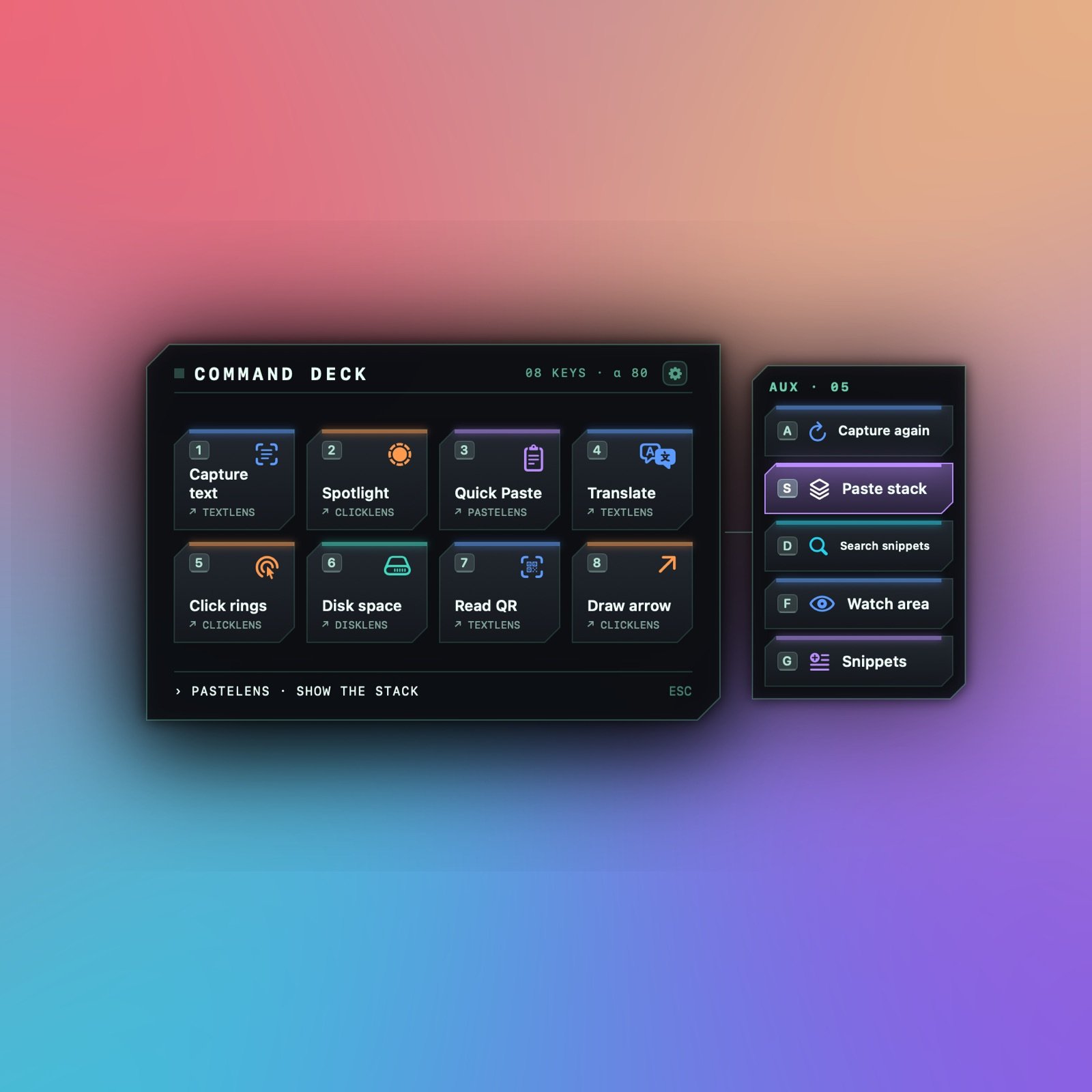
Command Deck: an aux panel of keycaps on the right.
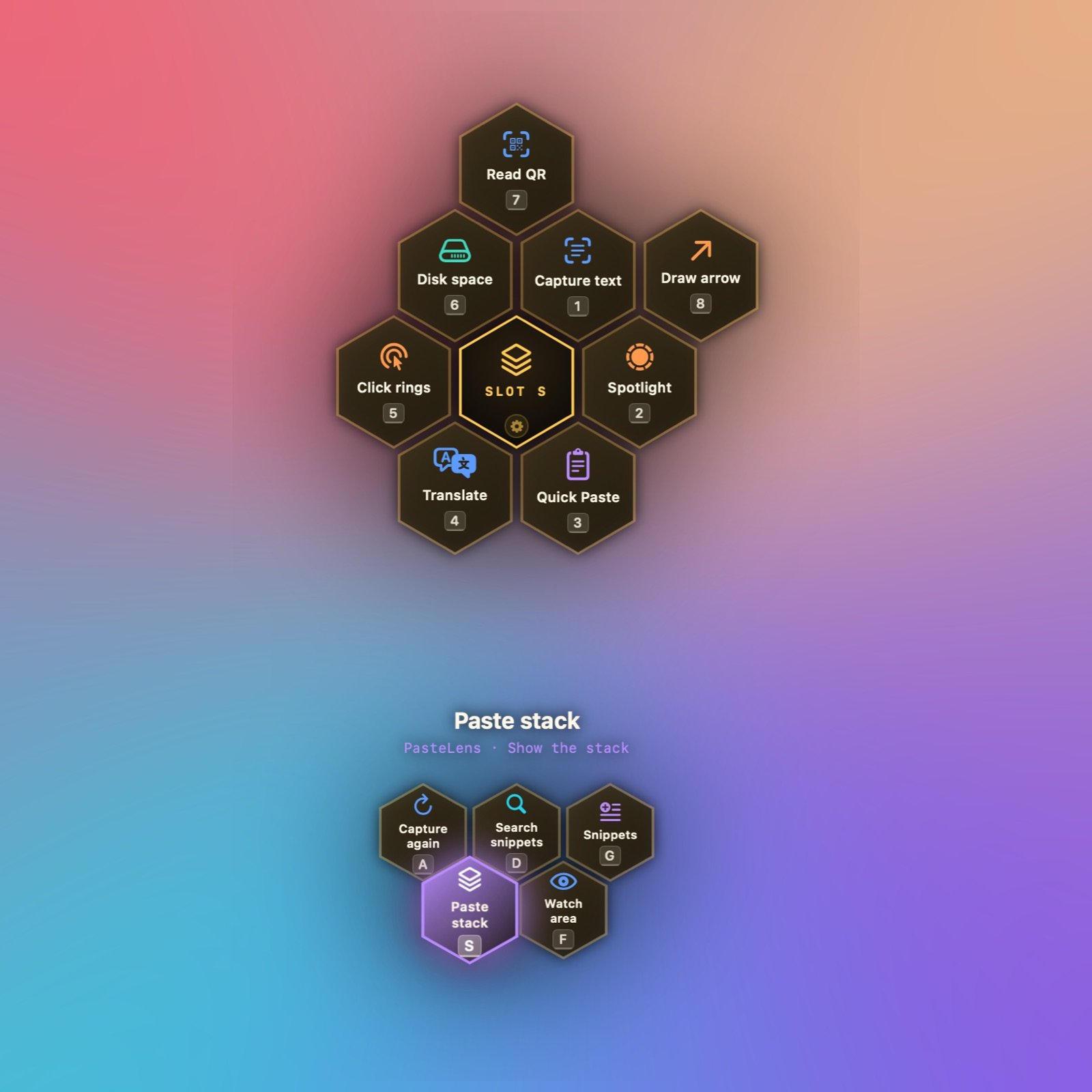
Hive: comb cells below the hive.
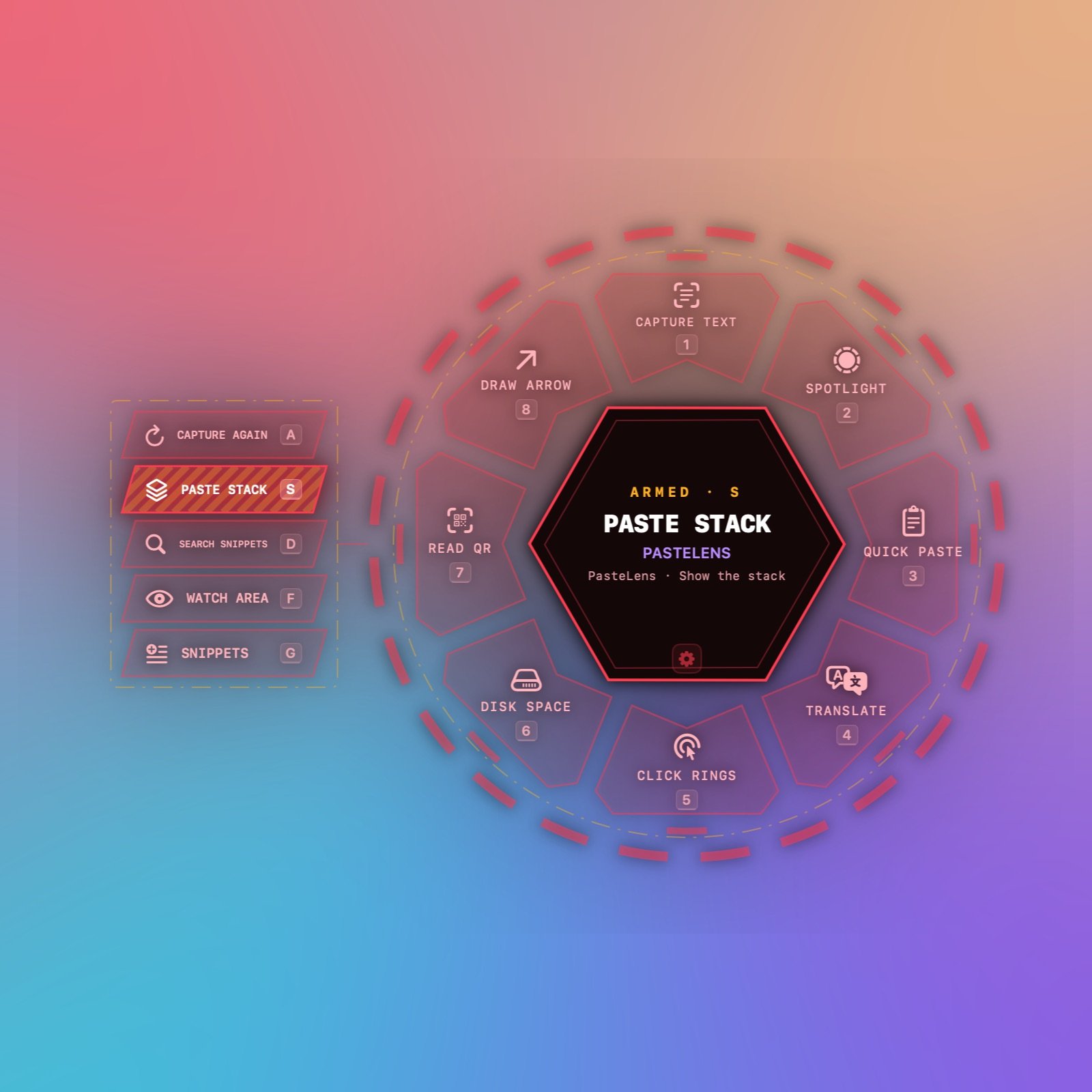
Red Alert: blades on the left, the armed one striped.

Planetary: moons on a belt below the sun.
Runs your apps' features directly
A button can run a feature of any of the apps on this site: TextLens, ClickLens, PasteLens, DiskLens, M3 Tracker, NetworkToggle, StayMounted, WindowKeeper, DockMirror and Desktop Bins Widget. ToolHUD asks the app to do it through the app's own URL scheme, so the button keeps working even if you change that app's shortcuts. It lists the ones you have installed, and their features, by name.
A button can also press any key combination, either in the app you were using or in an app you choose, which ToolHUD brings forward first. Keep 2 to 12 buttons on the ring and up to 8 more on the button pad, each with its own name, symbol and color, and export a ring to a file to keep or to share.
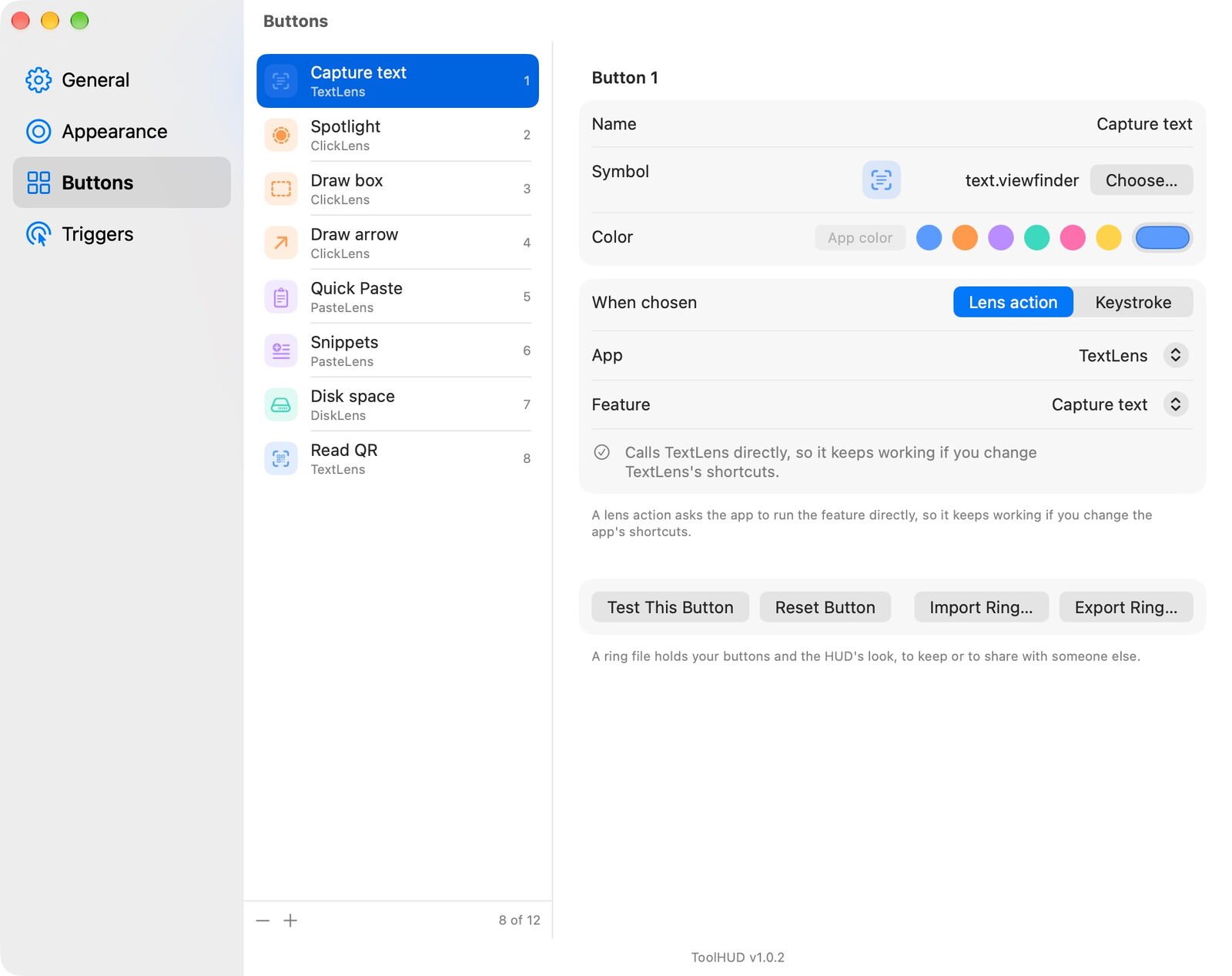
Settings, Buttons: a TextLens button, with the app, the feature and its color.
Open it your way
Press the shortcut to open the HUD, then click a button. Press the shortcut again, or Esc, to close it. Change the shortcut to any key combination you like.
The mouse can open the HUD too, in any app: a held right-click, the middle button or a side button. With a held right-click, a quick click still opens the app's own menu.
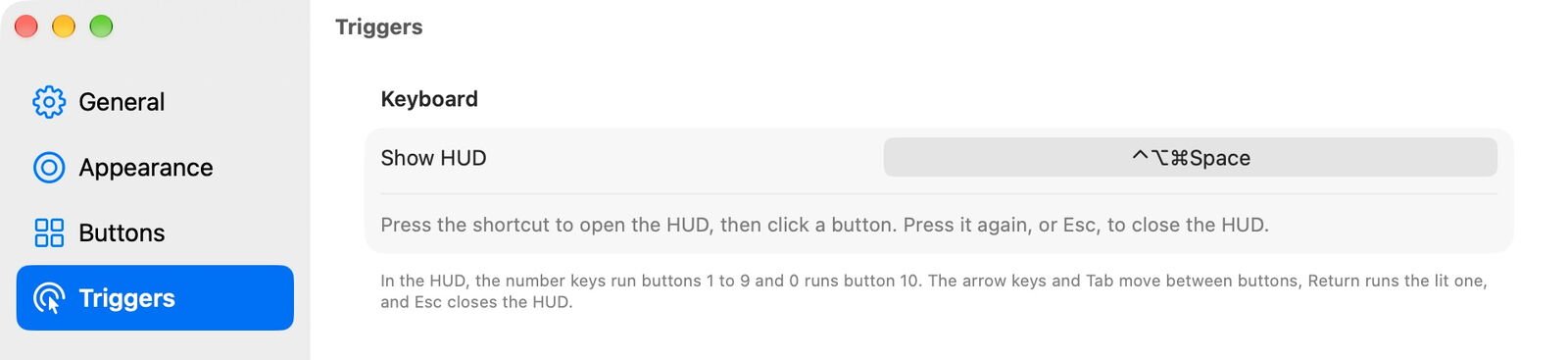
Settings, Triggers: the shortcut that opens the HUD.
One menu bar icon for all your apps
Each of your other apps puts its own icon in the menu bar, and together they crowd it. While ToolHUD runs, they can step aside: each app becomes a submenu of ToolHUD's menu, with the same items as its own menu. Its row shows the app's menu bar icon, so a status or a warning still shows at a glance.
Apps whose icon opens a panel, such as NetworkToggle, StayMounted and DiskLens, list their main actions there and open the full panel from the menu. Turn it off with Gather my other apps' menus here in Settings, General, or keep one app in the menu bar with the checkbox in its own Settings. If ToolHUD quits, every icon comes back right away.
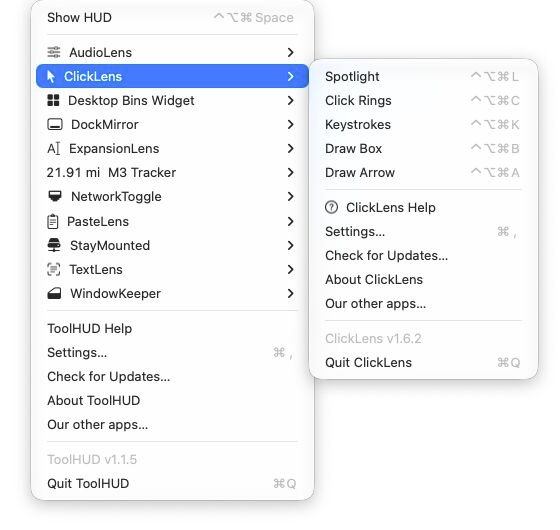
ToolHUD's menu with your apps as submenus. M3 Tracker's row shows today's distance.
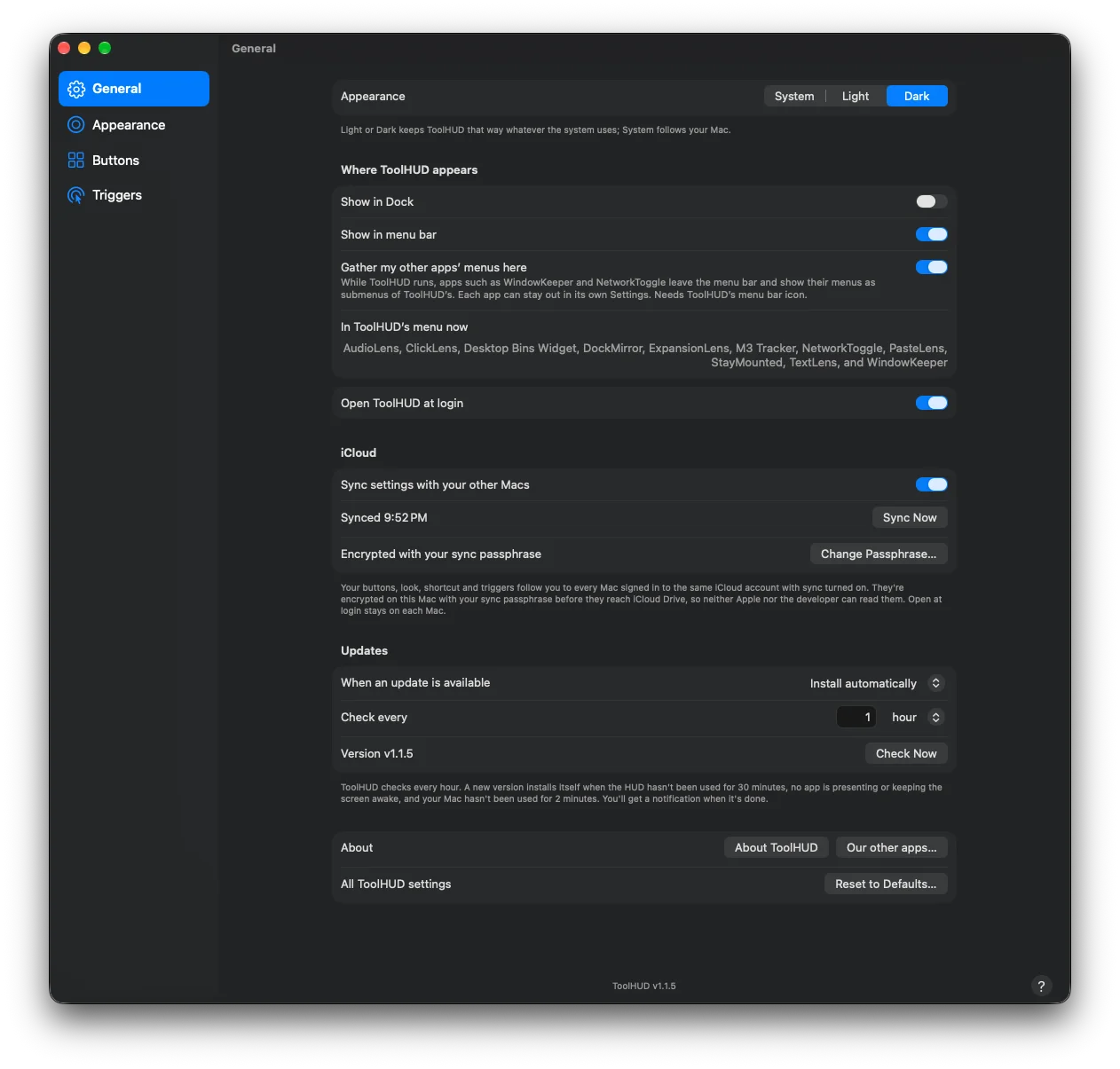
Settings, General: Gather my other apps' menus here, and the apps in ToolHUD's menu now.
See how much you use it
Settings, Activity counts every action ToolHUD runs: each button you click or pick with a key, on the ring or the button pad, and each item you choose from your apps' menus in ToolHUD's menu. A bar chart shows the count by day, week or month. It starts at 7 days and widens to a year as you keep using ToolHUD, beside the total since it started counting.
With sync on, each Mac shares its counts through iCloud Drive, encrypted like your settings. A This Mac / All Macs switch picks which the graph shows, and a list gives each Mac's total and when it last synced. Only the numbers are kept, never which buttons you ran.
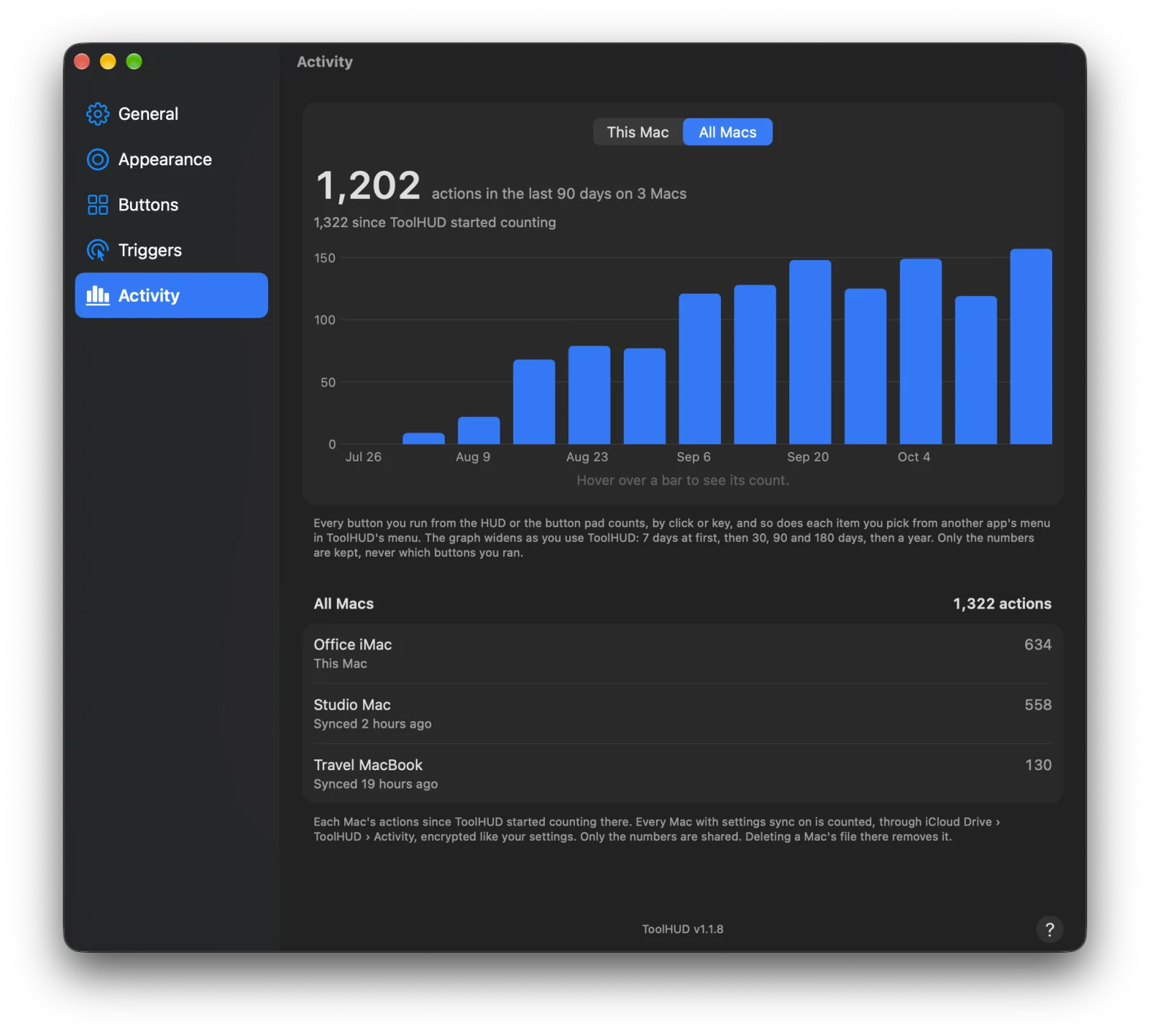
Settings, Activity: actions on three Macs over the last 90 days, added up.
What it does
A ring at your pointer
Opens around the pointer or in the middle of the screen, without taking focus from your app.
Click to run
A button runs only when you click it. Number keys, A to K for the pad, the arrow keys and Return work too.
Lens actions
Runs features of the ten apps on this site directly, by name.
Keystrokes
Presses any key combination, in the app you were using or in one you choose.
Ten looks
Eight rings and two button hubs, each with its own animation and a soft shadow.
Button pad
Up to 8 more buttons beside any look, drawn in its style, and run with A to K.
Mouse triggers
A held right-click, the middle button or a side button.
Encrypted sync
Your buttons, button pad, look, shortcut and triggers follow you to your other Macs, encrypted with your passphrase, and your Activity counts add up across them.
Activity
A chart of how many actions you run, for this Mac or added up across all your Macs.
Shareable rings
Export your buttons, button pad and look to a file, and import them on another Mac or share them.
Your apps' menus
Your other apps' menu bar icons move into ToolHUD's menu as submenus, so one icon holds them all.
Automation
toolhud://show opens the HUD and toolhud://settings opens Settings, for Shortcuts and scripts.
Getting started
Open the downloaded disk image and drag ToolHUD to Applications, then open it. Its icon appears in the menu bar. Press Control-Option-Command-Space anywhere to open the HUD.
The mouse triggers and keystroke buttons need Accessibility permission, which ToolHUD asks for the first time it opens. Turn on ToolHUD in System Settings, Privacy & Security, Accessibility. The keyboard shortcut and lens actions work without it.
Updates
ToolHUD checks for a new release once a day, or on a schedule you set, from every hour to once a year. You choose this and what happens in Settings, General. It can install updates automatically, waiting until the HUD hasn't been used for 30 minutes, no app is presenting or keeping the screen awake and your Mac has been idle for 2 minutes. It can ask first, with a notification, so nothing installs until you choose. Or it can stay off until you click Check Now. Each download must be signed by the same developer and notarized by Apple before it is installed, and your settings carry over.
Under the hood
ToolHUD is a native Mac app written in Swift and SwiftUI. It has no account, analytics or tracking, and the only connection it makes on its own is to GitHub, to check for updates. Accessibility access is used only to watch the mouse button you chose as a trigger and to press the keys your buttons send. Synced settings are sealed with AES-256-GCM on your Mac, under a key only your sync passphrase can unwrap. Activity counts are only numbers; they stay on your Macs and are shared between them sealed the same way.