
Desktop Bins Widget
Requires macOS 13 or later
The Mac desktop turns into a pile fast. Desktop Bins Widget puts titled, resizable panels on your desktop. Drag files and folders in, arrange them however you like, and open them with a double-click.
Free. Signed and notarized by Apple.
New: One menu bar icon for all your apps. While ToolHUD is running, Desktop Bins Widget's menu bar menu moves into ToolHUD's menu. A checkbox in Settings keeps it in the menu bar instead.
Works with ToolHUD
ToolHUD
Press one shortcut and pick from a ring of buttons around your pointer to make a new bin, show or hide all bins or open the Desktop Bins folder, or to run features of the other apps on this site. No hard-to-remember key combinations. While ToolHUD runs, Desktop Bins Widget's menu bar menu moves into ToolHUD's menu too, so one icon holds them all.
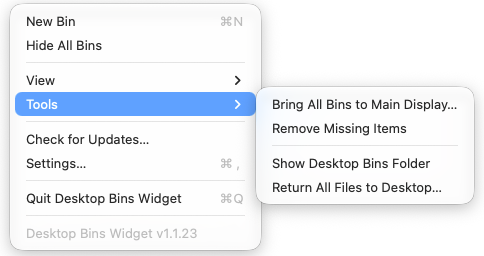
Bins are managed from the menu bar: add a new one, hide them all, change the icon size, or use Tools to bring every bin to the main display.
Bins on your desktop
Each bin is a titled panel that sits on your desktop. Give each one a color, a name and a size, then drag in the files and folders you want close at hand. Double-click anything to open it.
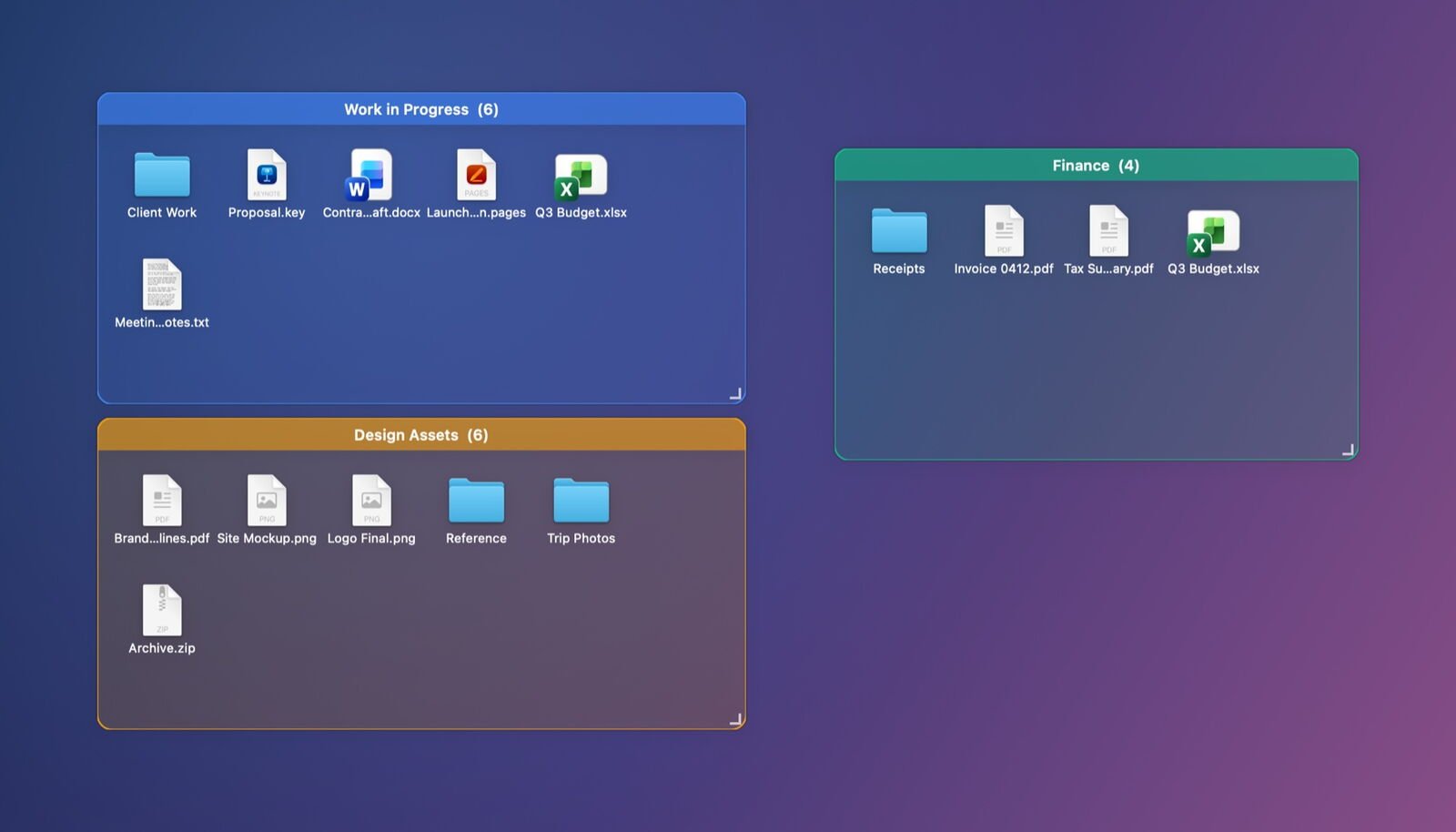
Three bins on a Mac desktop, each holding its own files and folders.
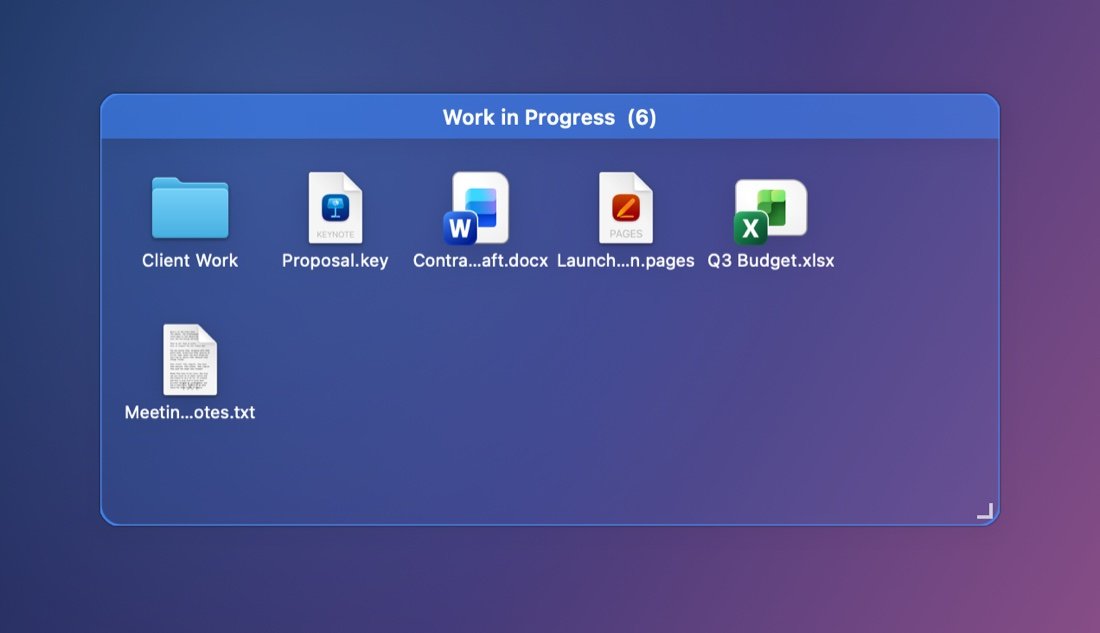
One bin up close: folders and files from different apps, with the item count in the title bar and a handle in the corner to resize.
What it does
Panels you arrange
Drag files and folders in from anywhere and reorder them inside a panel. Rename, recolor, resize or collapse each panel.
They stay put when monitors change
Each set of monitors keeps its own arrangement. If a monitor is missing, its panels appear on the main display instead of disappearing.
Files leave your real desktop
Files dragged in from the Desktop move to a Desktop Bins folder in your home folder, so nothing shows up twice.
Hard to nudge by accident
Turn on Command-drag to move, so a stray click never shifts a panel. Turn on iCloud sync in Settings and icon size, panel opacity, labels and how bins move follow you to your other Macs, while your bins and their files stay on each Mac.
Getting started
Open the downloaded disk image and drag Desktop Bins Widget to Applications. Open it, choose New Bin from the menu bar icon, and drag files into the bin.
There are no permissions to grant.
Updates
Desktop Bins Widget checks for a new release once a day, or on a schedule you set in Settings, from every hour to once a year. You also choose what happens: install automatically while your Mac is idle, ask first, or never check. Each download must be signed by the same developer and notarized by Apple.
Under the hood
A true WidgetKit widget cannot accept drag and drop or be resized freely, so it could only show a bin, never hold one. These panels are ordinary app windows pinned to the desktop layer: they feel like widgets but are fully interactive.