
TextLens
Requires macOS 26 or later
Text in a picture, a video, a screen share or a locked PDF can't be selected, so you end up retyping it. TextLens copies any text you can see on your Mac: press a shortcut, drag over it, and it's on your clipboard. It can also translate what you capture, keep translating subtitles as they change, remember everything you've captured, watch part of the screen for you, and read and make QR codes. Everything happens on your Mac.
Free. Signed and notarized by Apple.
New: One menu bar icon for all your apps. While ToolHUD is running, TextLens's menu bar menu moves into ToolHUD's menu. A checkbox in Settings keeps it in the menu bar instead.
Works with ToolHUD
ToolHUD
Press one shortcut and pick from a ring of buttons around your pointer to capture text, read a QR code or live translate an area, or to run features of the other apps on this site. No hard-to-remember key combinations. While ToolHUD runs, TextLens's menu bar menu moves into ToolHUD's menu too, so one icon holds them all.
Copy text you can't select
Press Control-Option-Command-T and the screen holds still, so a menu, a tooltip or a frame of video stays put while you drag over the text. Let go and the text is on your clipboard, with a short note saying how much was copied.
Keep line breaks as they are, or join wrapped lines into paragraphs while lists and tables keep their own lines. Additive clipboard collects several captures to paste at once, and Control-Option-Command-R reads the same area again.

Drag over any text on screen. The rest of the screen dims while you choose.
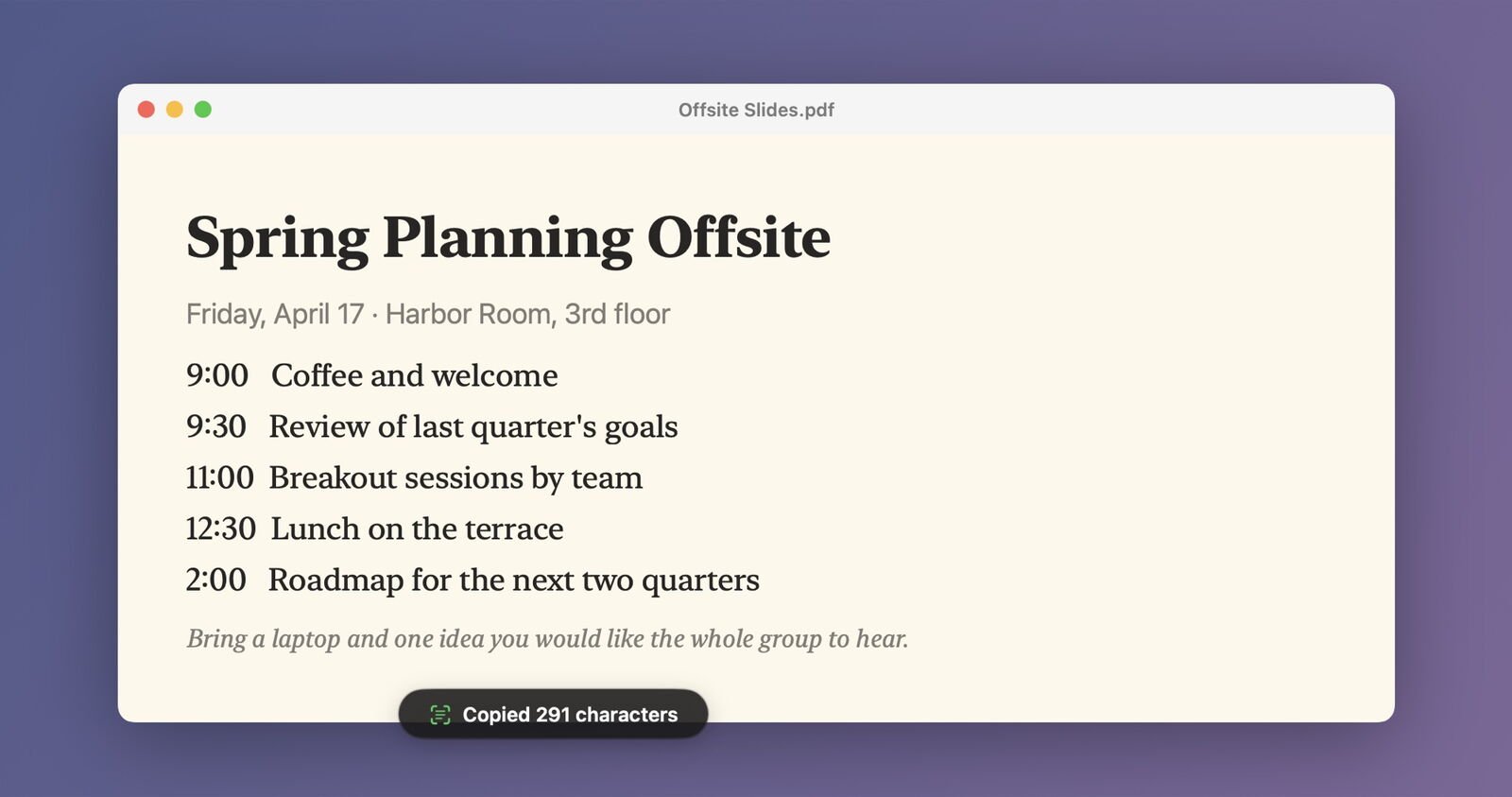
Let go and the text is on the clipboard.
Translate it, even live
Press Control-Option-Command-Y and drag over text in another language. The translation appears in a panel beside it and is copied for you. TextLens uses Apple's translation languages, so once a language is downloaded it works without the internet.
Live translation keeps reading an area, such as subtitles, a chat or a slide, and translates again whenever the text changes. Show it in a panel or right over the original. Press Control-Option-Command-U to start or stop it.
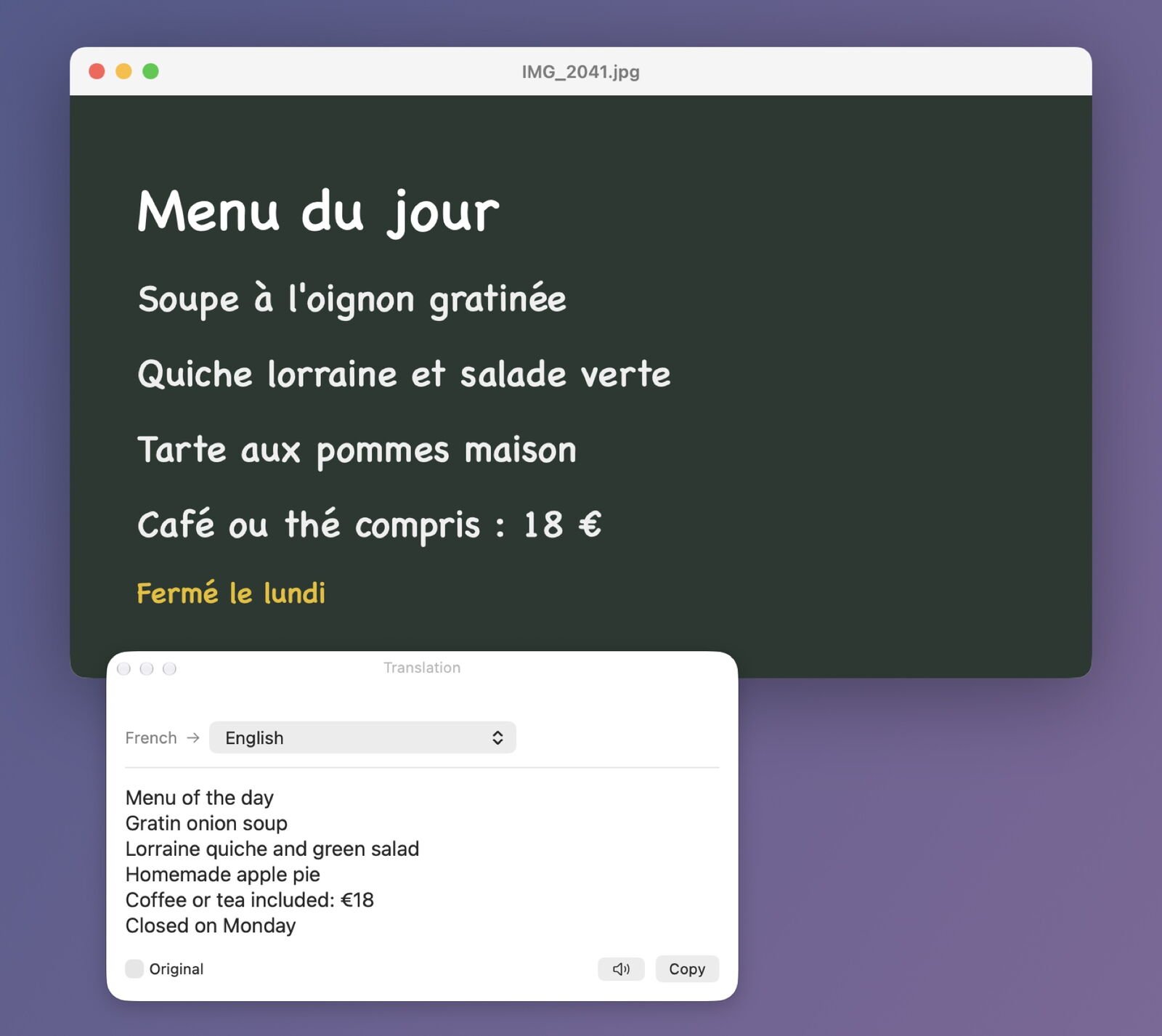
A French menu, translated in a panel next to the photo.
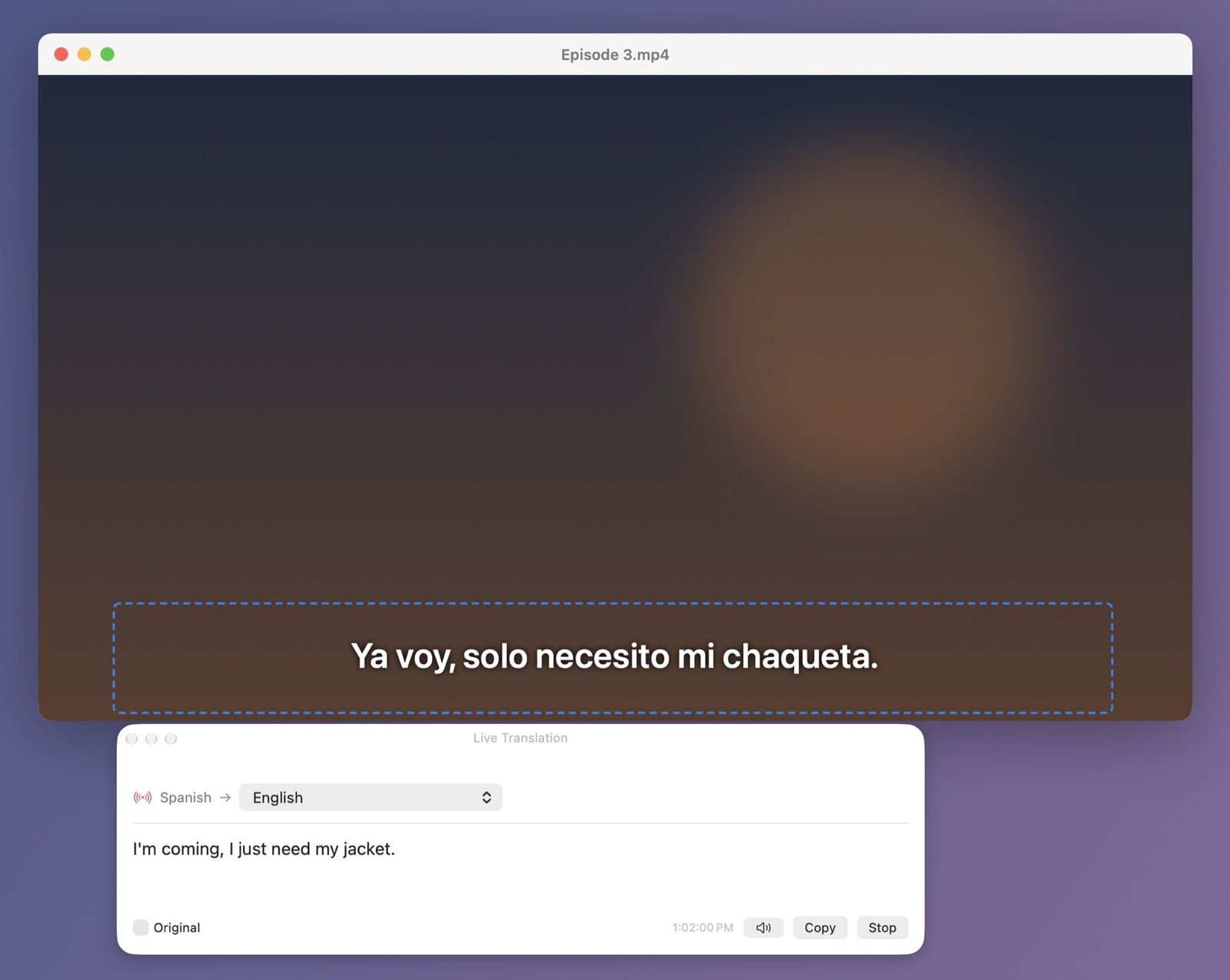
Spanish subtitles translated as they change.
Find anything you've captured
Every capture is saved in History with a picture of where it came from, the app it was in and when. Search by any word, filter by kind, pin the ones you want to keep, and copy, read aloud or translate any of them again. History stays on your Mac and is never synced. Settings also has an Activity graph of how many captures you make: it starts at a week and widens to 30, 90 and 180 days, then a year, as you use TextLens. With iCloud sync on, it adds up your captures from every Mac: switch between This Mac and All Macs, and see how many captures each Mac has made. Only the counts are kept and shared, never what you captured.

Searching for harbor finds the slide and the Wi-Fi code that mention it.
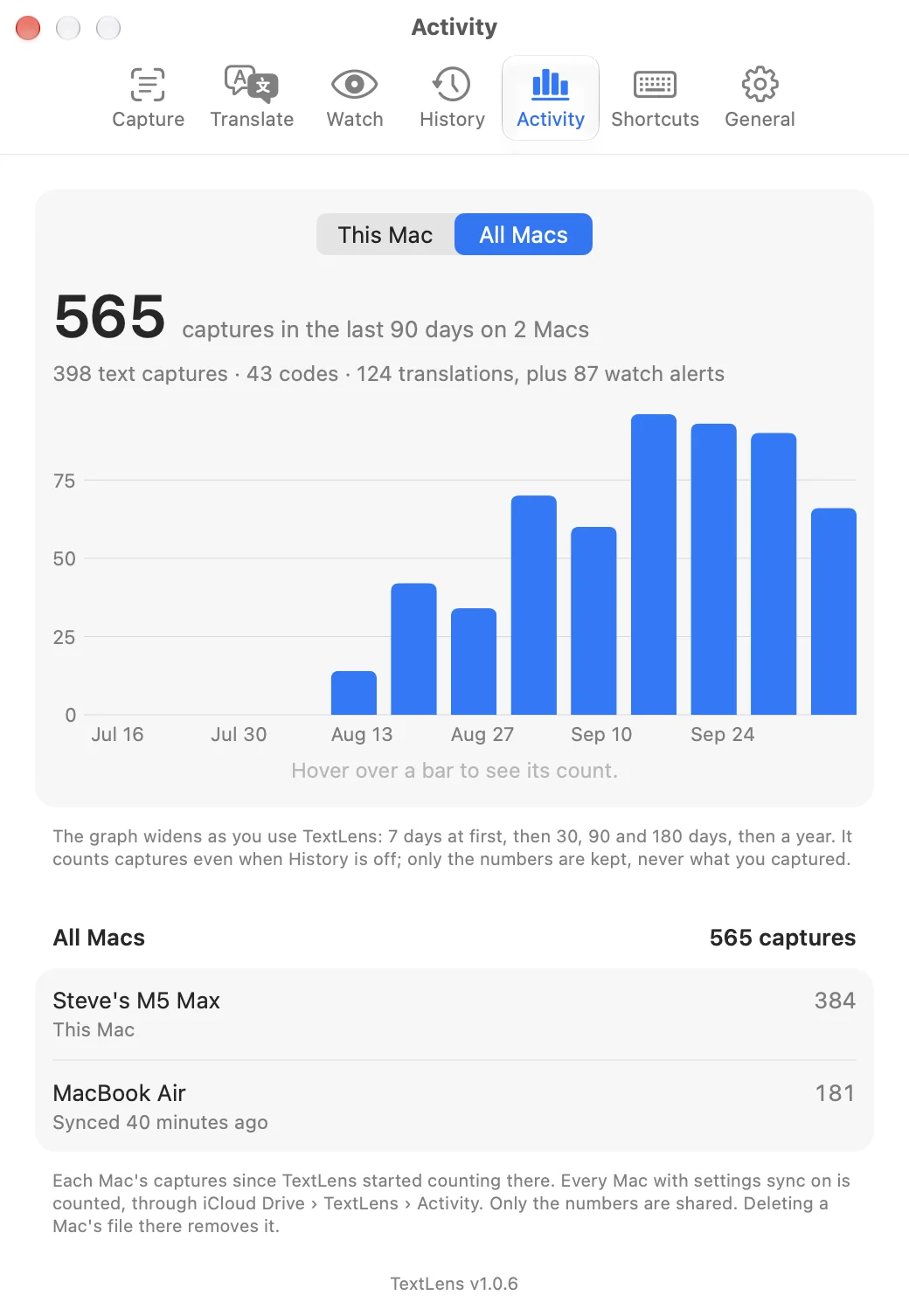
Settings › Activity with All Macs selected: two Macs added together, with each Mac’s total below. Hover over a bar to see its count.
Watch an area for changes
Drag over part of the screen, such as a build status, an order tracker or a price, and TextLens reads it as often as every second. It can alert you on any change, or when a word or pattern appears or goes away. Small flickers are ignored, and each alert lands in History. Press Control-Option-Command-W to start.

Watching a build status. The green outline shows the area being watched.
QR codes, both ways
Press Control-Option-Command-D and drag over a QR or bar code. TextLens copies what it holds and offers what fits: open the link, copy the Wi-Fi password, add the contact, write the email or show the place on a map. You can make QR codes too, for a link, any text or your Wi-Fi network, then copy, save or drag them anywhere.
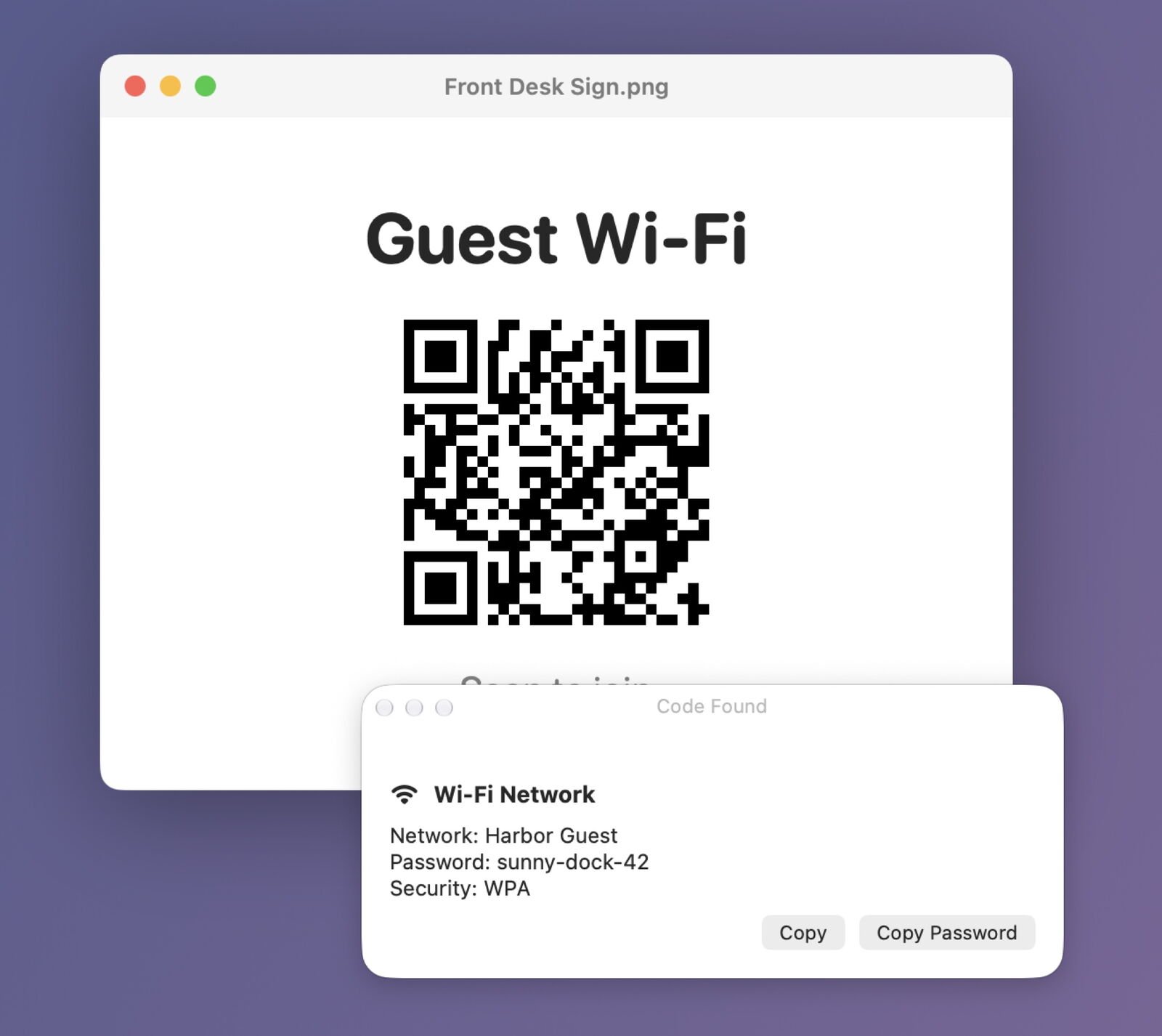
A Wi-Fi sign read in one drag, with the password ready to copy.
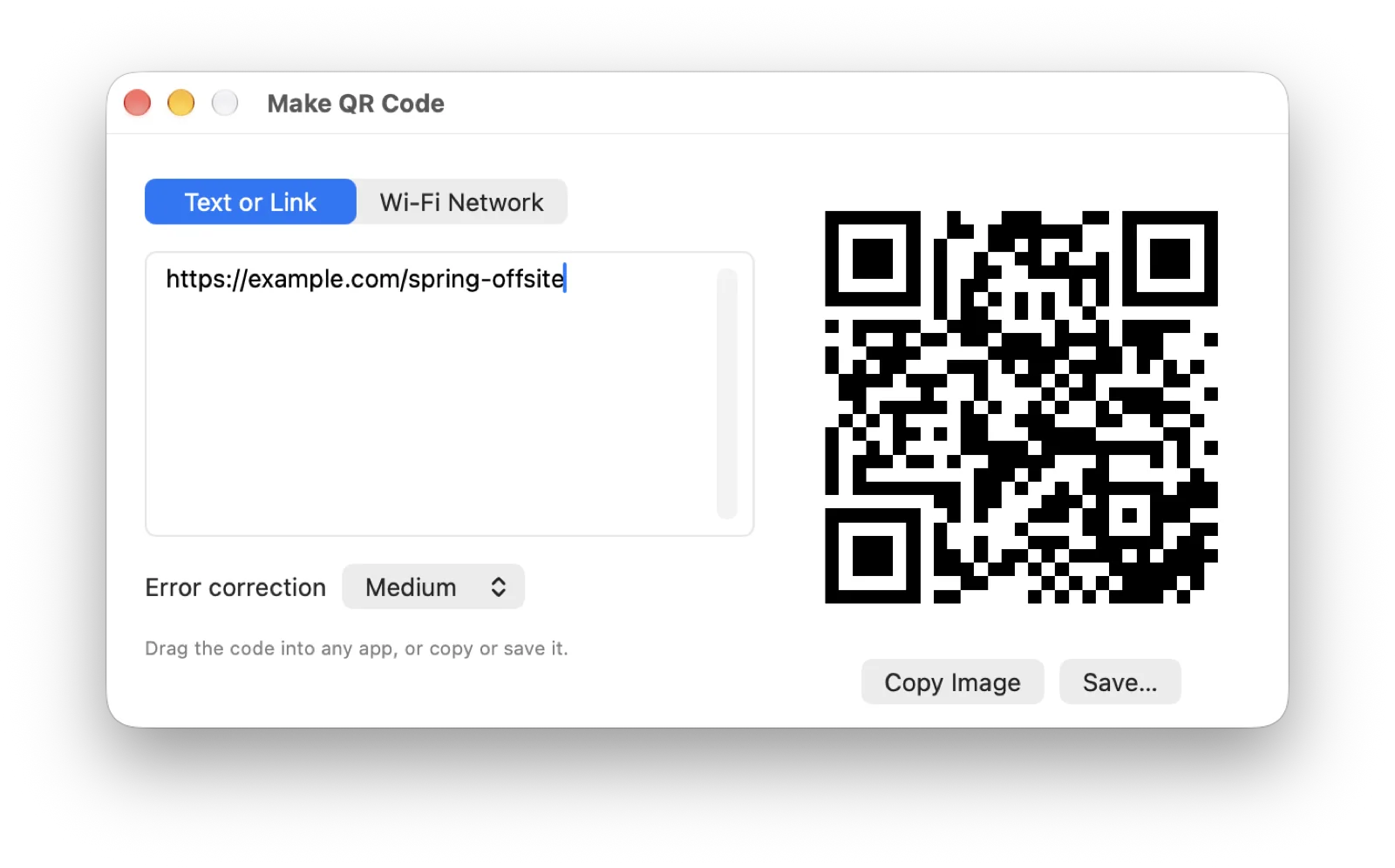
Make a code for a link, any text or a Wi-Fi network.
What it does
Text capture
Copy text from anything on screen, from image and PDF files, or from a copied picture. Choose the language, accurate or fast reading, custom words for names and jargon, and whether line breaks stay.
Translation
Translate a capture, or keep translating an area live, into any of Apple's translation languages, right on your Mac.
History and watching
A searchable history of every capture, with pictures and pins, and a graph of how much you capture over time. Watch any area and get a notification when its text changes.
Your shortcuts, your way
Every shortcut can be changed. Read captured text aloud, open links automatically, and keep TextLens in the menu bar, the Dock, both or neither. Turn on iCloud sync and your settings follow you to every Mac on your iCloud account, and the Activity graph adds up your captures from all of them.
Getting started
Open the downloaded disk image and drag TextLens to Applications. When you open it, it appears in the menu bar, where every tool is listed with its shortcut.
TextLens needs Screen Recording to read the screen. Turn on TextLens in System Settings, Privacy & Security, Screen & System Audio Recording, then open it again. The first time you translate a language, macOS offers to download it.
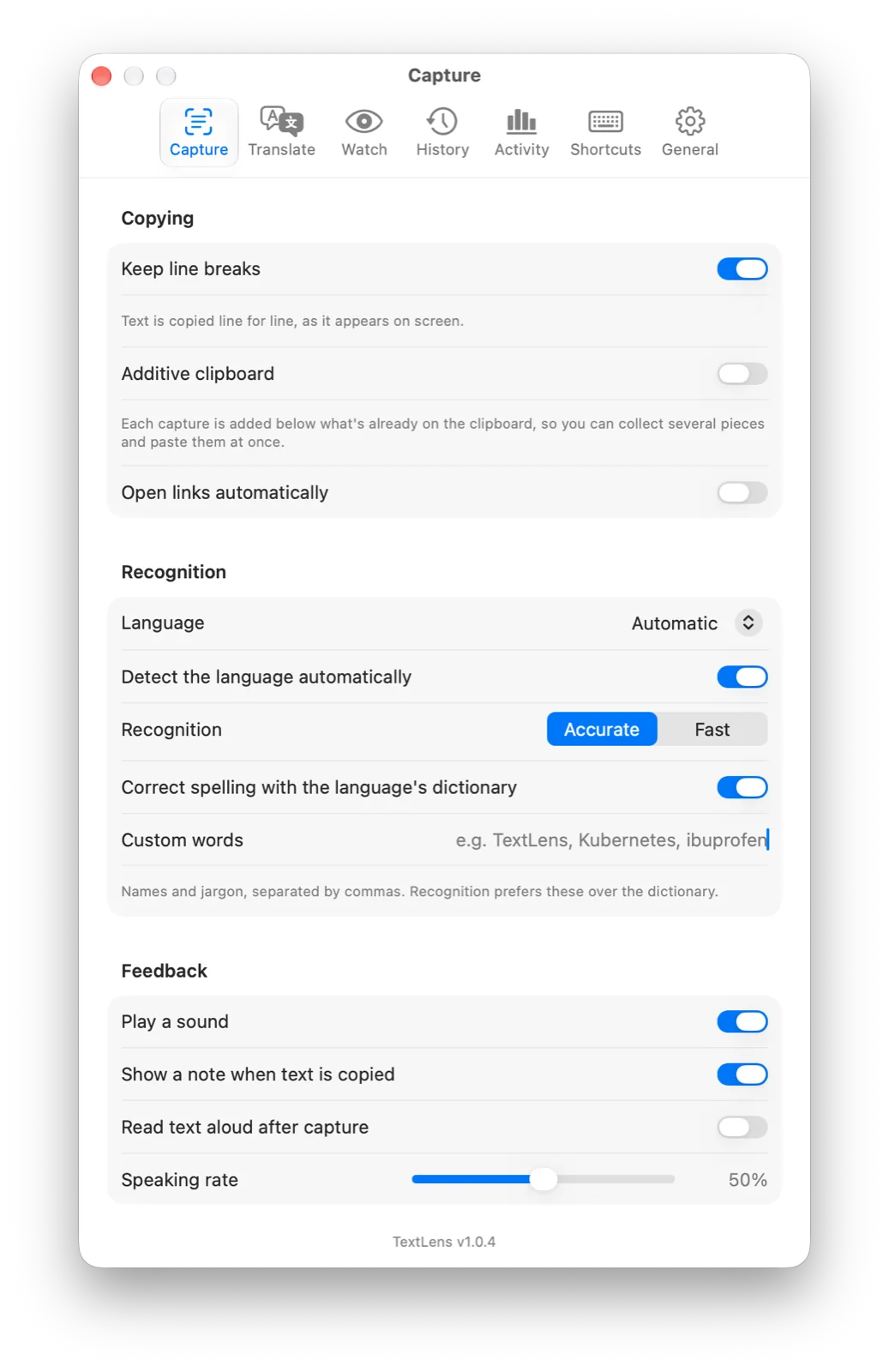
Settings has tabs for capture, translation, watching, history, activity and shortcuts.
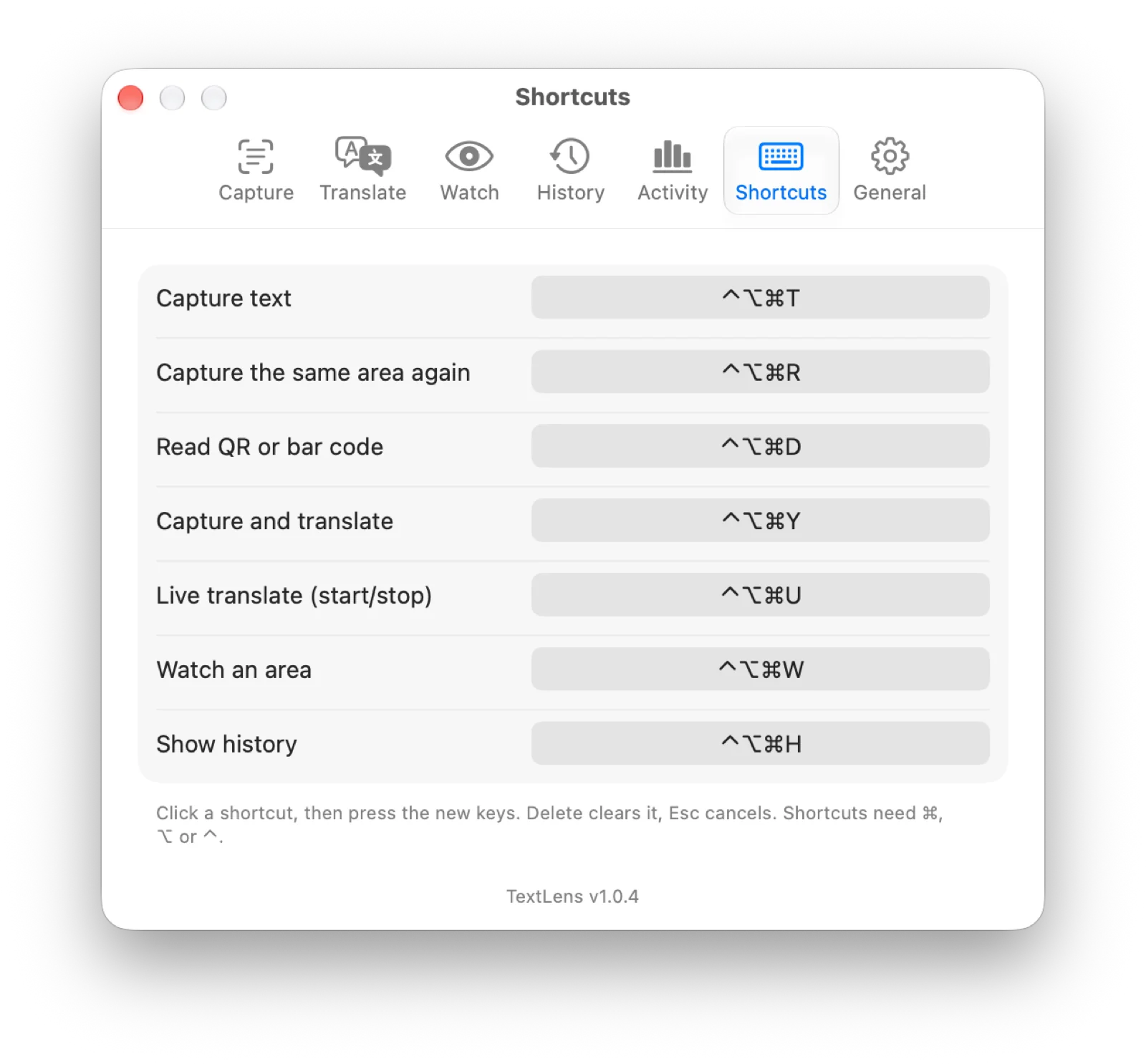
Change any shortcut by clicking it and pressing new keys.
Updates
TextLens checks for a new release once a day, or on a schedule you set in Settings, from every hour to once a year. You also choose what happens: Ask me first, where a notification and the menu offer it and nothing installs until you click, or Install automatically, where it waits until no area is being watched or translated, TextLens has not been used for 30 minutes, no app is presenting, and your Mac is idle. Each download must be signed by the same developer and notarized by Apple before it is installed, and your settings carry over.
Under the hood
TextLens freezes the screen with ScreenCaptureKit and reads it with Apple's Vision framework, then lays the lines back out as rows, columns and paragraphs. Translation uses Apple's Translation framework on your Mac. Nothing you capture is sent anywhere, and TextLens leaves its own panels and outlines out of what it reads.