
StayMounted
Requires macOS 26 or later
macOS forgets file shares after sleep, when Wi-Fi changes, or when a NAS reboots, and anything reading from them fails. StayMounted notices when a share goes missing and quietly puts it back. It can also open your apps once the share is there.
Free. Signed and notarized by Apple.
New: One menu bar icon for all your apps. While ToolHUD is running, StayMounted's menu bar panel moves into ToolHUD's menu. A checkbox in Settings keeps it in the menu bar instead.
Works with ToolHUD
ToolHUD
Press one shortcut and pick from a ring of buttons around your pointer to mount missing shares, pause keeping them mounted or show your shares, or to run features of the other apps on this site. No hard-to-remember key combinations. While ToolHUD runs, StayMounted's menu bar panel moves into ToolHUD's menu too, so one icon holds them all.
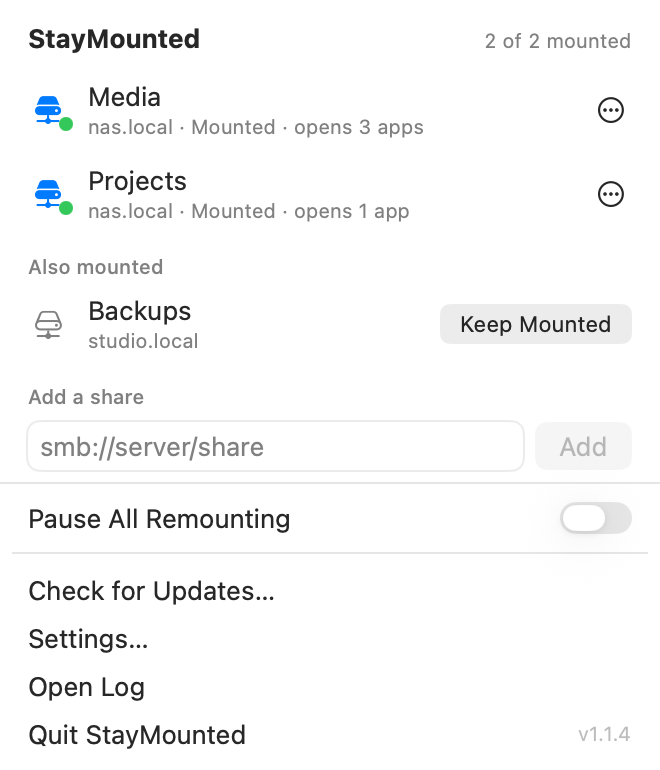
The menu, with sample shares: two kept mounted and one more that is mounted right now.
Every share, one menu
Click StayMounted in your menu bar to see each share it is keeping mounted, whether it is mounted right now, and how many apps it opens when it comes back.
Add a share by address
Type an address such as smb://nas.local/Media, or click Keep Mounted next to a share that is already mounted.
Pause when you want to
Pause one share or all of them from the menu, and choose in Settings whether StayMounted asks before remounting something you ejected.
Choose where it lives
In Settings, show it in the menu bar, the Dock, both or neither, and have it open at login.
Open your apps when a share comes back
Pick apps from the share’s menu and StayMounted opens them, in order, every time the share mounts: at login, after sleep, and after a network drop. Apps that are already open are left alone.
Mark any app as Hidden to open it without bringing it to the front, and set a wait of a few seconds so the share has time to settle first.

Open When Mounted for a sample share: three apps open in order, five seconds after it mounts.
What it does
Uses the password you already saved
StayMounted mounts shares the same way Finder does, using the password Finder saved in your Keychain. It stores no passwords of its own.
Quiet when you are away
Before mounting, it checks that the server is answering, so being off your home network or VPN never produces error dialogs. It tries again as soon as the network changes.
Opens apps when a share mounts
Choose apps to open, in order, every time a share comes back: at login, after sleep, or after a network drop. Apps that are already open are left alone.
Respects Eject
If you eject a share yourself, a small panel counts down ten seconds before remounting it, with a Keep ejected button that pauses that share.
Getting started
Open the downloaded disk image and drag StayMounted to Applications. Open it, click its menu bar icon, and choose a share to keep mounted.
StayMounted turns on Open at Login the first time it runs, so your shares are back after every restart. You can turn that off in Settings.
Updates
StayMounted checks for a new release once a day, or on a schedule you set, from every hour to once a year. In Settings, choose whether updates install themselves while your Mac is idle, ask first, or are never checked for, and use Check Now to look right away. Each download must be signed by the same developer and notarized by Apple, and your settings carry over.
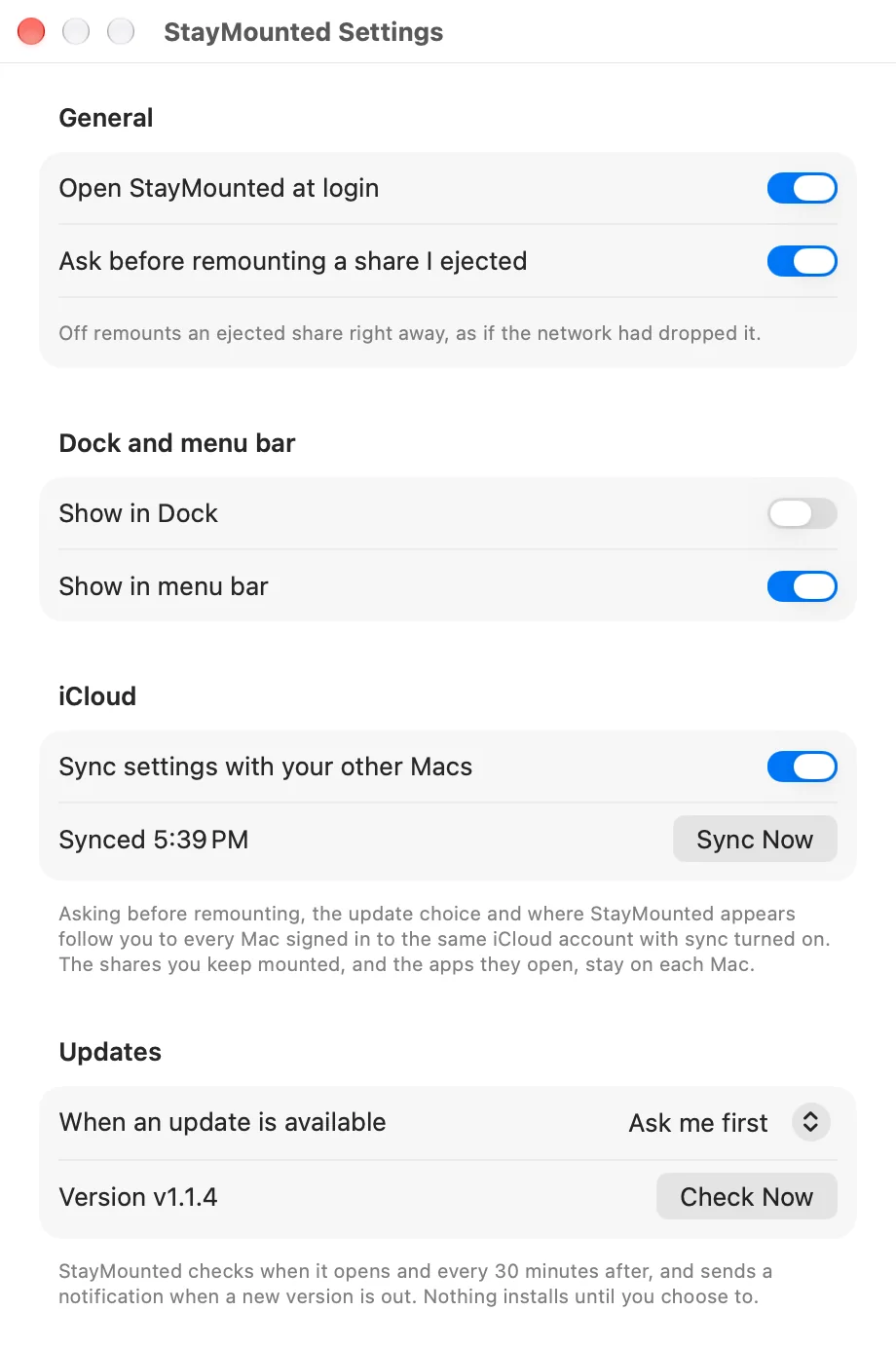
Settings: open at login, asking before remounting, where StayMounted appears, iCloud sync and updates.
Under the hood
StayMounted works with SMB shares. If a share has no saved password, it shows Sign In, which opens the standard macOS sign-in sheet once. You can also type an address such as smb://nas.local/Media to add a share that is not mounted yet.