
DiskLens
Requires macOS 26 or later
When your Mac runs low on space, the hard part is finding where it went and what is safe to remove. DiskLens scans a folder or drive in seconds, draws every file as a block sized by the space it takes, and labels each one by how safe it is to delete.
Free. Signed and notarized by Apple.
New: One menu bar icon for all your apps. While ToolHUD is running, DiskLens's menu bar panel moves into ToolHUD's menu. A checkbox in Settings keeps it in the menu bar instead.
Works with ToolHUD
ToolHUD
Press one shortcut and pick from a ring of buttons around your pointer to open DiskLens or scan your home folder, or to run features of the other apps on this site. No hard-to-remember key combinations. While ToolHUD runs, DiskLens's menu bar panel moves into ToolHUD's menu too, so one icon holds them all.
See what is filling your disk
A treemap draws every file as a rectangle whose area matches its size, so the biggest space users stand out at once. Colors show the type of file, and clicking an item explains it: how big it is, what it is, and how safe it is to delete.
Every item is labeled Safe to delete, Your files, Use caution or Protected, with the reason shown. Files macOS needs cannot be selected for deletion at all.

A sample folder of made-up files. The selected installer is marked Safe to delete.
Clean up the usual suspects
DiskLens gathers the common space users in one place: app caches, logs, Xcode build data, simulators, iPhone backups, installers, old downloads and large files untouched for a year. Add what you want to the Trash list, review it, then move everything to the Trash together.
Everything goes to the Trash, so you can put it back, and Cancel is the default button, so a stray Return deletes nothing.
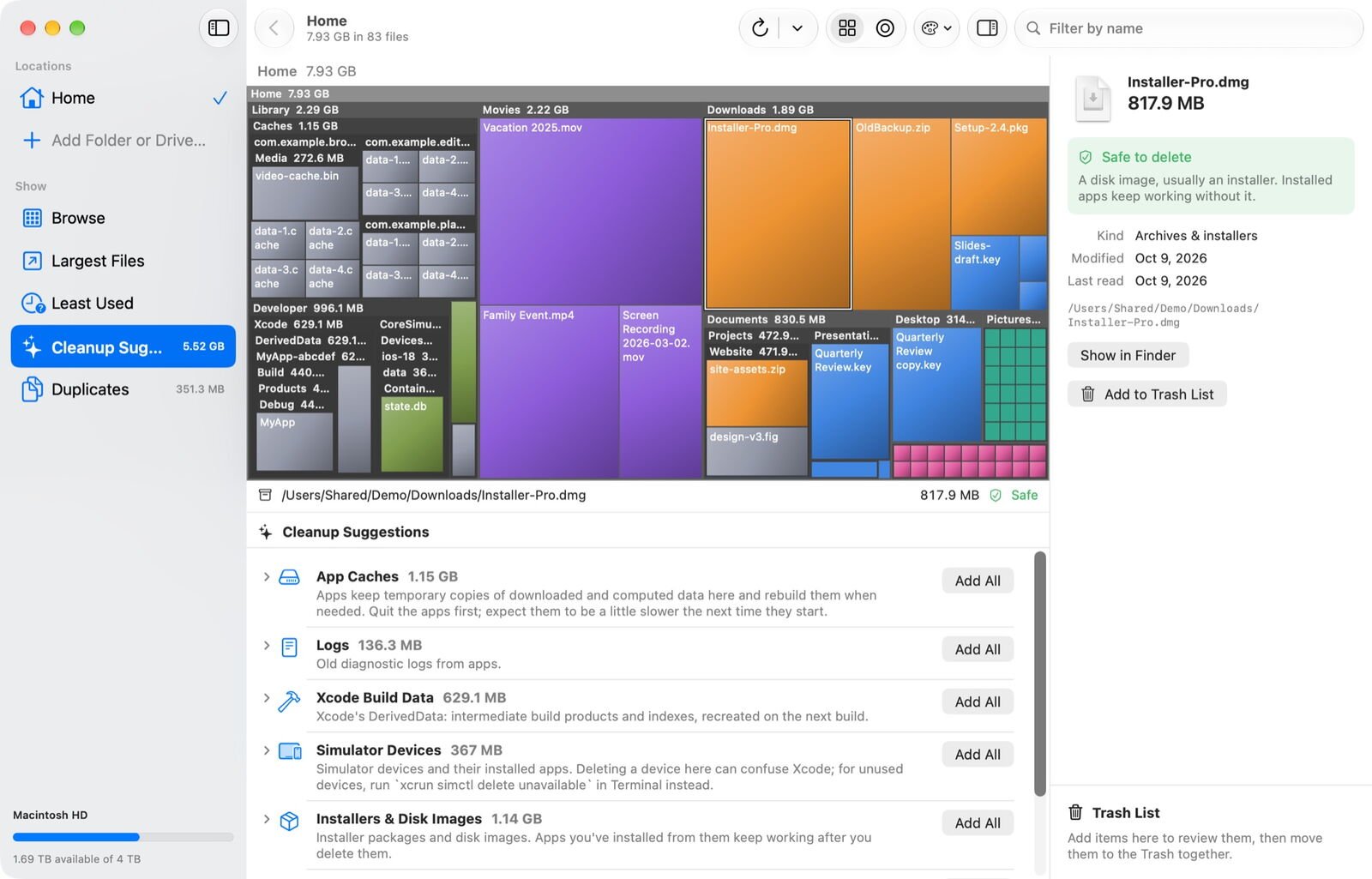
Cleanup Suggestions, with the space each group could free.
Find duplicates by content
Duplicates compares what is inside files, not just their names, and shows how much space you would free by keeping one copy. Copies that share storage on APFS are marked, because deleting one of those frees nothing.

Two sets of identical files in the sample folder.
Or see it as rings
Switch to a sunburst to see your folders by depth, each ring a level down. Double-click a folder to zoom into it.

The same sample folder as a sunburst.
What it does
A map of your disk
A treemap shows every file as a rectangle sized by the space it uses, so the biggest ones stand out at once. Switch to a sunburst to see it by folder depth, and double-click any folder to zoom in.
Every item labeled by safety
Safe to delete covers caches, logs, build data and installers. Your files are documents and media, so deleting them is your call. Use caution covers app data and libraries such as Photos and Mail, and asks you to confirm. Files macOS needs are protected and cannot be selected at all.
Suggestions and duplicates
DiskLens gathers the usual space users, such as old downloads, iPhone backups, simulators and files untouched for a year. It finds duplicate files by comparing their contents, not just their names.
Nothing is gone for good
Items go on a Trash list that you review first, then move to the Trash together, so you can always put them back. Cancel is the default button, so a stray Return deletes nothing.
Getting started
Open the downloaded disk image and drag DiskLens to Applications. When you open it, it starts scanning your home folder right away.
For complete results, click Open Privacy Settings in the banner and turn on Full Disk Access for DiskLens. Without it, macOS hides folders such as Mail and Messages from every app, so their size is not counted.
Updates
DiskLens checks for a new release once a day, or on a schedule you set in Settings, from every hour to once a year. You also choose what happens: install automatically, ask first, or never check. An automatic update waits until no scan is running, nothing is waiting in the Trash list and your Mac is idle. Each download must be signed by the same developer and notarized by Apple before it is installed, and your settings carry over. Turn on iCloud sync in Settings and where DiskLens appears, its colors, chart style and cleanup threshold follow you to your other Macs.
Under the hood
Rescans are fast because DiskLens saves each scan and then rescans only the folders macOS reports as changed. Sizes are the space actually used on disk: hard links count once, and iCloud files that are not downloaded count only what they take locally.