


JumpFolder
Requires macOS 26 or later
JumpFolder makes every app's Open and Save dialogs quicker. The folder you want is often already open in a Finder window, so with a dialog in front, just click that Finder window: the dialog goes to its folder and Finder stays behind. Buttons above the dialog list your recent and favorite folders and Finder's open windows, and a bar below it shows the dialog's folder path and the folders this app uses most.
Free. Signed and notarized by Apple.
New in 1.0.6: the x-ray outline stays on screen for as long as you point at a hidden Finder window. New in 1.0.5: x-ray for Finder windows you can't see, behind a full-screen app, on another Space or under other windows. New in 1.0.4: folders in OneDrive, Dropbox, Google Drive and iCloud Drive open without the Go to Folder sheet. New in 1.0.2: buttons above and below every dialog, with each app's own recent or most used folders, plus per-app settings.
Command line and AI agents. With the jumpfolder command, Claude Code, Codex and your own scripts can see the dialog in front, take it to a folder, and list or change recent folders, favorites and settings. MCP apps such as Claude Desktop get the same through jumpfolder mcp.
Click a Finder window to jump
The folder you want is often already open in a Finder window. With an Open or Save dialog in front, click that Finder window and the dialog goes to its folder. Finder doesn't come forward, so you keep typing a name or picking a file in the dialog.
Point at a Finder window first and it lights up with a colored outline, and a "Jump to" label with its folder's name follows the pointer, so you know where the dialog will go. Hold Option (⌥) while you click to bring Finder forward instead, the way it always worked. Can't see the Finder window, because the app is full screen, the window is on another Space, or other windows cover it? Point where it sits, outside the dialog: a dashed x-ray outline shows it, and a click there takes the dialog to its folder. Turn each of these off in Settings, Dialogs.
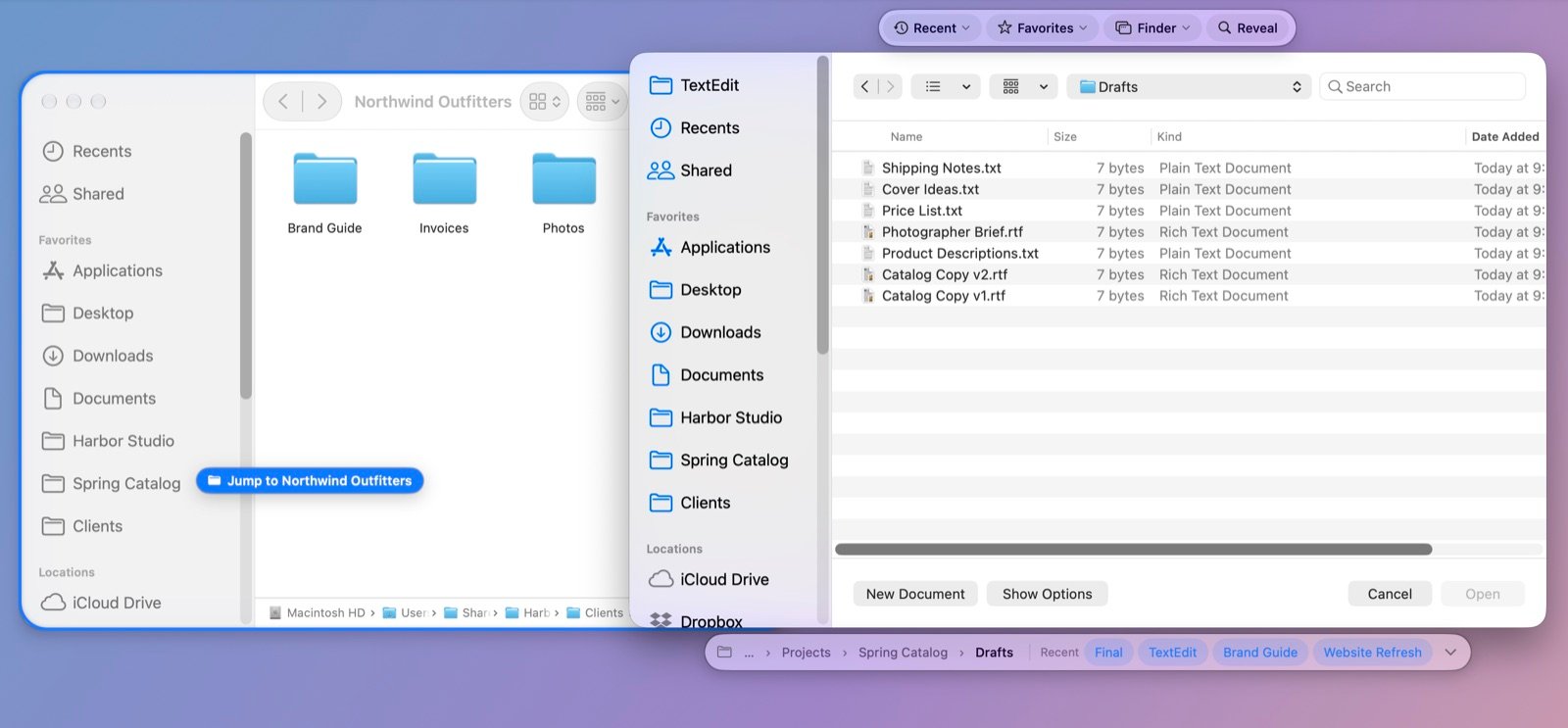
Pointing at a Finder window behind TextEdit's Open dialog. Every folder and file in these pictures is a made-up sample.
Buttons above and below the dialog
Above the dialog: Recent, Favorites, Finder and Reveal. Recent lists the folders this app's dialogs used, then every app's. Favorites holds the places you choose, with Add to Favorites for the folder the dialog shows. Finder lists the folder of every open Finder window, and Reveal opens the dialog's folder in Finder.
Below the dialog: its folder path, so one click goes up a level or two, then a few folders to jump to and a chevron for the rest. Show the app's recently used folders, its most used ones, or your favorites. Recently Used and Most Used are kept for each app, so your spreadsheet folders don't crowd your writing folders. Both bars follow the dialog as it moves and resizes, and hide when it closes.
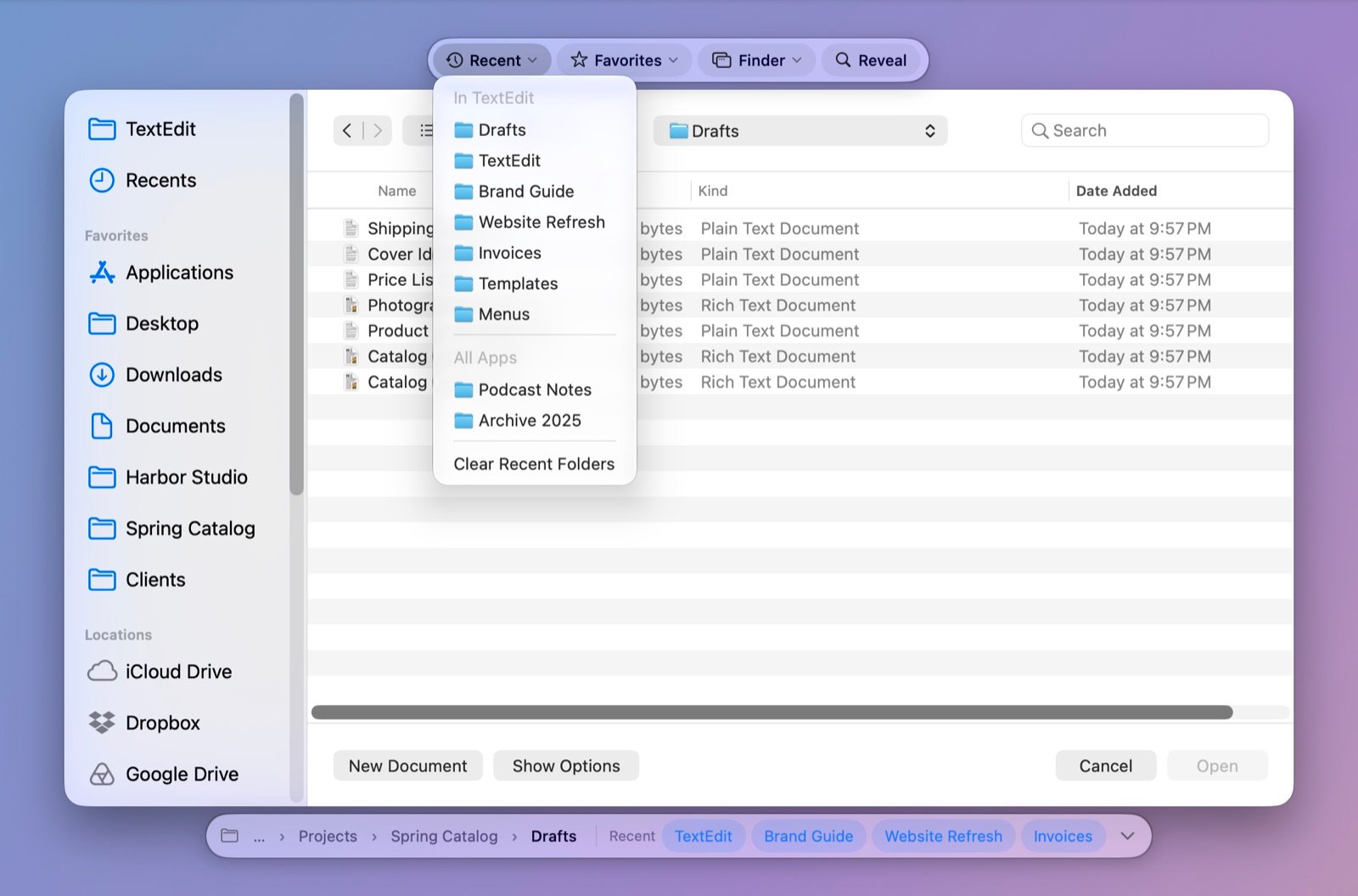
TextEdit's Open dialog with the Recent menu: TextEdit's own folders first, then other apps'. Below, the folder path and TextEdit's recent folders.
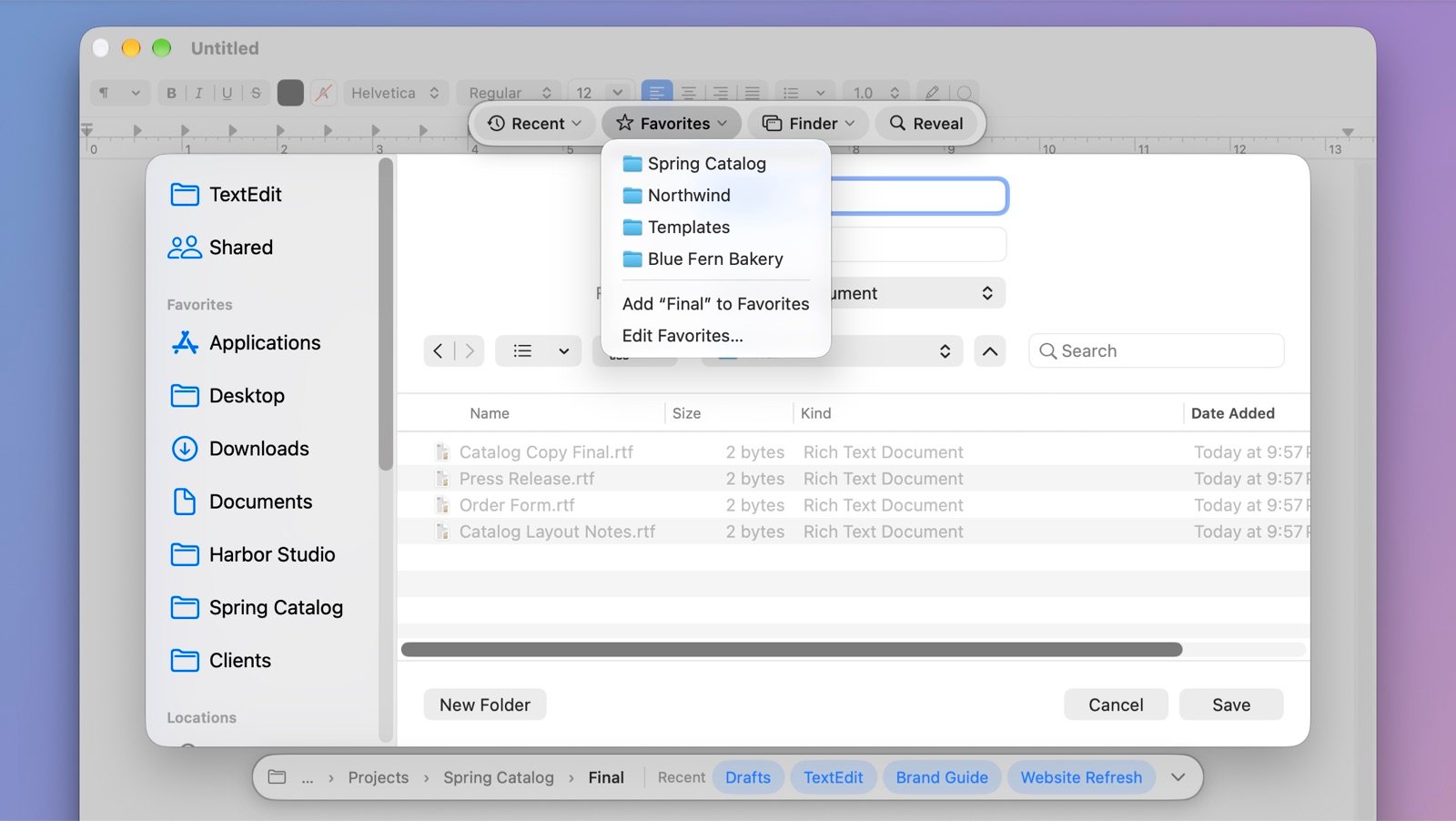
A Save dialog with the Favorites menu, including Add "Final" to Favorites for the folder the dialog shows.
Your apps, your keys
In Per-App Settings, give an app its own choice for the bar below the dialog, or have JumpFolder leave its dialogs alone: no buttons, clicks go through to Finder, and its folders aren't remembered. Prefer one column of buttons on the dialog's side? Choose Style, Strip on the side.
Give Recent, Favorites, Finder and Reveal their own keyboard shortcuts. They work while a dialog is in front, so you can jump without reaching for the mouse.
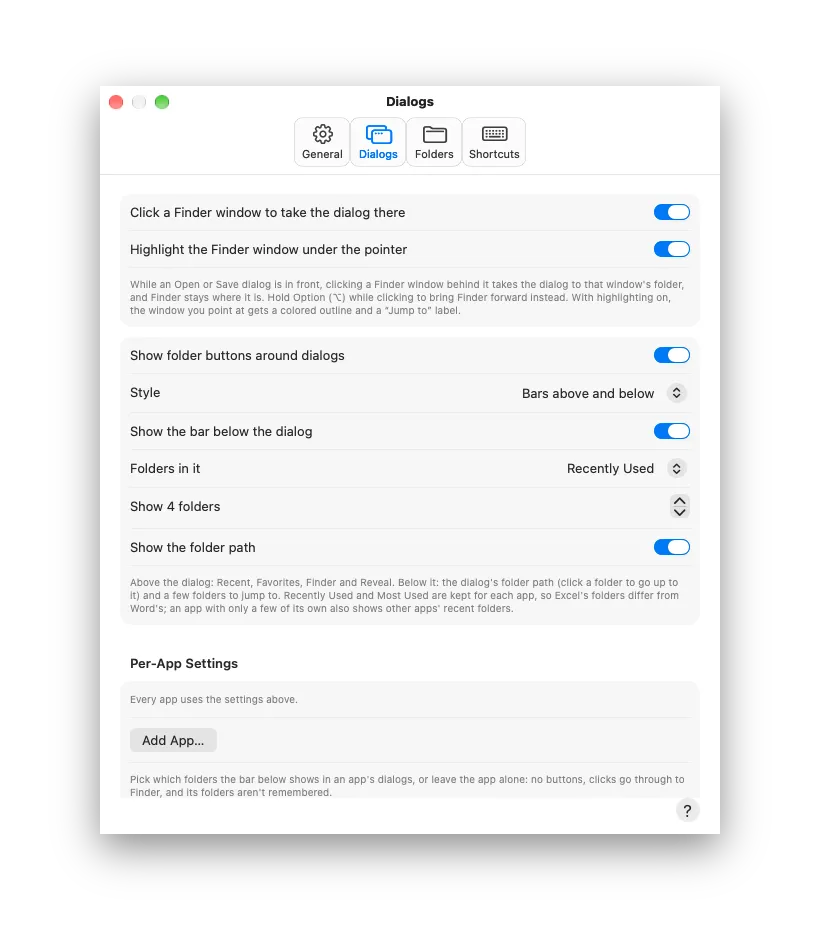
Settings, Dialogs: clicking and highlighting Finder windows, the bars above and below dialogs, and per-app settings.
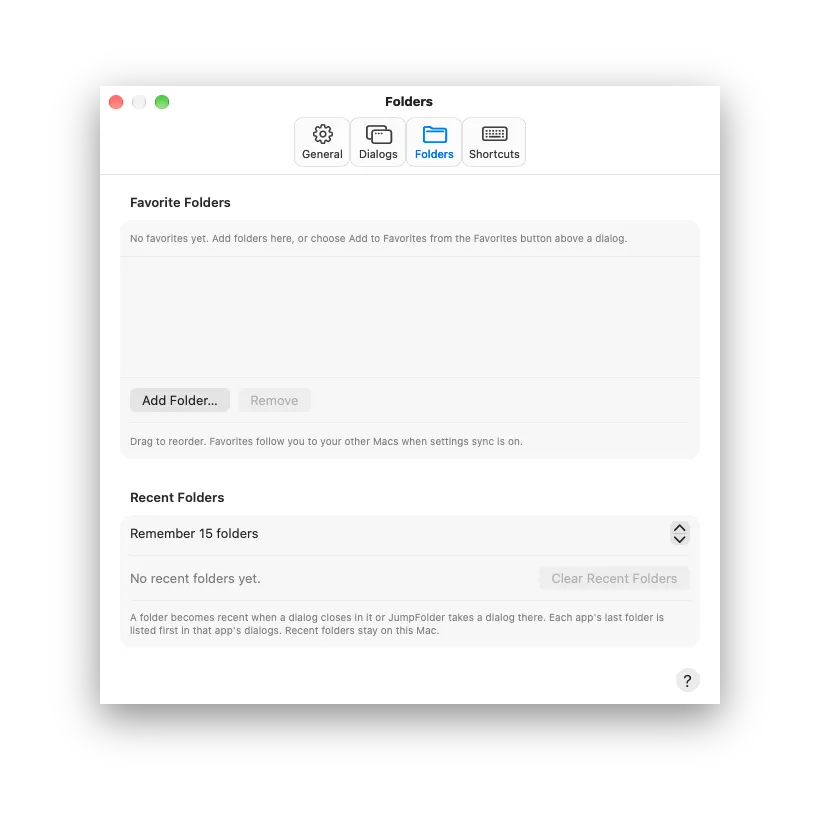
Settings, Folders: your favorite folders, in the order you drag them, and how many recent folders to remember.
Works with your other apps
JumpFolder's menu can live inside ToolHUD's menu, so one menu bar icon holds them all, and ShortcutsLens lists JumpFolder's shortcuts.
jumpfolder:// links open the Recent Folders, Favorite Folders and Finder Windows lists, reveal the dialog's folder, or take the dialog in front to any folder, from Shortcuts, scripts and ToolHUD buttons.
What it does
Click to jump
Click a Finder window behind a dialog and the dialog goes to its folder.
Finder stays behind
The window under the pointer lights up first, even behind a full-screen app. Hold ⌥ to bring Finder forward instead.
X-ray hidden windows
Point where a hidden Finder window sits, behind a full-screen app or on another Space, and a dashed outline shows it.
Bars above and below
Folder buttons above, the folder path and quick folders below.
Recent Folders
Each app's own folders first, recently used or most used.
Favorite Folders
Your places in your order, with Add to Favorites in every dialog.
Finder Windows
The folder of every open Finder window, one click away.
Reveal in Finder
Open the dialog's folder in Finder.
Shortcuts
A key for each list that works while a dialog is in front.
Per-app settings
Pick each app's folders below the dialog, or leave its dialogs alone.
Command line
The jumpfolder command takes the dialog in front to a folder for scripts and AI agents.
Help and sync
Searchable Help built in, and settings that follow you to every Mac through iCloud Drive.
Your Mac, your way
Show it in the menu bar, the Dock, both or neither, and choose System, Light or Dark.
Getting started
Open the downloaded disk image and drag JumpFolder to Applications. Open it, then turn on JumpFolder in System Settings, Privacy & Security, Device Control and Data Access (Accessibility on older macOS). It needs this to see dialogs and the clicks around them.
The first time you click a Finder window behind a dialog, macOS asks to let JumpFolder control Finder, so it can read which folder that window shows. Click Allow. Open Help from the JumpFolder menu, with ⌘?, or with the ? button in Settings.
Updates
JumpFolder checks for a new release once a day, or on a schedule you set in Settings, from every hour to once a year. You also choose what happens: Ask me first, where a notification and the menu offer it and nothing installs until you click, or Install automatically, where it waits until no Open or Save dialog is open, no app is presenting or keeping the screen awake and your Mac has been idle for 2 minutes. Each download must be signed by the same developer and notarized by Apple before it is installed, and your settings carry over. Each update shows what changed.
Under the hood
JumpFolder is a native Mac app written in Swift. On macOS 26 and later, Open and Save dialogs run in a separate system service, but Accessibility still shows each one as a window of the app that opened it, so JumpFolder can place its buttons around it. To take a dialog somewhere, it starts from the nearest place the dialog has a key for, such as your home folder, and opens one folder after another in the dialog's own list, so no Go to Folder sheet pops up. Only for a folder the list can't show, such as a hidden one, does it use Go to Folder (⇧⌘G). Finder windows don't say which folder they show, so JumpFolder asks Finder and matches the window by its position. Favorites and settings sync through iCloud Drive; recent folders stay on each Mac.