
BatteryLens
Requires macOS 26 or later
BatteryLens shows the battery of everything around your Mac, in the menu bar and on your desktop: the Mac itself, AirPods, Bluetooth and Logitech mice and keyboards, game controllers, and even keyboards that never report a level, which it estimates from how much you use them.
Free. Signed and notarized by Apple.
Now in beta. Tell us on GitHub about a device it doesn't show yet.
Every battery in one place
Apple's Batteries widget knows Apple devices and a few others. BatteryLens reads every source macOS offers: the power source list, the Bluetooth battery level many accessories report, Logitech devices through their own protocol, keyboards and mice that send their level along with their input, game controllers, and System Information, which keeps AirPods levels after they disconnect.
The menu bar icon shows the lowest battery, or one device you choose. Click it for every device with its level, whether it is charging, and how long it should last. A device that disconnects stays in the list, dimmed, with its last-known level and how long ago that was.
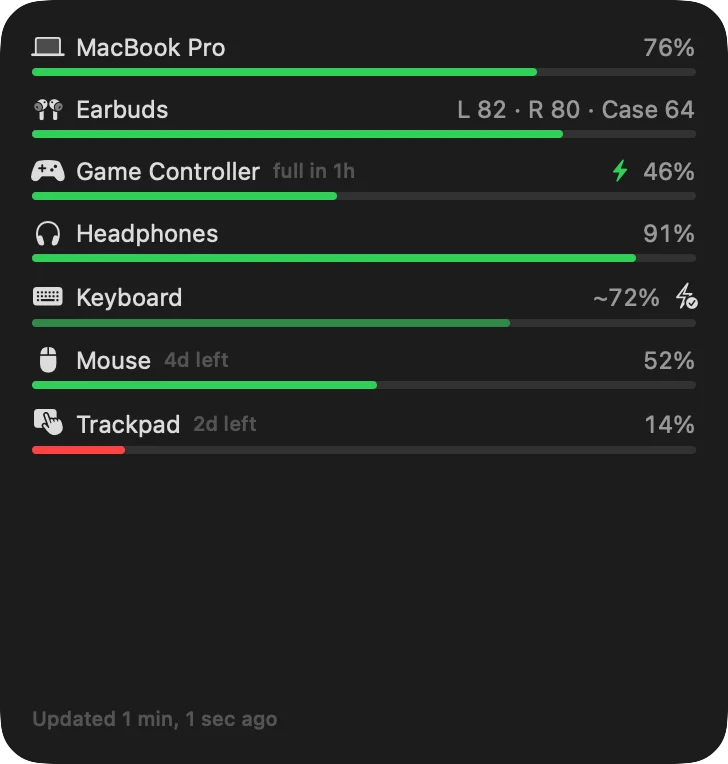
The bars widget, large: time left beside each device, the estimated keyboard with its Mark charged button, and a trackpad running low.
A widget, your way
Add BatteryLens to your desktop or Notification Center in small, medium, large or extra large. Each widget shows rings, like Apple's, or bars with numbers, for every connected device or just the ones you pick, and can include switched-off devices with their last-known level. Earbuds show each bud and the case.
The widget updates when a level moves by 5%, a device connects or starts charging, or a battery crosses its low level, so it stays current without spending the refreshes macOS allows on changes you would never notice.
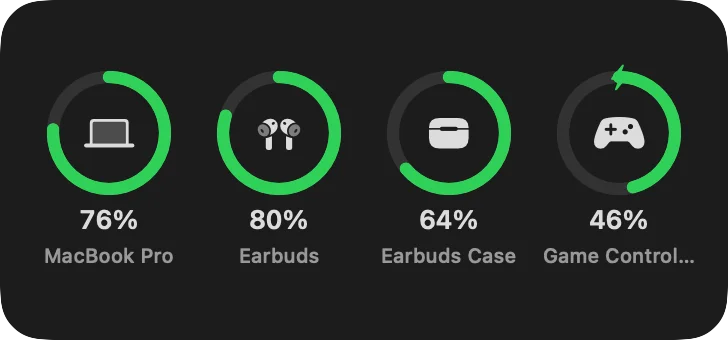
The rings widget, medium: earbuds get a second ring for their case, and a charging controller shows a bolt.
Even for keyboards that report nothing
Some keyboards never tell the Mac their battery level. Mark one as charged, from Settings or the widget, and BatteryLens counts the minutes you use it, never what you type, and estimates what is left. Each time it runs flat, one click teaches BatteryLens how long a charge really lasts.
Move the keyboard between Macs and the estimate keeps up: every Mac running BatteryLens adds its use through iCloud Drive. For a keyboard you also use with an iPad or another computer, turn off Report this device and BatteryLens leaves it out.
History, time left and alerts
Settings shows a chart of each battery over the last day, week or month, with charging shaded. From that history BatteryLens works out when a battery will run out or finish charging, and shows it in the menu, the widget and Settings.
Set a low-battery level for each device and get a notification once per discharge, plus an optional one when a battery is fully charged. Click a notification to go straight to that device.
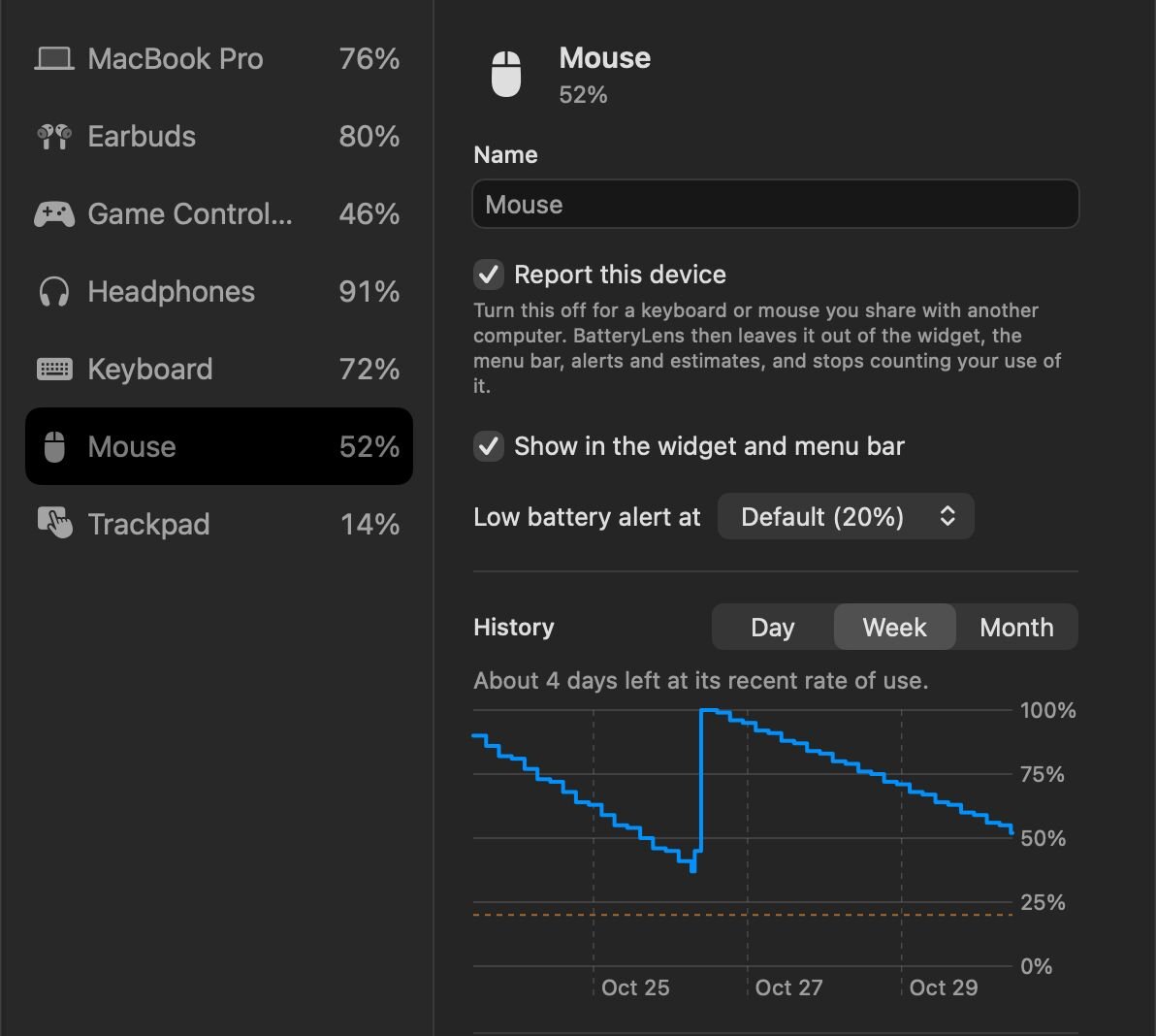
Settings, Devices: a week of a mouse battery, with a charge in the middle and the time it has left.
What it does
Menu bar
The lowest battery at a glance, and every device one click away.
Desktop widget
Rings or bars in four sizes, for all your devices or the ones you pick.
More devices
Logitech, Bluetooth LE, HID battery reports, game controllers, and AirPods after they disconnect.
Estimates
A level for keyboards that never report one, learned from how you use them.
History
A chart of each battery over a day, a week or a month.
Time left
When each battery runs out or finishes charging.
Alerts
Low battery once per discharge, at a level you set per device, and fully charged if you like.
Per-device settings
Rename, hide, set the low level, stop reporting, or forget a device.
Sync
Settings and keyboard use follow you to every Mac through iCloud Drive.
Automation
batterylens:// links for Shortcuts, scripts and ToolHUD.
Your Mac, your way
Show it in the menu bar, the Dock, both or neither, choose System, Light or Dark, and open it at login.
Getting started
Open the downloaded disk image and drag BatteryLens to Applications. Open it, and its icon appears in the menu bar, with a short setup that explains the permissions. All are optional: Bluetooth and Input Monitoring let it read more devices, and Notifications are for alerts. BatteryLens never reads what you type.
To add the widget, right-click the desktop, choose Edit Widgets and search for BatteryLens. Right-click a placed widget and choose Edit to pick rings or bars and which devices it shows.
Updates
BatteryLens checks for a new release once a day, or on a schedule you set in Settings, from every hour to once a year. You also choose what happens: Ask me first, where a notification and the menu offer it and nothing installs until you click, or Install automatically, where it waits until no app is presenting or keeping the screen awake and your Mac has been idle for 2 minutes. Each download must be signed by the same developer and notarized by Apple before it is installed, and your settings carry over.
Under the hood
BatteryLens is a native Mac app written in Swift, with a WidgetKit widget. It reads levels from IOKit power sources and HID devices, Core Bluetooth, Logitech's HID++ protocol and the Game Controller framework, merges what each source sees into one list, and keeps history and estimates on your Mac. Nothing leaves your Mac except your settings and keyboard use, to your own iCloud Drive.