
AudioLens
Requires macOS 26 or later
AudioLens gives every app on your Mac its own volume, from silent to 150%, without touching the system volume. Send any app to the speakers or headphones you choose, and let each output device keep its own volume and EQ, ready the moment it connects.
Free. Signed and notarized by Apple.
New: One menu bar icon for all your apps. While ToolHUD is running, AudioLens's menu bar menu moves into ToolHUD's menu. A checkbox in Settings keeps it in the menu bar instead.
A volume for every app
macOS has one volume for everything, so a video call ends up as loud as the music behind it. AudioLens lists every app that's playing with its own slider. Turn one down, mute it, or boost a quiet one up to 150%, and a soft limiter keeps boosted sound from distorting. Volumes are remembered, so an app comes back at its own level the next time it plays.
Send an app to a different output than the rest of your Mac, for example a call to your AirPods while music stays on the speakers. Pin an app to keep it in the list while it's silent, or ignore it and AudioLens leaves it completely alone.
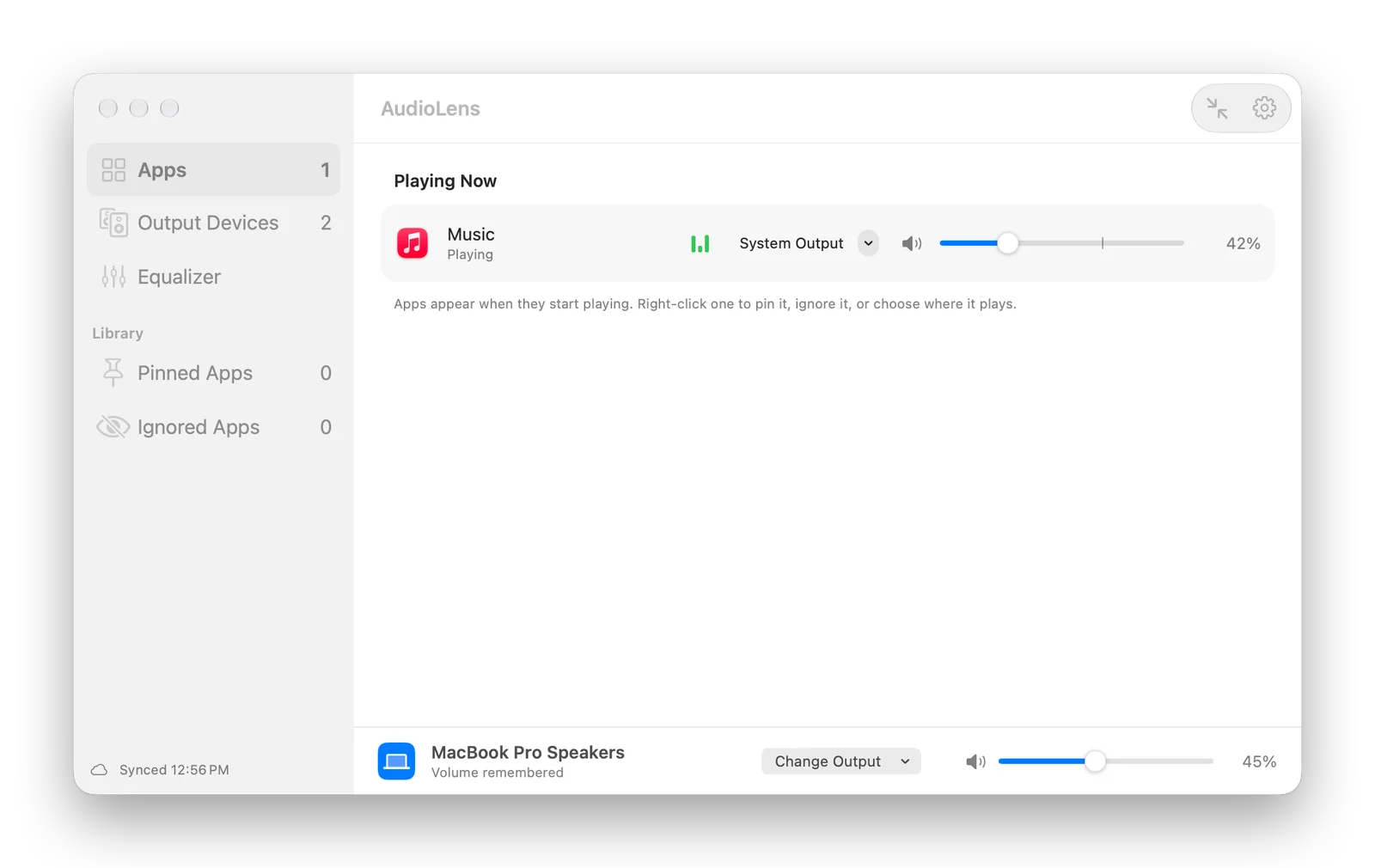
Source List, the default layout: each playing app with its level, output and volume, and the current output device along the bottom.
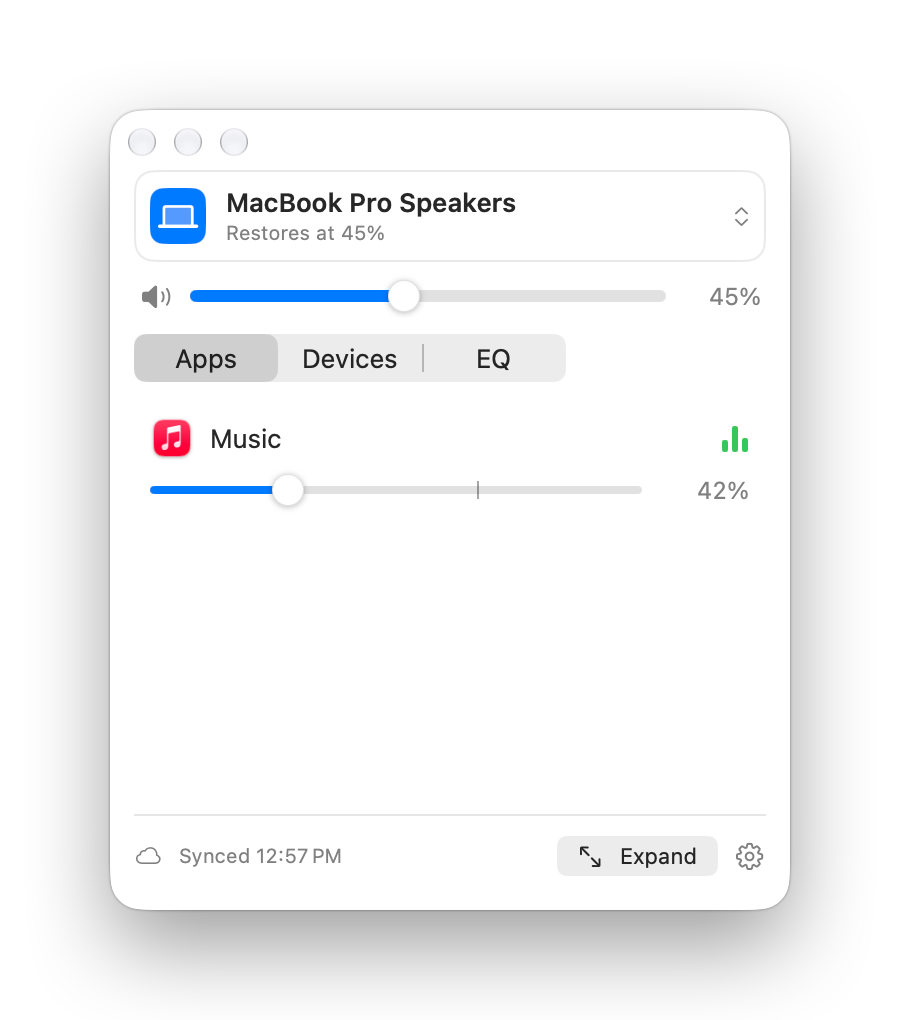
The compact panel. The menu bar icon opens it too.
Pick the layout that suits you
Choose one of four layouts in Settings or the View menu, with Command-1 to Command-4. Source List puts apps and devices in a sidebar. Mixing Desk lines apps up as channel strips with level meters, next to the output device. Dial Board gives each app a knob under a row of output devices. Device Inspector shows one device's volume, restore choice and equalizer beside the apps playing to it.
Any layout shrinks to the compact panel with Shift-Command-C, and each layout remembers its own size and position.
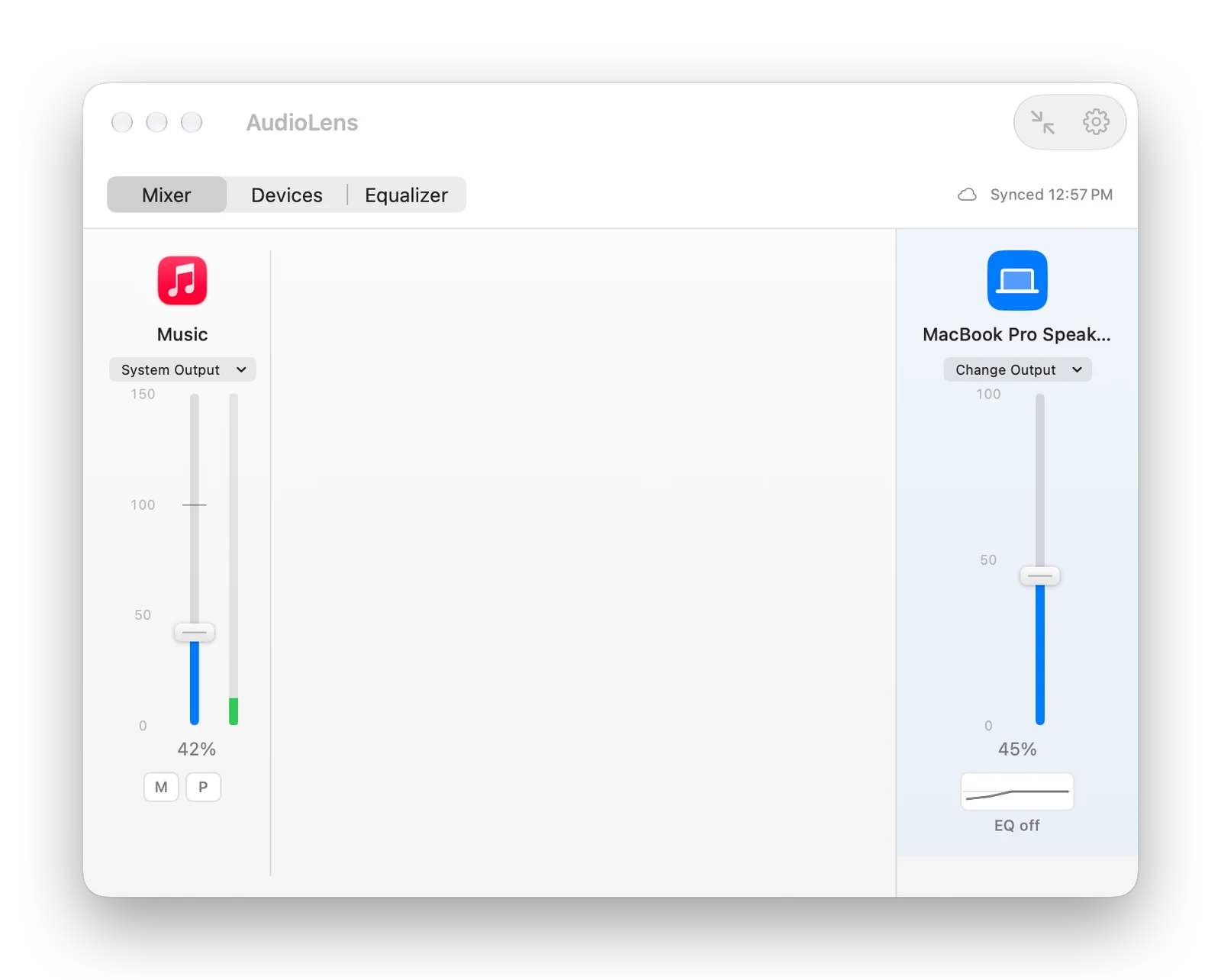
Mixing Desk: a channel strip for each app, with the output device on the right.

Dial Board: a knob for each app, with the output devices along the top.
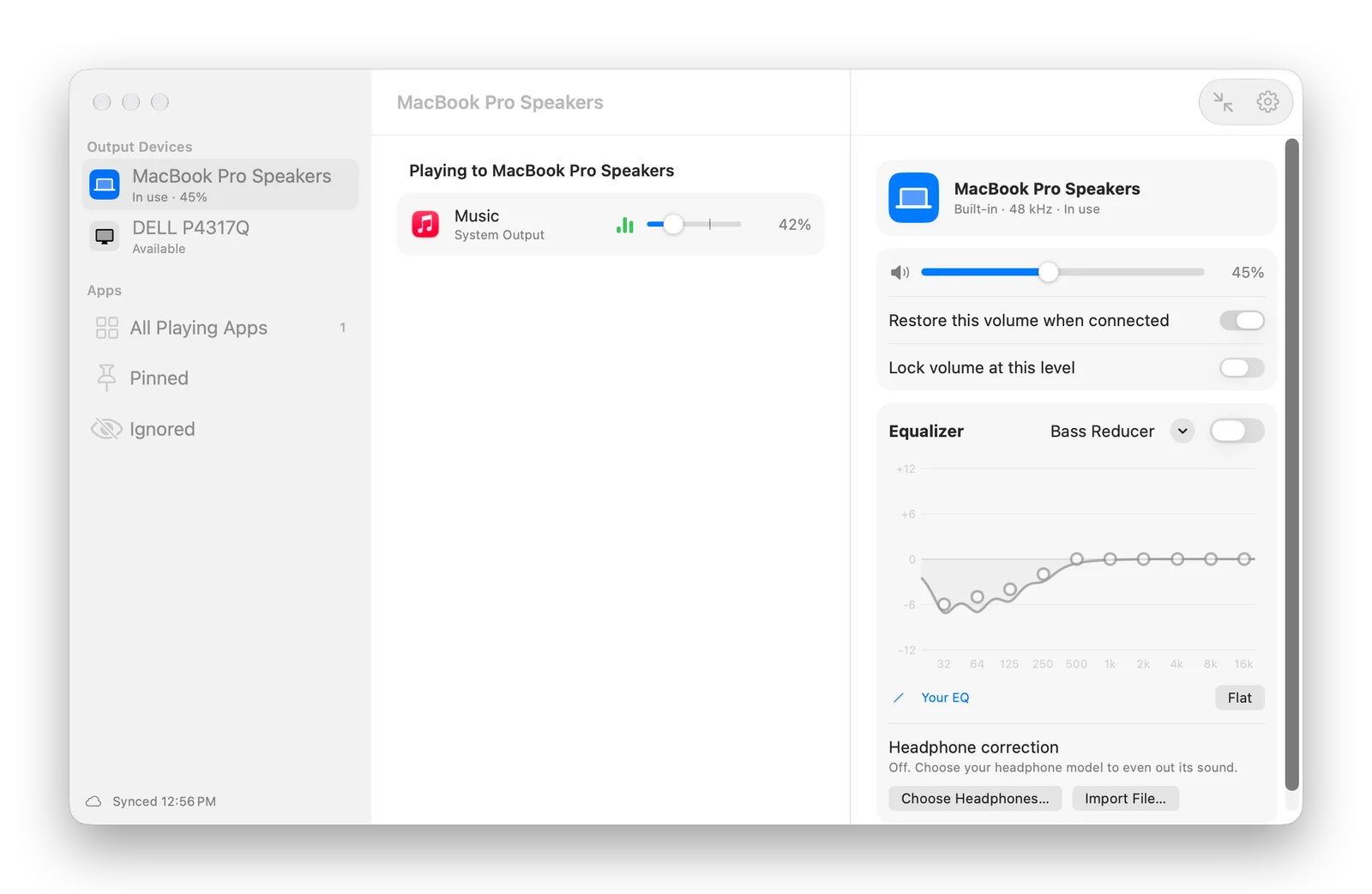
Device Inspector: the device's volume, restore choice and equalizer next to the apps playing to it.
Every device remembers its volume and EQ
Speakers, headphones, AirPods, HomePods and displays each keep their own volume on each Mac. When a device becomes the output again, AudioLens puts its volume back. Lock a device to keep it at that level even if something else changes it.
Each device also gets its own 10-band equalizer with presets. Headphone correction evens out the sound of your headphones: pick your model from thousands of measurements in the AutoEQ project, or import a ParametricEQ.txt file.
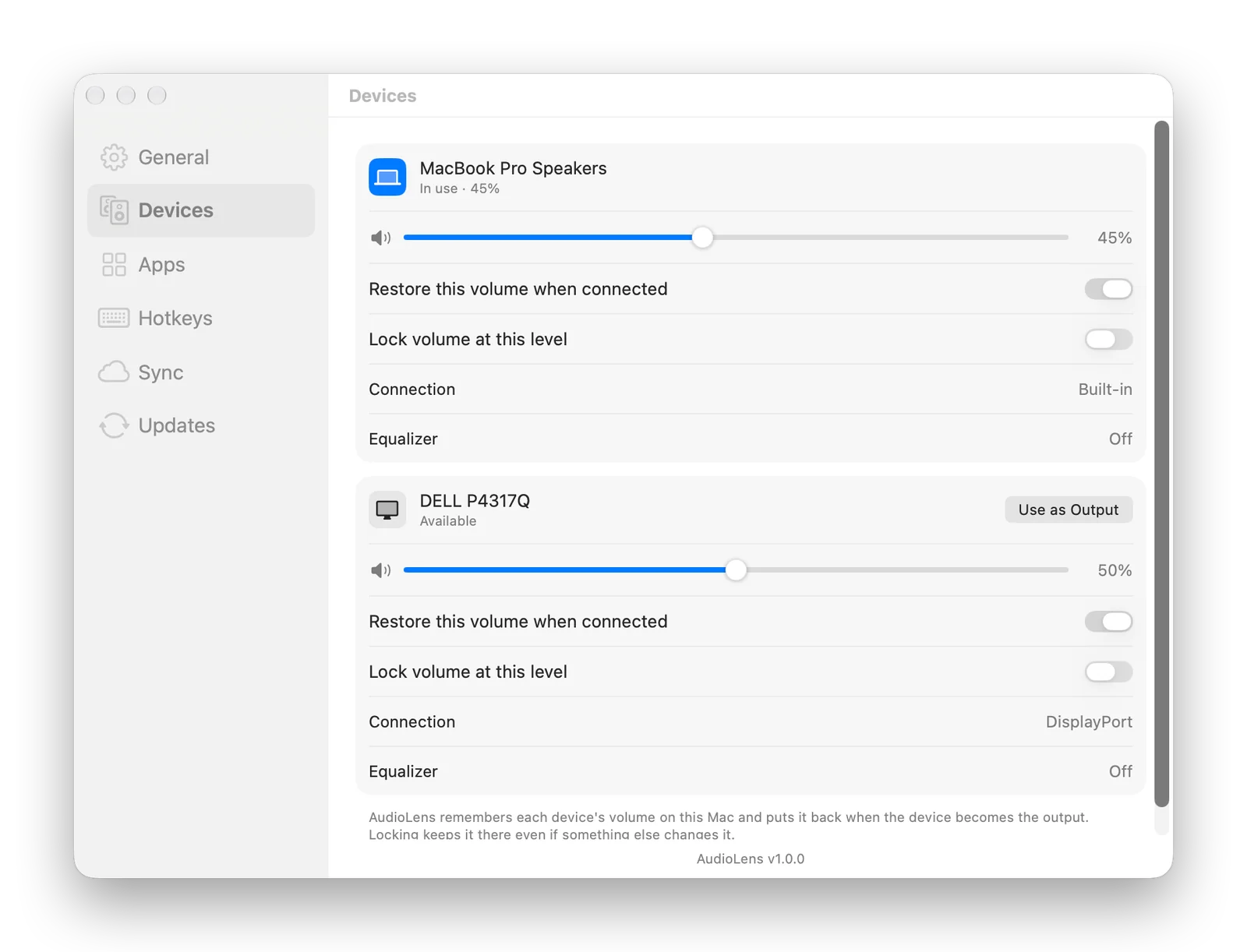
Settings, Devices: each output's remembered volume, lock and equalizer.
Control it from anywhere
Turn the playing app up or down, or mute it, from any app with Control-Option-Up Arrow, Control-Option-Down Arrow and Control-Option-M. The playing app is the frontmost app if it's making sound, otherwise the app that started playing most recently. Change the keys and how much each press changes the volume in Settings.
Show AudioLens in the Dock, the menu bar, both or neither. With both off, open AudioLens again from Applications or Spotlight to get the window back.
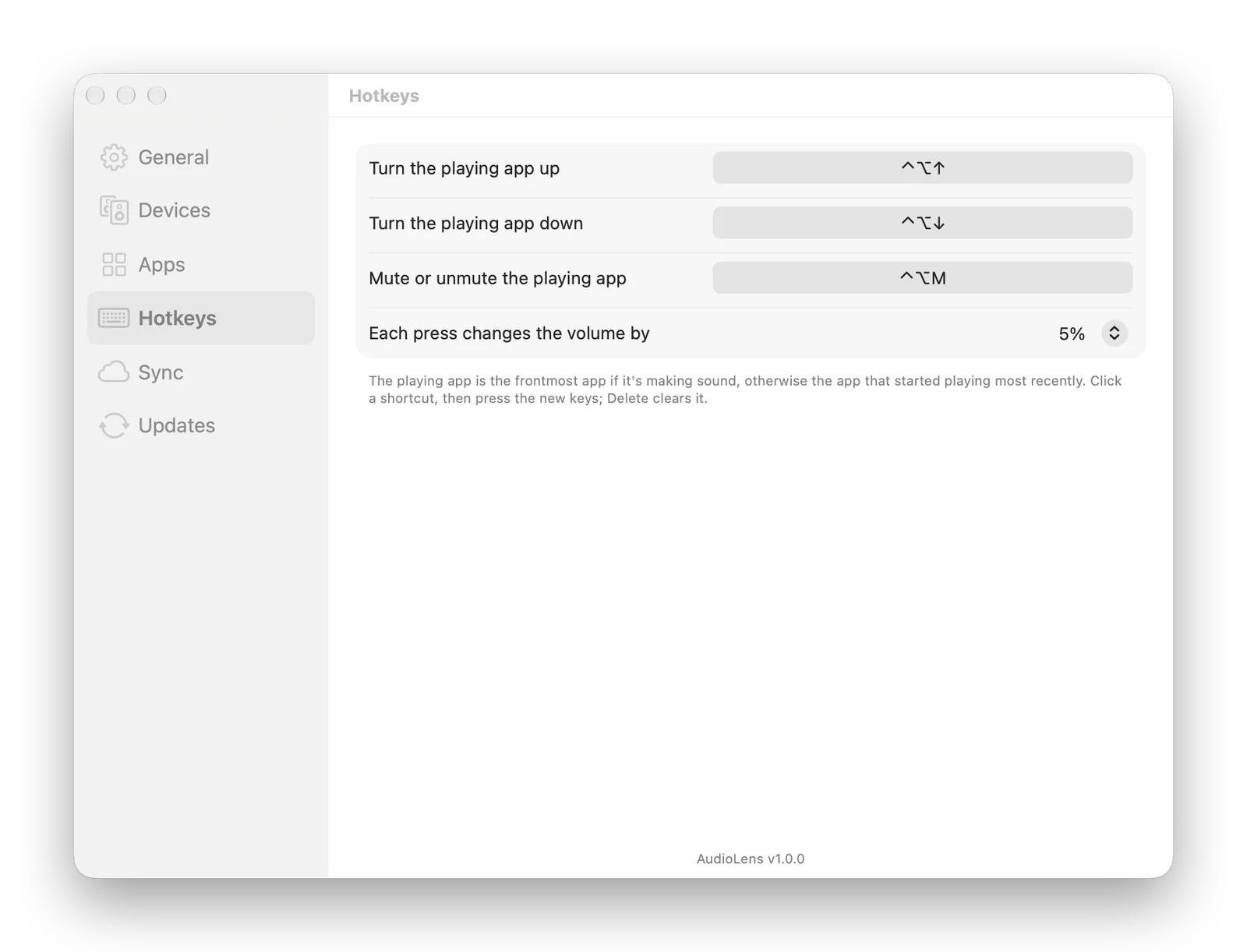
Settings, Hotkeys: change any shortcut by clicking it and pressing new keys.

Settings, General: the window layout, where AudioLens appears and the apps list.
Sync your Macs, encrypted end to end
Turn on sync, choose a passphrase, and enter the same passphrase on your other Macs. App volumes, mutes, pins, ignores and outputs, each device's EQ and headphone correction, and your options and hotkeys follow you through iCloud Drive.
Everything is encrypted on your Mac with your passphrase before it reaches iCloud Drive, so neither Apple nor the developer can read it. Device volumes and the window layout stay on each Mac.
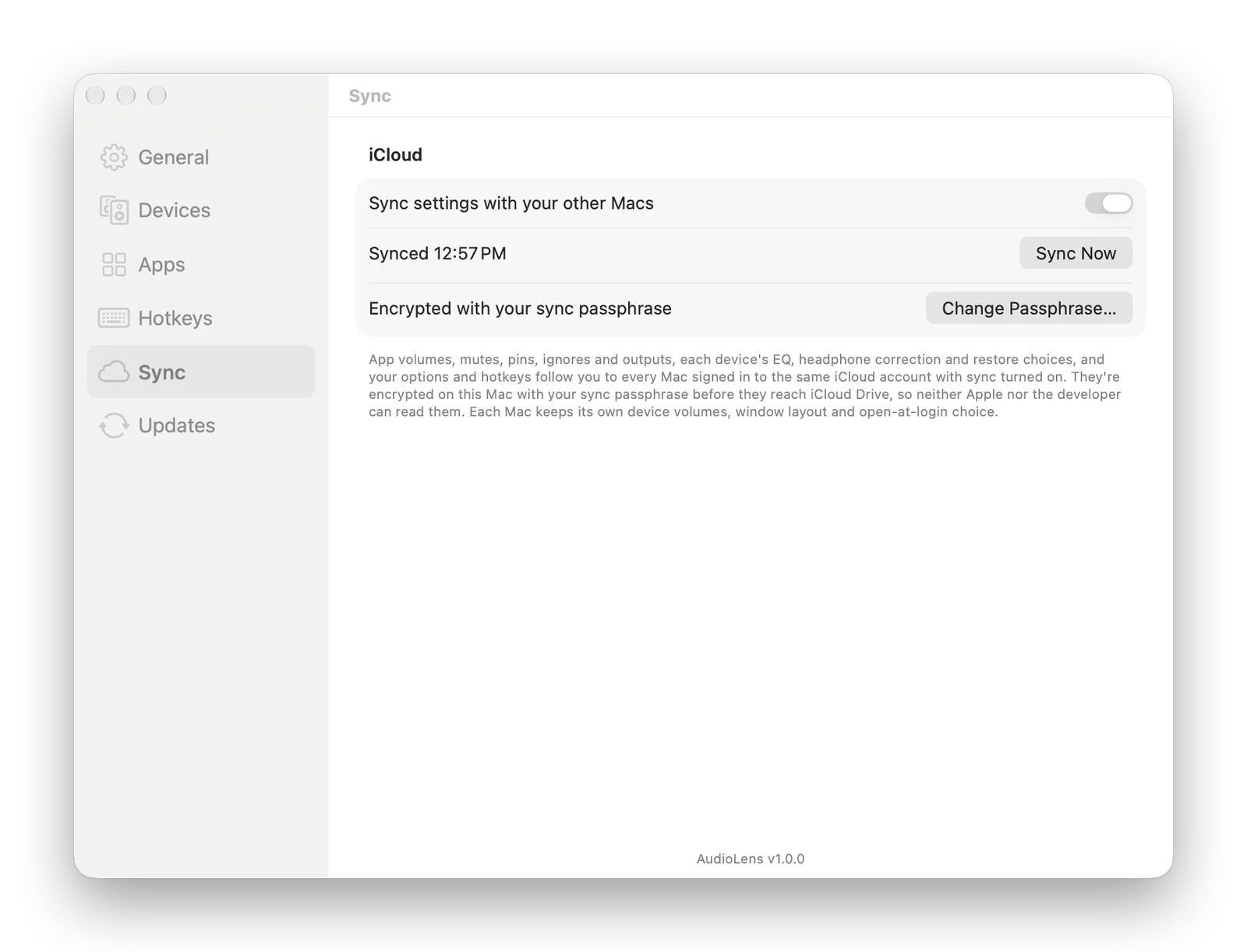
Settings, Sync: up to date and encrypted with your sync passphrase.
What it does
Per-app volume
Every playing app gets its own slider, from silent to 150%, with a soft limiter for boosted sound.
Per-app output
Send any app to its own speakers or headphones while the rest of your Mac plays somewhere else.
Device memory
Each output device keeps its own volume and gets it back when it connects. Lock a device to hold its level.
Equalizer per device
A 10-band EQ with presets for every output device, from the built-in speakers to a HomePod.
Headphone correction
Thousands of headphone measurements from the AutoEQ project, or your own ParametricEQ.txt file.
Pin and ignore
Keep an app in the list while it's silent, or tell AudioLens to leave it alone.
Global hotkeys
Turn the playing app up or down, or mute it, from anywhere. Change the keys and the step.
Four layouts
Source List, Mixing Desk, Dial Board or Device Inspector, and a compact panel for each.
Dock, menu bar, both or neither
Show AudioLens where you want it. The menu bar icon opens the compact panel.
Encrypted sync
App volumes, device EQ and options on all your Macs, end-to-end encrypted with your own passphrase.
Out of the way
Apps at 100% on the system output with no EQ are left untouched, so AudioLens costs nothing until you use it.
Automation
audiolens:// links open the window, the compact panel or Settings.
Getting started
Open the downloaded disk image and drag AudioLens to Applications, then open it. Apps appear in the list as soon as they start playing.
The first time you change an app's volume, macOS asks for System Audio Recording permission so AudioLens can adjust that app's sound. Allow it. Nothing is recorded or sent anywhere; the sound only passes through on your Mac.
Updates
AudioLens checks GitHub for a new version once a day, and you can change how often, or turn checking off, in Settings, Updates. You choose whether it asks first or installs automatically. Automatic installs wait until no adjusted app is playing and your Mac is idle, and every download must be signed by the same developer and notarized by Apple before it's installed.
Under the hood
AudioLens is a native Mac app written in Swift. It uses Core Audio process taps: for an app whose sound needs changing, it captures the app's audio, mutes the original, applies the volume, EQ and limiter, and plays the result on the right device. When AudioLens quits, every app goes straight back to normal macOS output. Headphone correction data comes from the AutoEQ project by Jaakko Pasanen (MIT License).