

Menu Bar Manager
Requires macOS 27 or later
Menu Bar Manager tidies your Mac's menu bar. A chevron sits in the menu bar: the items of the apps you don't need all the time stay out of sight until you click it, and the ones you use every day stay right where they are. It's built for macOS 27, where older menu bar organizers no longer hide items reliably and some apps keep drifting into the hidden area. Here each app keeps the section you gave it, however macOS places its items.
Free. Signed and notarized by Apple.
One menu bar icon for all your apps: while ToolHUD is running, Menu Bar Manager's menu also lives inside ToolHUD's menu.
Appearance setting. Choose System, Light or Dark in Settings. It syncs with the rest of your settings.
Hidden until you click
Menu Bar Manager adds one item of its own to the menu bar, a chevron. The items of the apps you put in Hidden wait out of sight to its left. Click the chevron and they appear; click it again and they're put away. Items hide and show at once, with no blinking, and Apple's own items never move.
You don't have to put them away yourself. They hide again after the delay you choose, and wait while one of their menus is open.

The menu bar with the Hidden items put away. The chevron sits just left of the items you always see.

After a click on the chevron, the hidden apps' items appear to its left.
Every app keeps its section
In Settings, Items, put each app in one of three sections. Shown items are always visible. Hidden items appear when you click the chevron. Always Hidden items appear only when you Option-click it (⌥-click), for the ones you almost never need.
Or arrange them right in the menu bar: hold Command (⌘) and drag an item to the left of the chevron to hide its app, or to the right to show it. Settings and the menu bar always agree. Sections belong to apps, not to positions, so an app you put in Shown is never hidden, however macOS places its items.
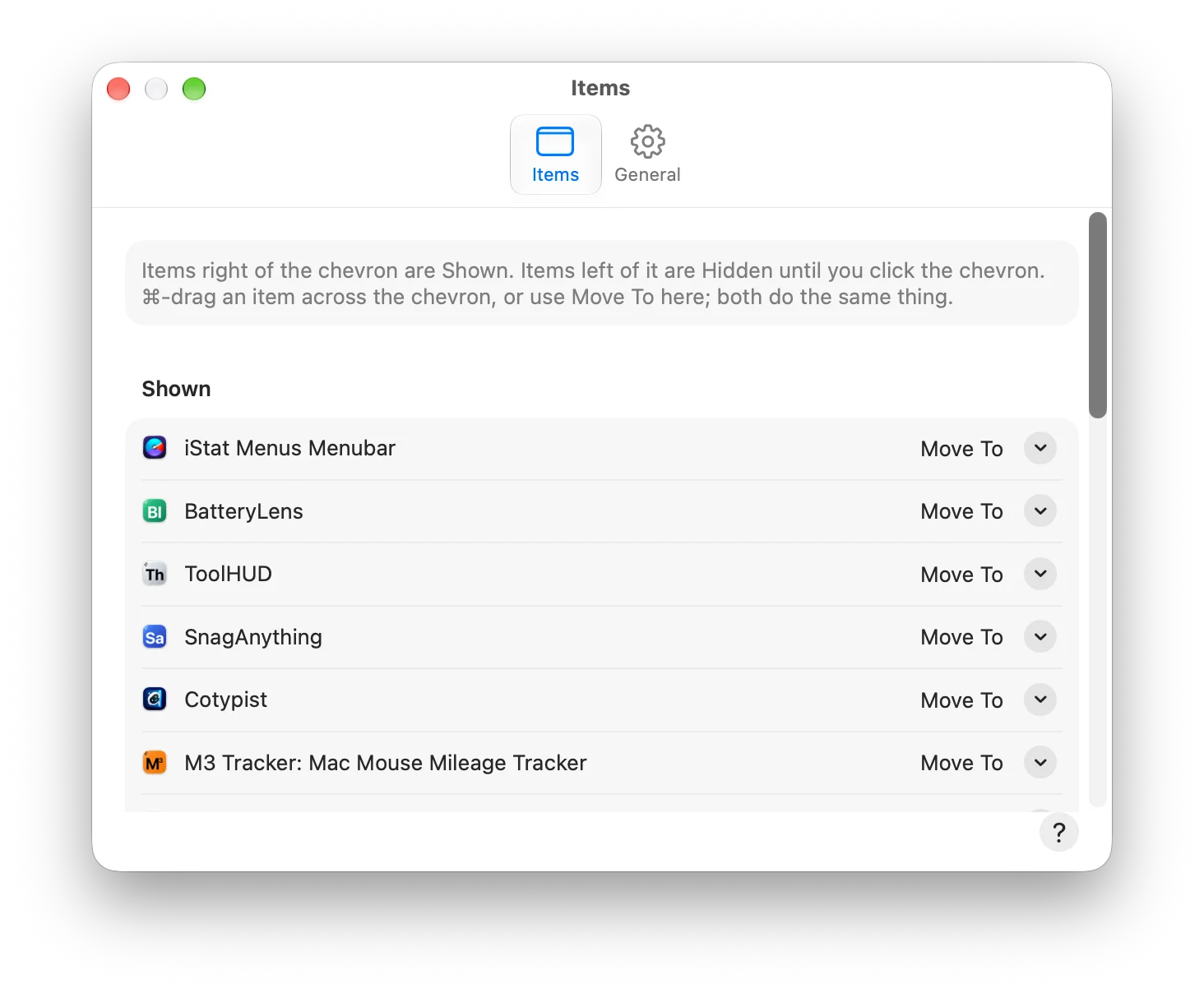
Settings, Items: every app with a menu bar item, in Shown, Hidden or Always Hidden. Move To changes an app's section.
Show them your way
Show the Hidden items from anywhere with ⌃⌥⌘B, or pick your own keys with the shortcut editor in Settings. They can also appear when the pointer rests on the chevron, or when you scroll over the menu bar. Right-click the chevron for Settings, Help, updates, About and Quit.
On a MacBook with a notch, the menu bar has less room, and items that don't fit vanish behind the notch. So while the Hidden items are out, your Shown items step aside to make room, and they come back when you click again. On an external display, the Hidden items are simply added to the bar.
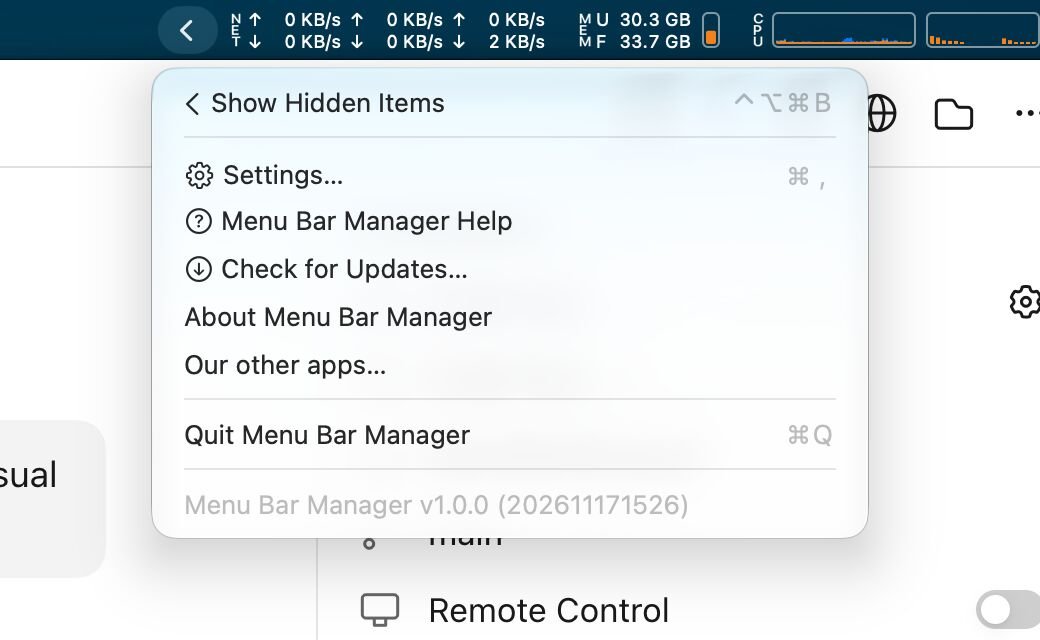
Right-click the chevron for its menu. The first item shows the Hidden items, with its shortcut.
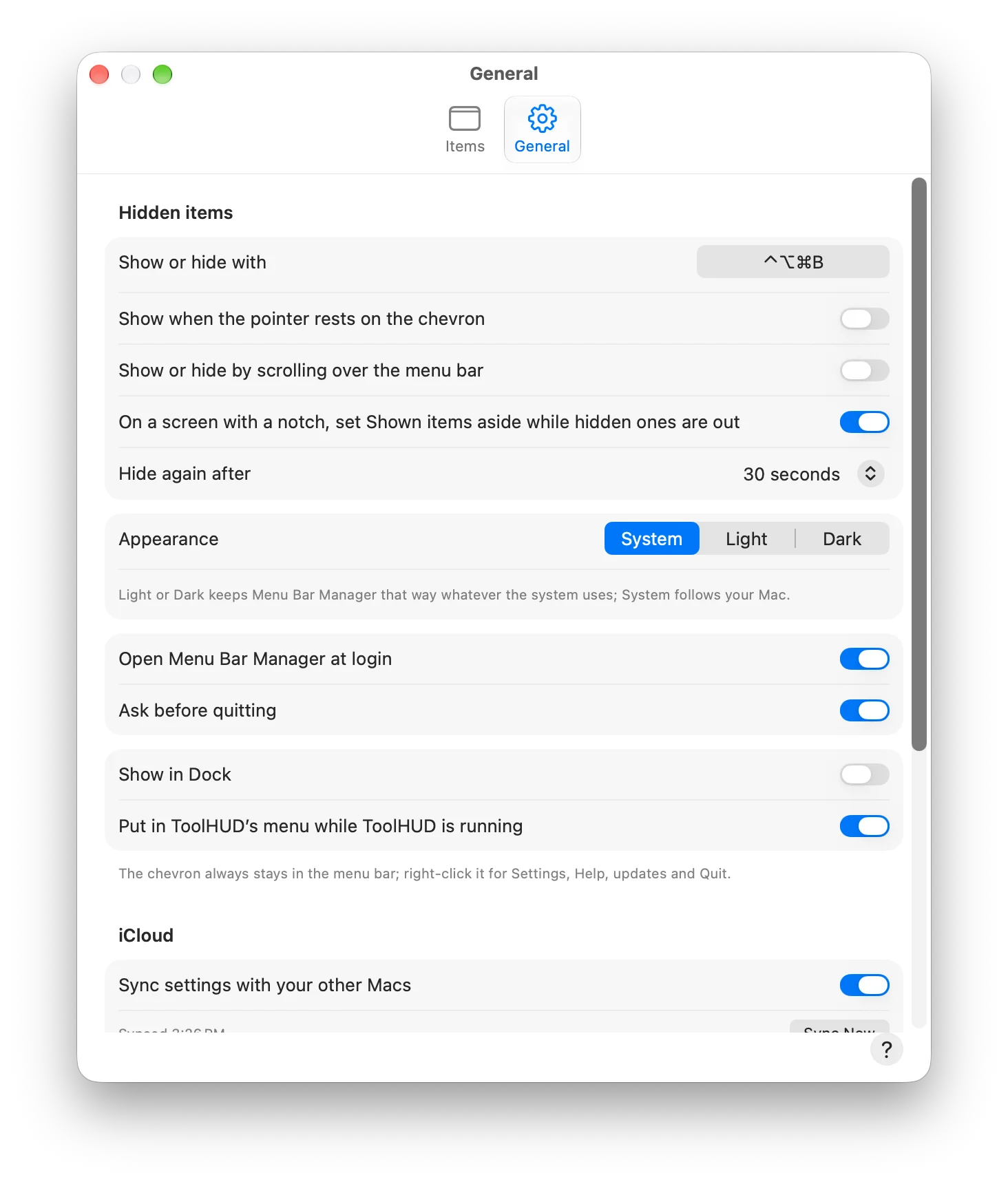
Settings, General: the shortcut, showing on hover or scroll, the notch option, when to hide again, appearance and iCloud sync.
Nothing stays hidden by accident
Quit Menu Bar Manager, or if it ever crashes, every hidden item comes back on its own, because macOS drops the hiding the moment the app is gone. Quitting asks first; turn that off in Settings, General.
Keep Menu Bar Manager in the Applications folder and open it from there. macOS 27 keeps the chevron in the menu bar while other apps' items are hidden only for an app that runs from Applications.
Works with your other apps
Menu Bar Manager's menu can live inside ToolHUD's menu, so one menu bar icon holds them all, and ShortcutsLens lists its shortcut and can change it.
menubarmanager:// links show, hide or toggle the Hidden items, or open Settings, from Shortcuts, scripts and ToolHUD buttons.
What it does
Hide behind a chevron
Click the chevron to show the items you keep out of sight, and click again to hide them.
Three sections
Shown, Hidden and Always Hidden, picked for each app in Settings.
Always Hidden
⌥-click the chevron to see the items you almost never need.
⌘-drag to arrange
Drag an item across the chevron to hide or show its app.
Instant, no blinking
Items hide and show at once, and Apple's own items never move.
Nothing lost
Quit Menu Bar Manager, or if it ever crashes, every item comes back.
Notch aware
On a MacBook with a notch, Shown items step aside while Hidden ones are out.
Hides again
Puts the items away after the delay you choose, and waits while a menu is open.
Shortcut, hover or scroll
⌃⌥⌘B shows them from anywhere, or point at the chevron or scroll on the menu bar.
Works with your apps
menubarmanager:// links, a menu in ToolHUD, and its shortcut in ShortcutsLens.
Help and sync
Searchable Help built in, and settings that follow you to every Mac through iCloud Drive.
Your Mac, your way
Show it in the Dock or not, and choose System, Light or Dark.
Getting started
Open the downloaded disk image and drag Menu Bar Manager to Applications. It has to run from there. Open it, then turn on Menu Bar Manager in System Settings, Privacy & Security, Device Control and Data Access. It needs this to list other apps' menu bar items and move them.
Then open Settings, Items from the chevron's menu (right-click it) and put each app where you want it, or ⌘-drag items across the chevron. Open Help from the chevron's menu, with ⌘?, or with the ? button in Settings.
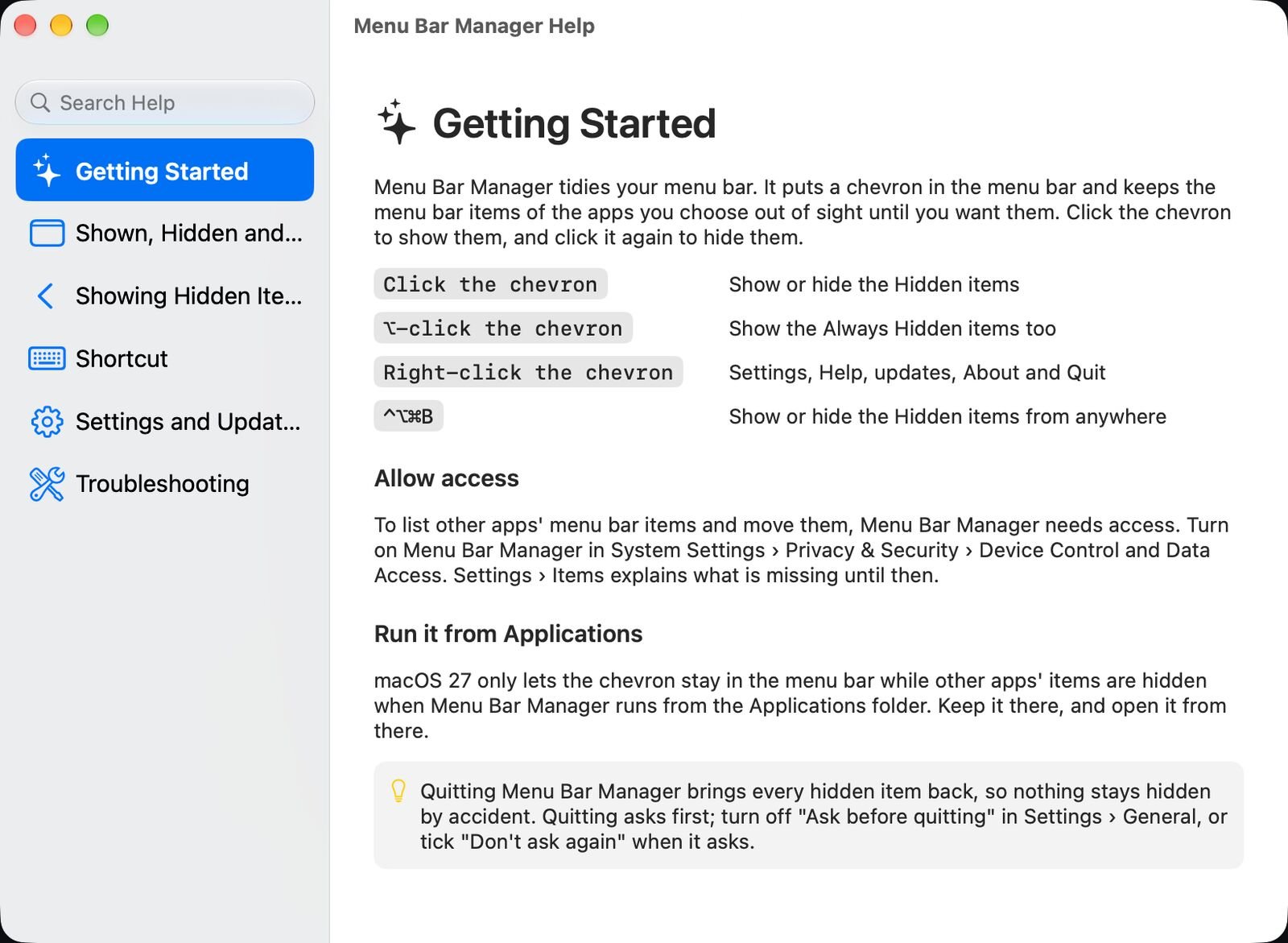
Help is built in and searchable, starting with a page on the chevron's clicks and shortcut.
Updates
Menu Bar Manager checks for a new release once a day, or on a schedule you set in Settings, from every hour to once a year. You also choose what happens: Ask me first, where a notification and the menu offer it and nothing installs until you click, or Install automatically, where it waits until the Hidden items are put away, no app is presenting or keeping the screen awake and your Mac has been idle for 2 minutes. Each download must be signed by the same developer and notarized by Apple before it is installed, and your settings carry over. Each update shows what changed.
Under the hood
Menu Bar Manager is a native Mac app written in Swift. On macOS 27 the menu bar hides items by app, and the old trick of a wide spacer item no longer hides anything. Menu Bar Manager asks the menu bar itself to show only the apps you keep in Shown, through a small helper process, so items hide and show at once, and macOS shows everything again the moment the app quits or crashes. The Device Control and Data Access permission lets it list the items in Settings and move them when you ⌘-drag. Sections and settings sync through iCloud Drive.