
InnerVoice
Requires macOS 26 or later on Apple silicon
InnerVoice helps audiobook narrators prepare a book before they press record. Open the manuscript and an AI that runs entirely on your Mac colors every spoken line by who says it, and builds a summary of each character from what the book says about them: age, accent, voice, personality and history. When it isn’t sure who’s speaking, the line turns red and shows its best guess, so you can confirm it with one key. Your manuscript never leaves your Mac.
Free. Signed and notarized by Apple.
Now in beta. New: the AI gives its best guess for every line it isn’t sure of, and the Review page lets you confirm them one key at a time. Pin your main characters, delete text that isn’t for the narrator, and your work saves itself every 30 seconds.
New: Command line and AI agents. With the innervoice command, Claude Code, Codex and your own scripts can start projects from manuscripts, run Tag Speakers, assign lines, read character summaries and export Narrator Scripts. MCP apps such as Claude Desktop get the same through innervoice mcp.
Every line, colored by who says it
Open a Word file, PDF, RTF, Pages document, EPUB or plain text and click Tag Speakers. InnerVoice finds every spoken line, thought and letter. Plain rules settle the clear cases first, such as “said Tom”, a quote that runs across paragraphs or a two-person back-and-forth, then the AI reads the rest and decides who speaks. Chapters fill with color while you keep reading, and Stop keeps what’s done.
Show each line as a highlight, an outline or an underline in its character’s color. Thoughts are dashed, written text is dotted, and the margin shows who speaks, as initials, first names or full names, so color is never the only clue.
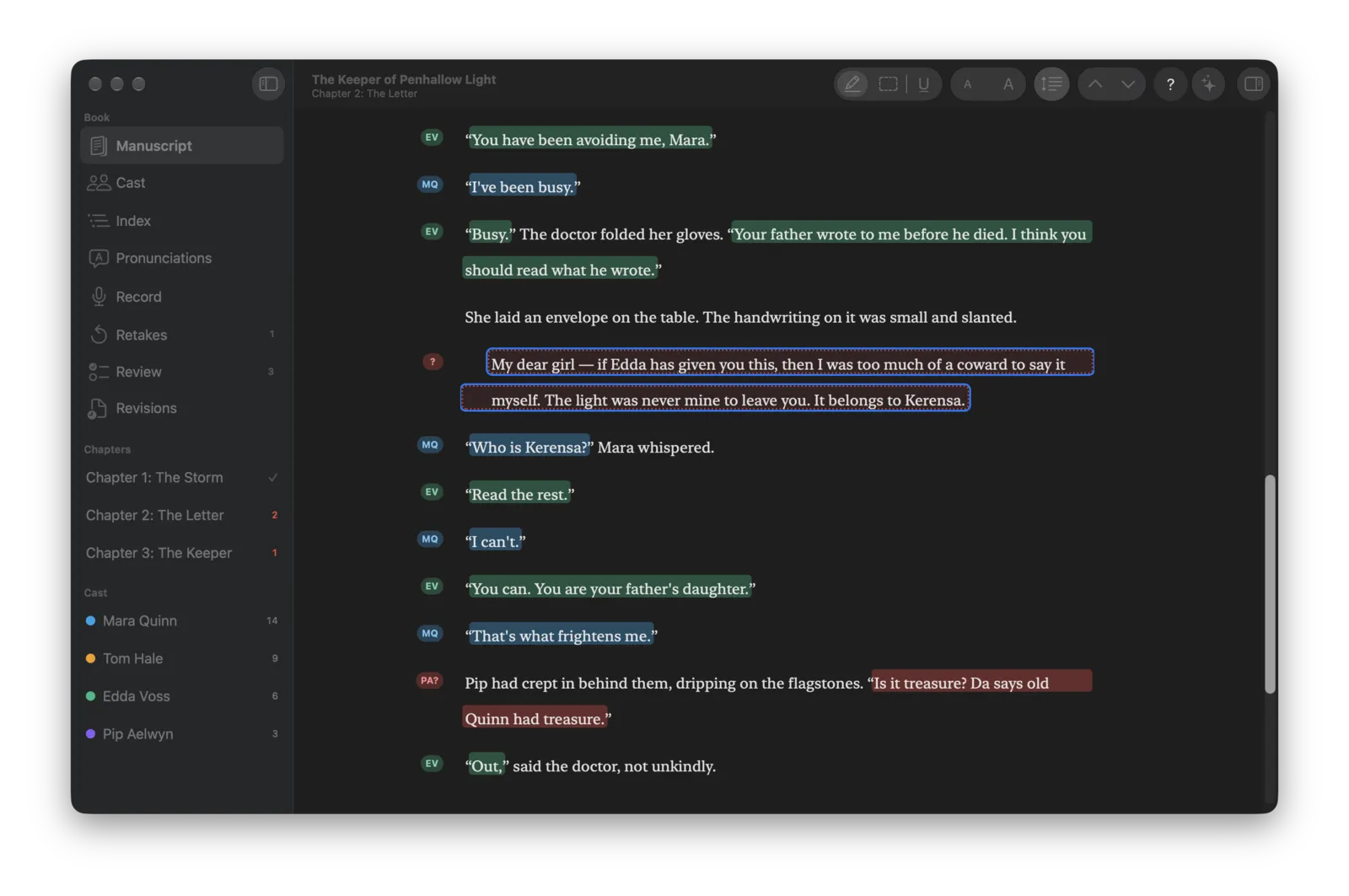
Each character’s lines in their color with initials in the margin. Red lines need you: one has no speaker yet, and one shows the AI’s best guess, PA? for Pip Aelwyn. The selected one is a letter, so it’s dotted.
Read it your way
Make the text bigger or smaller with the buttons in the toolbar, or with ⌘+ and ⌘−, and switch between single and double spacing with the button beside them. The page keeps your place when you change either.
Choose what the margin shows for each line: the speaker’s initials, first name or full name. Long names are shortened so the page stays tidy, and you can hide them for a book that doesn’t need them.
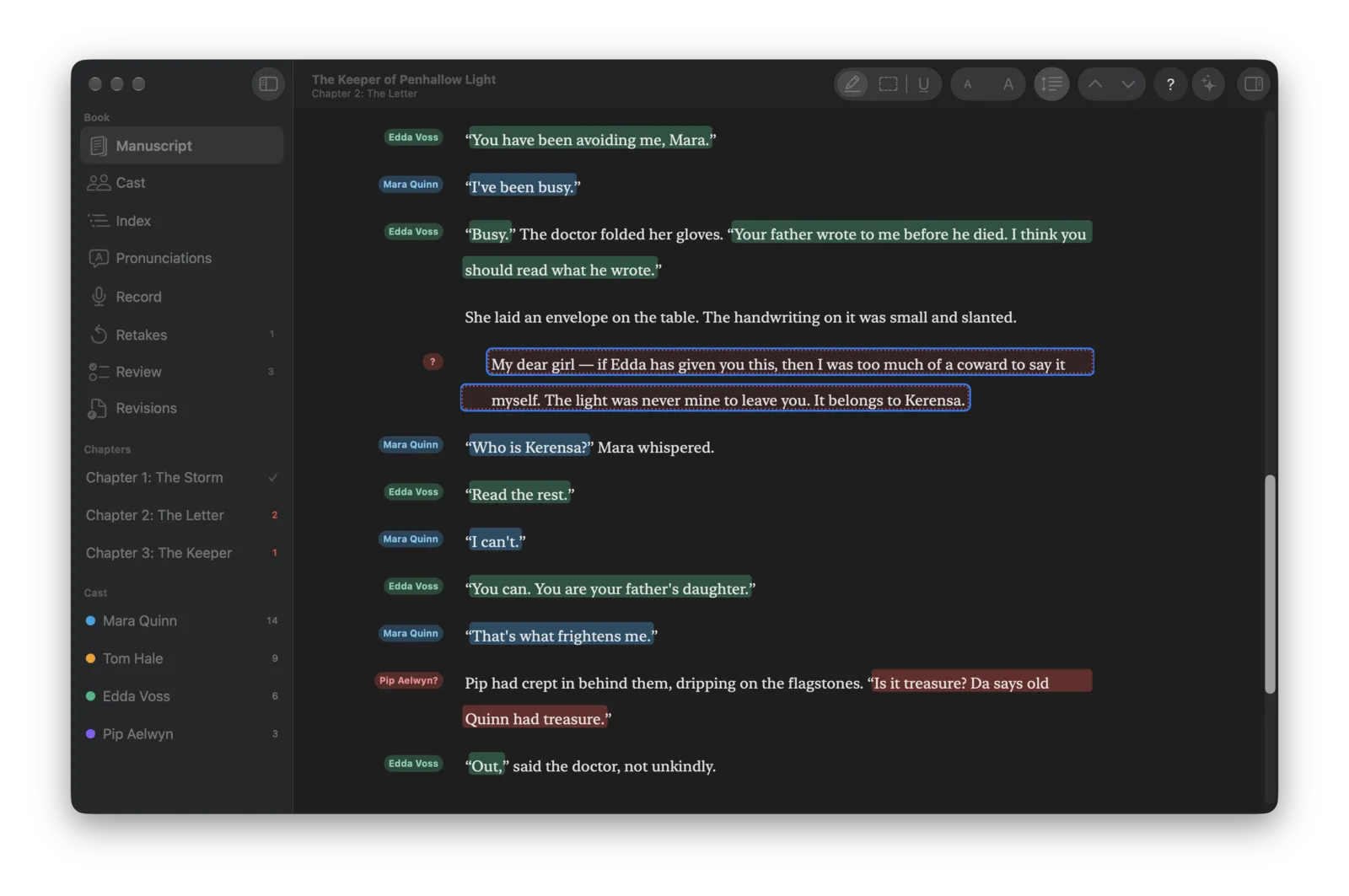
Full names in the margin, double line spacing, and a best guess with a question mark that waits for you to confirm it.
Red means it needs you
When the AI isn’t sure who’s speaking, the line turns red and the margin shows its best guess with a question mark, like “Cyrus?”. Press Return to confirm it, or type a few letters of a name or press 1 to 9 to pick someone else. ⌘↓ jumps to the next red line with the guess ready. Fix one line of a back-and-forth and InnerVoice offers to swap the rest of the exchange.
Text no one says aloud? Narration (not spoken) sits at the top of the same list, or press 0, and the color goes. Select a passage to assign several lines at once, right-click a name in the margin to reassign that speaker’s lines in the paragraph, make a line from text the rules missed, or merge Mara into Mara Quinn. Every change can be undone, and the AI never changes a line you assigned.
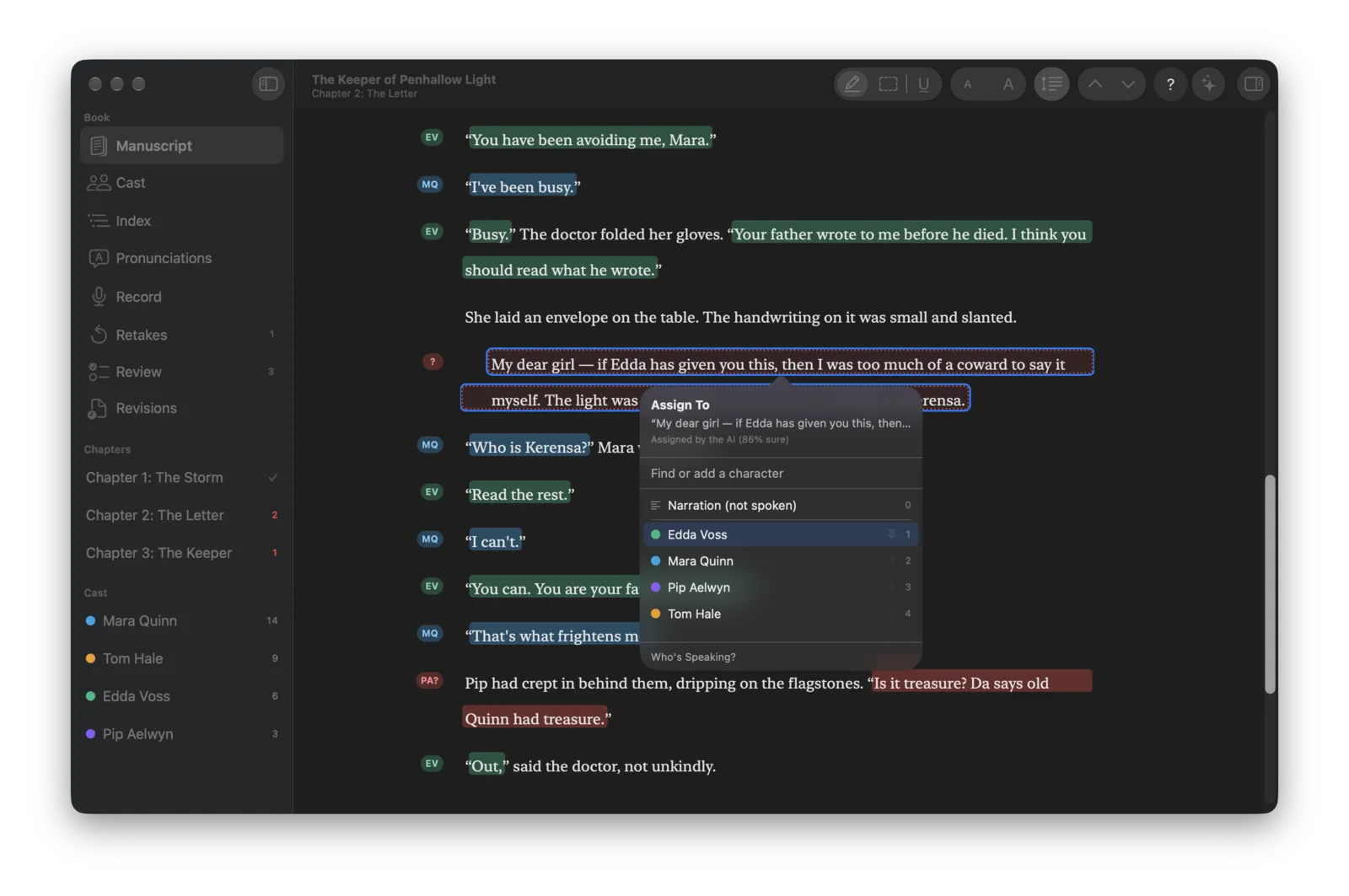
Assign To: Narration (not spoken) at the top, then the characters, each with a pin to keep them at the top. Type a few letters or press 1 to 9.
Review every guess
The Review page lists every line that needs you, with the paragraphs before and after it so you can tell who’s talking. Press Return to confirm the best guess, type a name or press 1 to 9 to pick someone else, or 0 for narration, and the next line comes up. Show only the unsure guesses, only the lines with no speaker, or both.
Pin the characters you assign most and they stay at the top of every speaker list, A to Z by first name. In the right-click menu, just start typing a name to narrow the list.
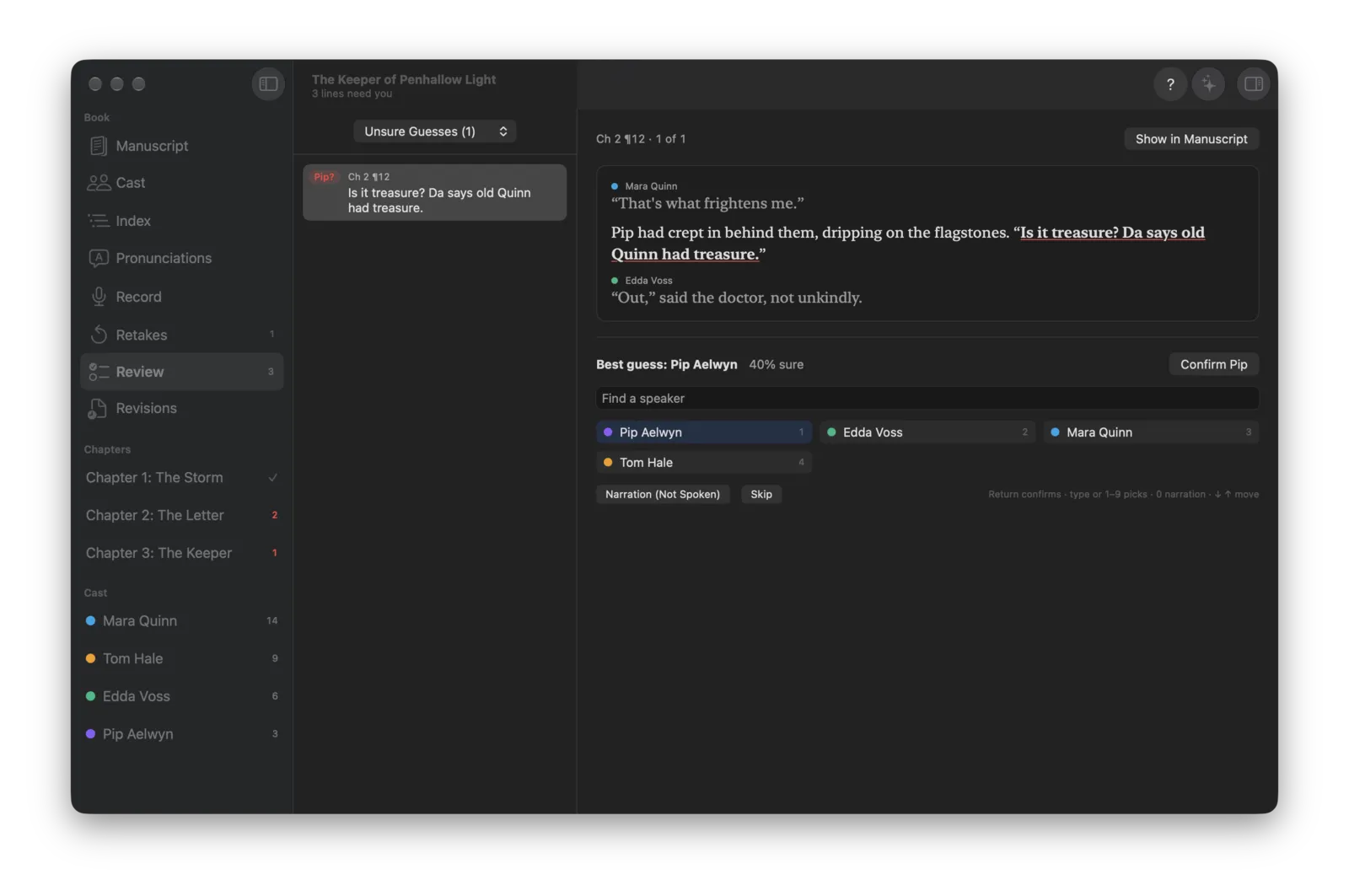
Review: the line in its paragraph, the best guess to confirm, and every speaker one key away.
Clean up the text
Select text that isn’t for the narrator, like an ISBN or an ad for the author’s other books, and press Delete. Delete a whole chapter from the sidebar. Undo brings it back, and your original file is never changed. InnerVoice saves your project every 30 seconds while there are changes, without interrupting you.
A model that fits your Mac
InnerVoice reads how much memory your Mac has and recommends a model. Every model in the list has a note saying why it fits this Mac or doesn’t, from a 2.5 GB model for an 8 GB Mac to a 19 GB one for 64 GB and up. It downloads once, from Hugging Face, and then works offline.
Rather not download anything? Use Apple’s built-in on-device model. Or choose any GGUF model file you already have.
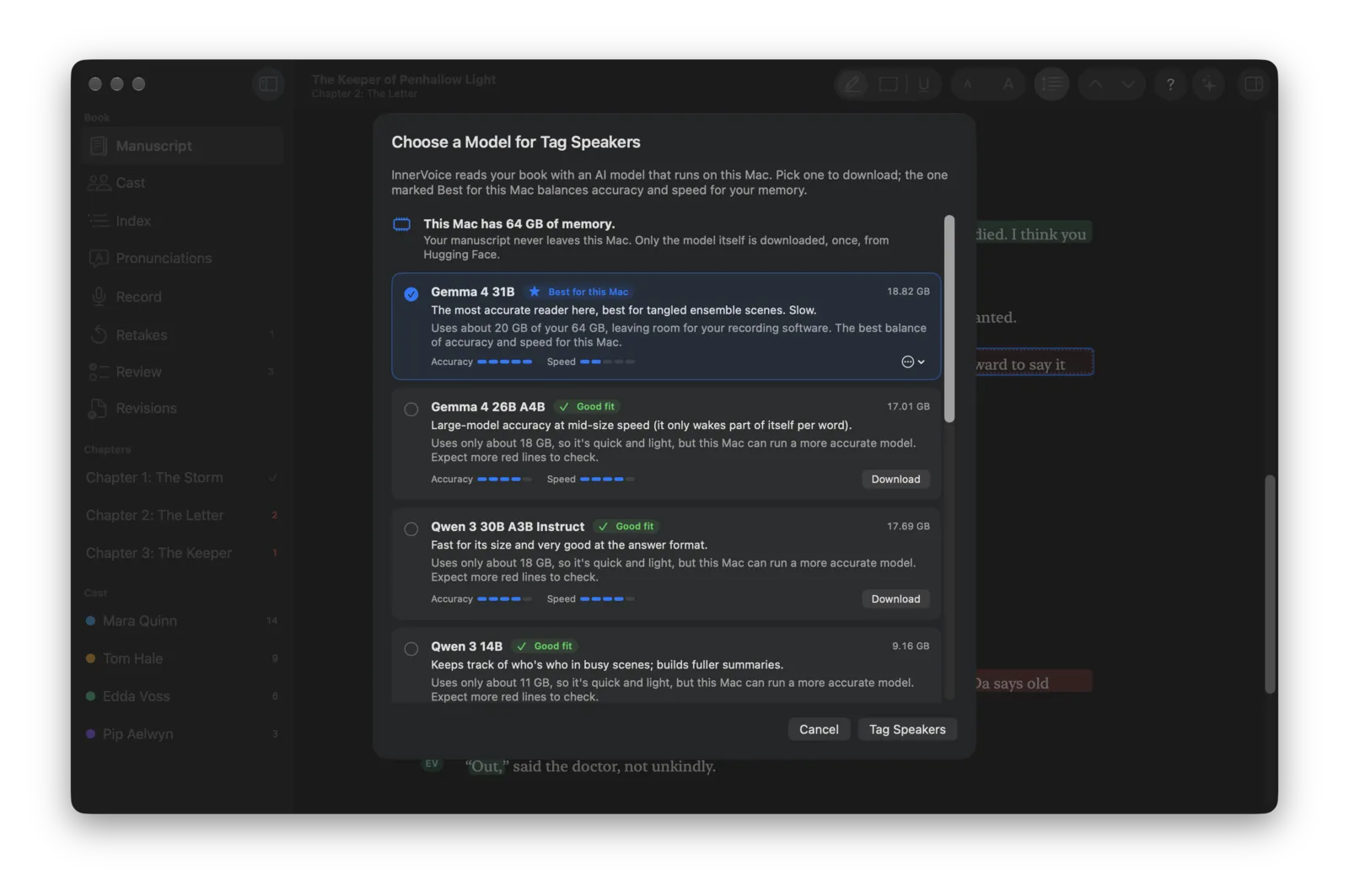
Choose a Model: each one with its fit for this Mac’s memory, its accuracy and speed, and why.
Know every character before you voice them
Build Summaries reads about each character and collects what the book says: age, gender, accent, voice, personality and history. Each fact links to the paragraph it came from, so you can check it in a click. Build one character’s summary, or everyone’s with one click.
Facts that turn up only after a character first speaks are flagged Revealed Late, so you learn about that Highland accent before chapter 2, not after chapter 20. Edit any fact, add your own and keep voice notes.
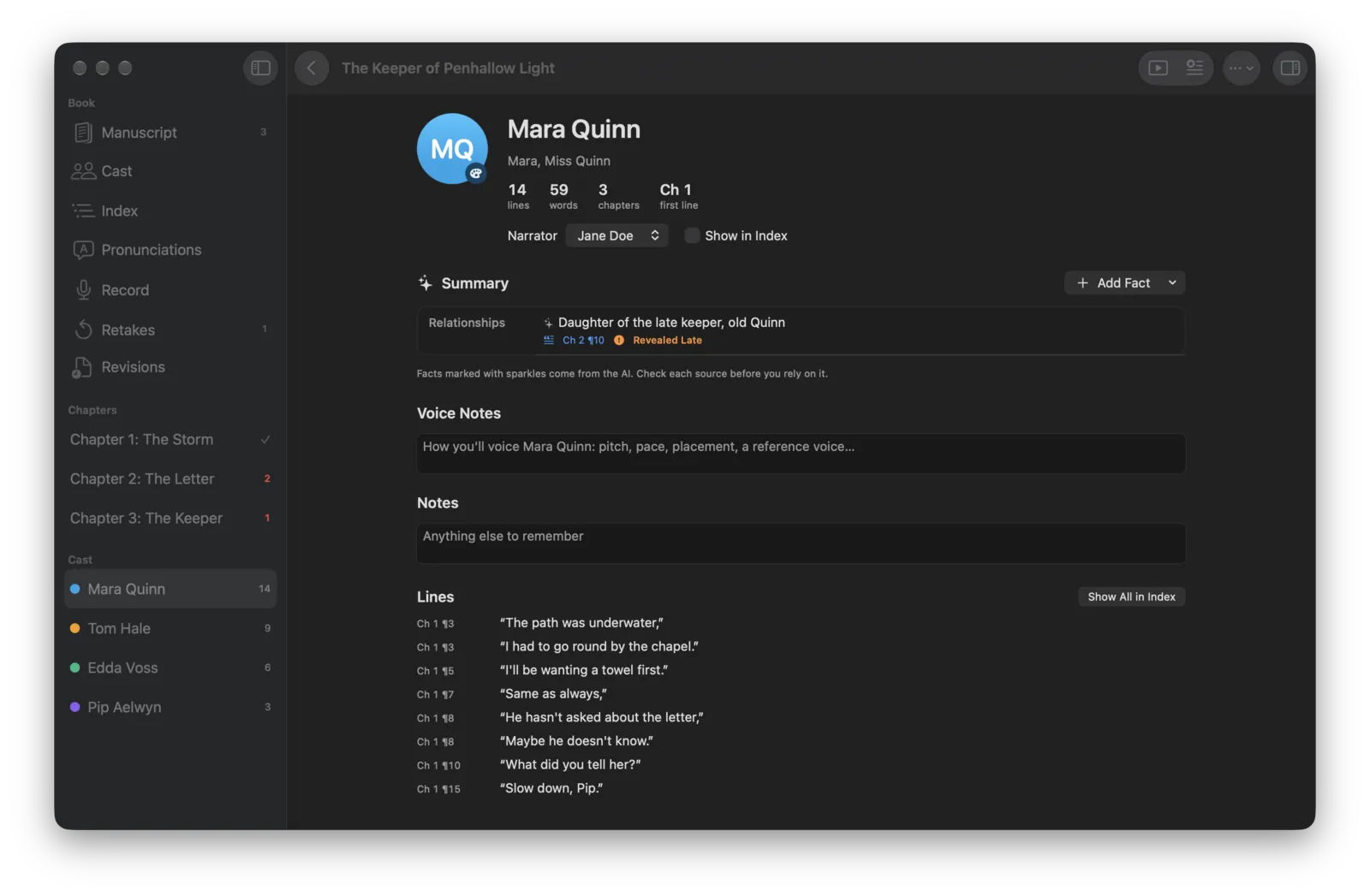
A character page: the summary with sources and a Revealed Late flag, voice notes, and every line they speak.
Find any character’s lines
The Index lists every character’s lines by chapter, each one a link into the book. Main characters start hidden so the list stays short; turn any character on or off.
Rehearse steps through one character’s lines, each with the line before it as a cue, so you can find a voice before the session.
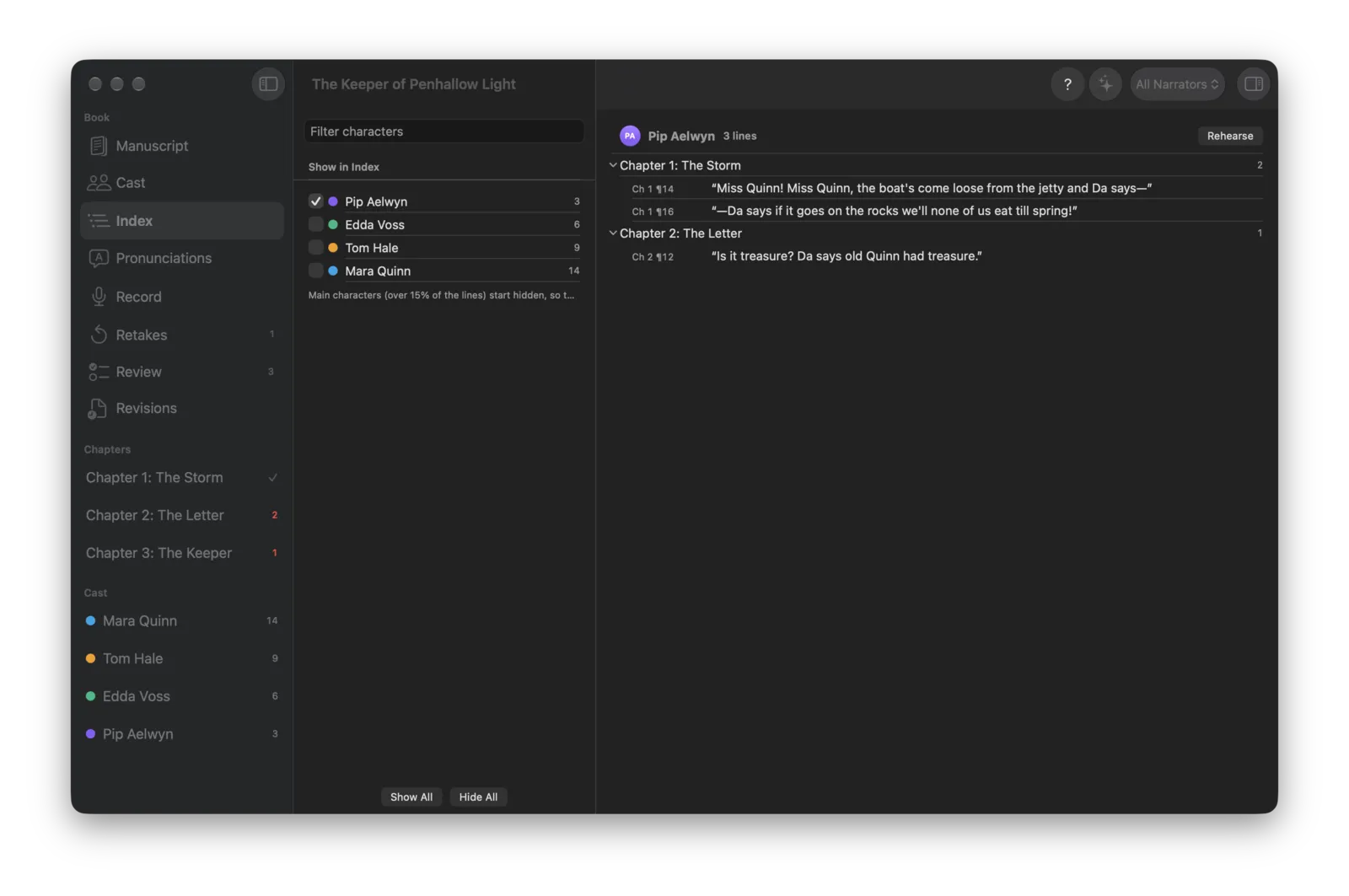
The Index: one character’s lines by chapter, each a link into the book, with characters turned on or off on the left.
Scripts for every narrator
Recording with other narrators? Add them, cast each character to a narrator, and export a Narrator Script for each one, with their lines, the cue line before each and summaries of the characters they voice.
Export the tagged manuscript as a color PDF for print or iPad, and the cast list and pronunciation guide as PDF, Word or CSV.
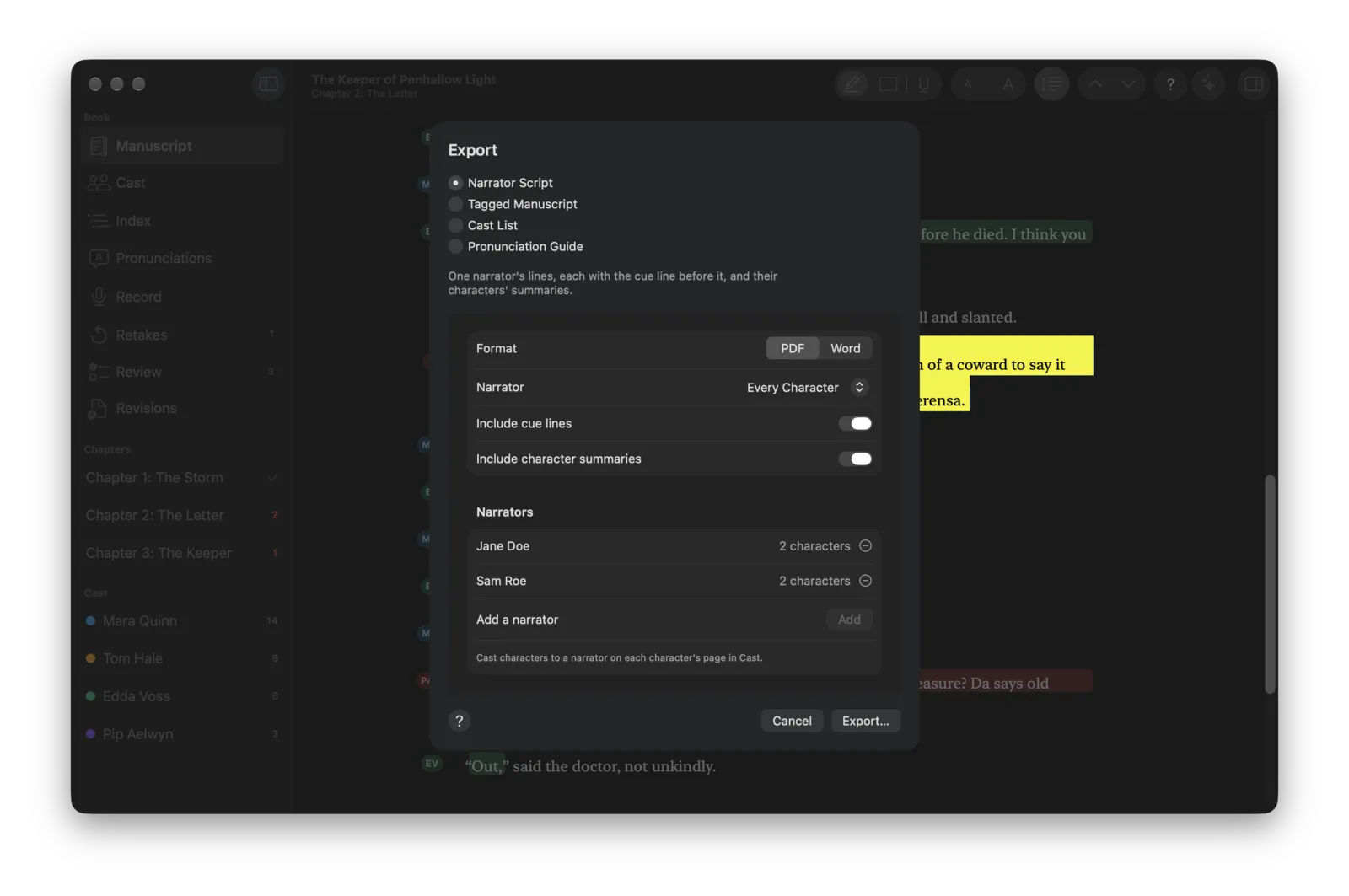
Export: a Narrator Script for every narrator, with cue lines and character summaries, as PDF or Word.
Names you’ll need to look up
InnerVoice lists the names, places and invented words it finds in the book. Write how to say each one, mark it confirmed with the author, and record a short sample, so you say it the same way in chapter 30 as in chapter 1.
A teleprompter for the booth
Record shows one paragraph at a time in large type, with the speaker’s color and voice cue and who speaks next. Space or the right arrow moves on and marks the paragraph recorded, the left arrow goes back, and R marks a retake with a note. Foot pedals that send keys work too.
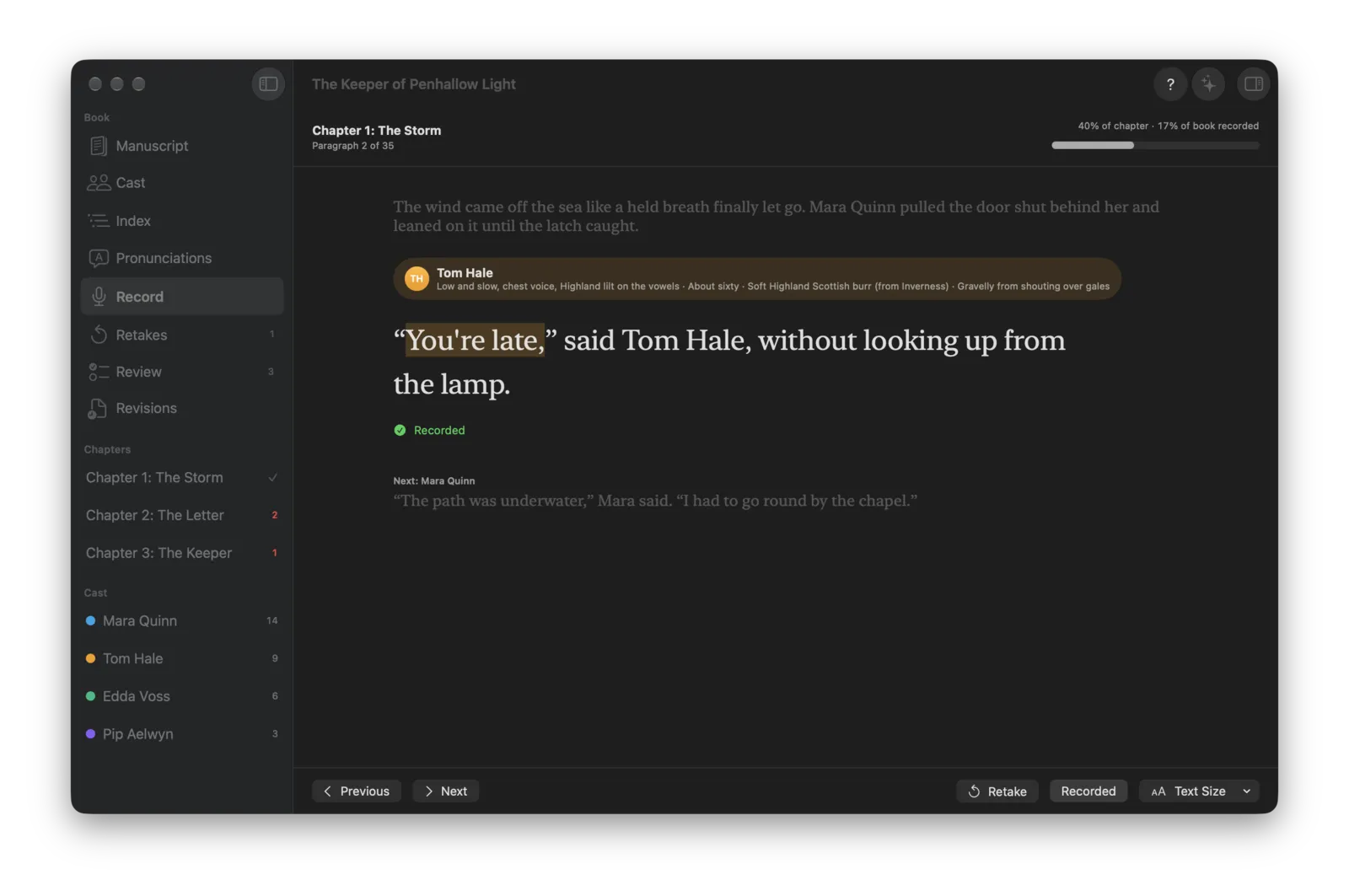
Record: the paragraph to read, the speaker and their voice cue above it, and who speaks next below.
When the author sends a new draft
Import the revised manuscript and InnerVoice keeps your work. Tags, notes, recorded marks and retakes stay on every paragraph that didn’t change, edited lines keep their speakers, and the Revisions list walks you through what changed, what’s new and what was removed.
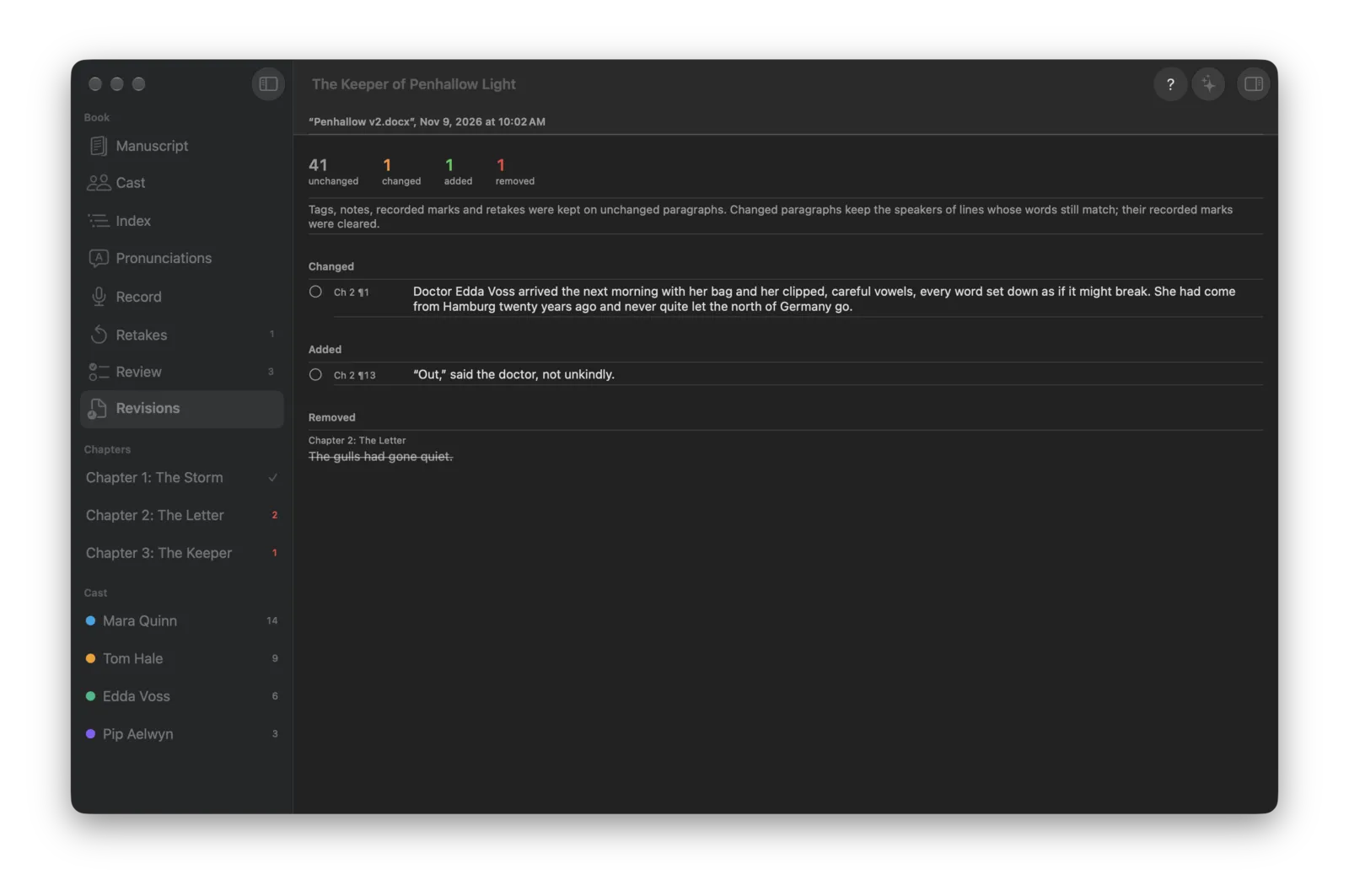
Revisions after a new draft: each changed, added and removed paragraph, with a link to its place in the book.
What it does
Opens what you’re sent
Word, PDF, RTF, text, Markdown, Pages, OpenDocument, EPUB and HTML.
Tag Speakers
Plain rules first, then an AI on your Mac for the rest.
Highlight, outline or underline
Your choice, in each character’s color, with initials or names in the margin.
Fix it in a click
Type a name or press 1 to 9. Undo anything.
Best guesses
Unsure lines show who the AI thinks it is. Return confirms it.
Review
Every unsure line in context, settled with one key.
Your choice of model
Matched to your Mac’s memory, or Apple’s built-in model.
Character summaries
Every fact linked to the line it came from.
Revealed Late
Know about an accent before the character speaks.
Index
Every character’s lines by chapter, on or off per character.
Rehearse
One character’s lines, each with its cue.
Narrator Scripts
For multi-narrator productions, as PDF or Word.
Pronunciations
How to say it, confirmed with the author, with a sample.
Record and Retakes
A big-type teleprompter that keeps your place.
Revised manuscripts
Keep tags and notes when a new draft arrives.
Exports
A color PDF of the book, plus lists as Word or CSV.
Read it your way
Text size from the toolbar, single or double spacing, and Light or Dark.
Pinned speakers
Your main cast at the top of every list. Type to narrow it.
Delete Text
Remove ISBNs and ads. Undo brings them back.
Autosave
Every 30 seconds, without interrupting you.
Getting started
Open the downloaded disk image and drag InnerVoice to Applications. Open it and drop a manuscript on the Welcome window, or choose File, New from Manuscript (⌘N). For Google Docs, choose File, Download, Microsoft Word in Google Docs first, then open that file.
The first time you click Tag Speakers, InnerVoice suggests a model for your Mac and downloads it once, or you can choose Apple’s built-in model. Open Help from the Help menu, with ⌘?, or with the ? button in the toolbar.
Updates
InnerVoice checks for a new release once a day, or on a schedule you set in Settings, from every hour to once a year. You also choose what happens: Ask me first, where nothing installs until you click, or Install automatically, where it waits until Tag Speakers and Build Summaries have finished and your Mac has been idle for 2 minutes. Each download must be signed by the same developer and notarized by Apple before it is installed, and your settings carry over. Each update shows what changed.
Under the hood
InnerVoice is a native Mac app written in Swift. Tag Speakers and Build Summaries run a language model on your Mac, with llama.cpp (MIT License) or Apple’s on-device Foundation Models, and nothing in the book is sent anywhere. The only downloads are the model you choose, once, from Hugging Face, and InnerVoice’s own updates, from GitHub. A project is a single .innervoice file holding the original manuscript, your tags, summaries, notes and recorded samples, so it can sit next to the book in any folder.