

ShortcutsLens
Requires macOS 26 or later
ShortcutsLens lists every keyboard shortcut that works everywhere on your Mac, with the app it belongs to: macOS's own, Services, App Shortcuts and the global shortcuts your apps register. It flags shortcuts that collide, shows which keys are still free, and puts a cheat sheet for the app you're using one keystroke away.
Free. Signed and notarized by Apple.
Now in beta. Tell us on GitHub about an app whose shortcuts it misses.
Every shortcut, by app
Global shortcuts pile up. macOS has dozens, every menu bar utility adds a few more, and nothing shows them all in one place. ShortcutsLens gathers them into one searchable list: macOS's shortcuts, named and grouped as in Keyboard settings with the values macOS is actually using, fixed ones like Force Quit and the Globe key's, Services, App Shortcuts, and the global shortcuts apps save in their settings.
Search by name, app or keys, and type the symbols in any order: ⌘⇧4 finds ⇧⌘4. Click a shortcut to see where it came from, whether it's on, whether its app is running, and what else uses the same keys. Right-click to copy it or hide it.
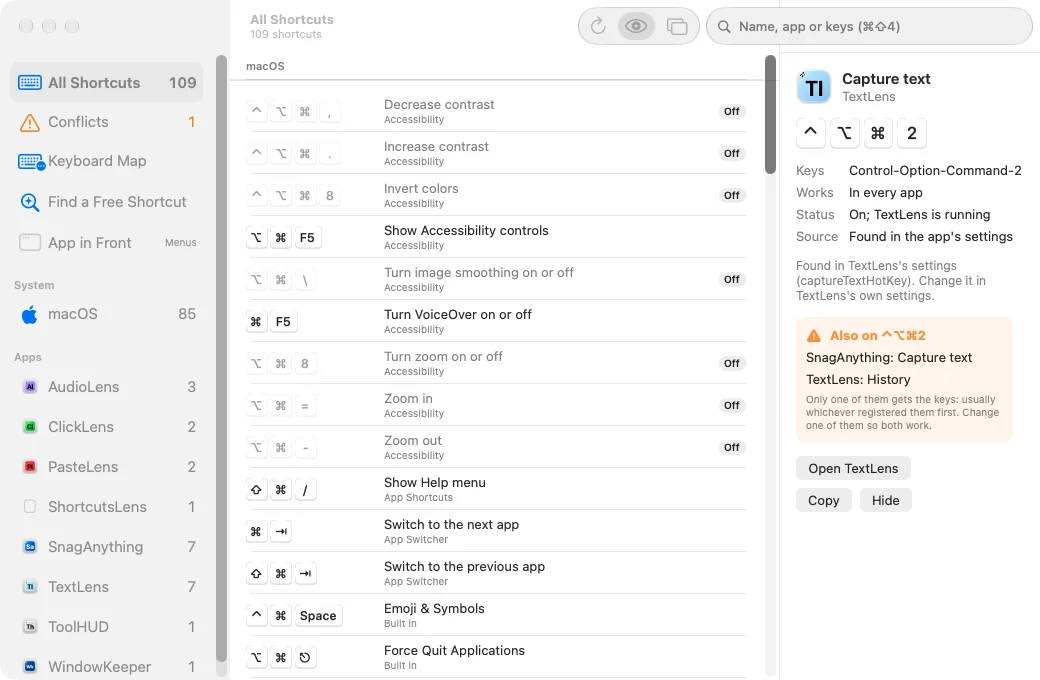
The main window: every system-wide shortcut by app, with a TextLens shortcut selected and the SnagAnything shortcut that collides with it.
Find the shortcuts that collide
When two apps want the same keys, only one of them gets them, usually whichever registered them first, and the other silently does nothing. The Conflicts page lists every pair of shortcuts that are on and share keys, grouped by keys, with where to change each one: macOS's own open Keyboard settings, and an app's open that app.
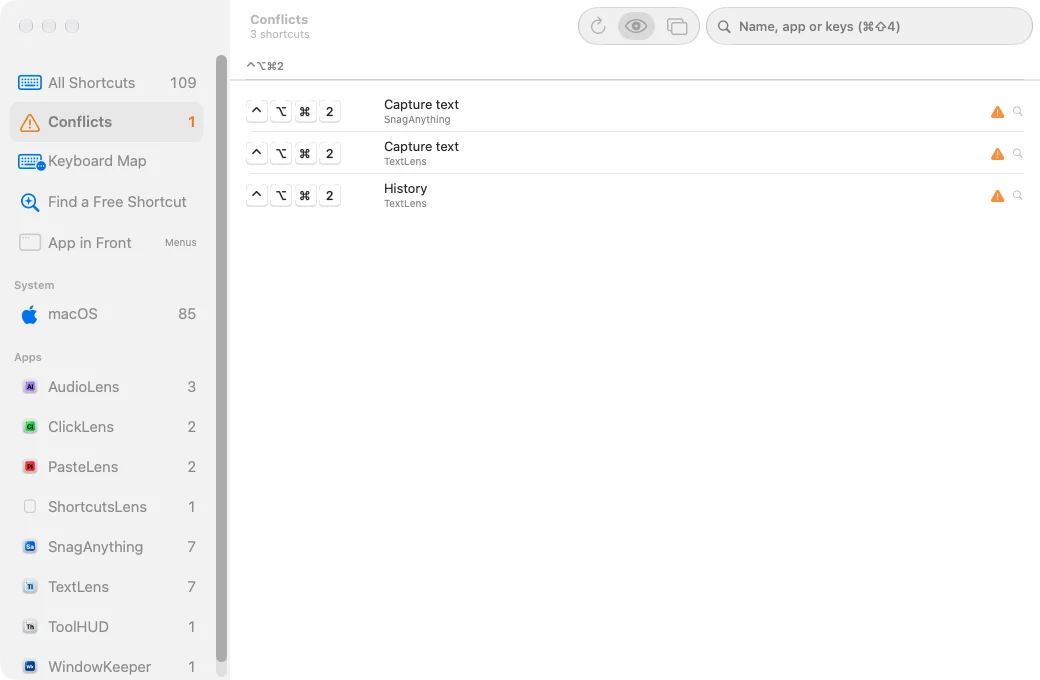
Conflicts: SnagAnything and TextLens both want Control-Option-Command-2.
See what's free before you pick
The Keyboard Map draws your keyboard for any mix of modifiers: taken keys are lit, conflicts are orange, and free keys are plain. Hover over a key to see what uses it, or click it for everything on that key.
Find a Free Shortcut answers the question before you set one. Press a shortcut you have in mind to see whether anything uses it, or pick from free ones in the modifier sets least likely to clash with app menus, and click one to copy it.
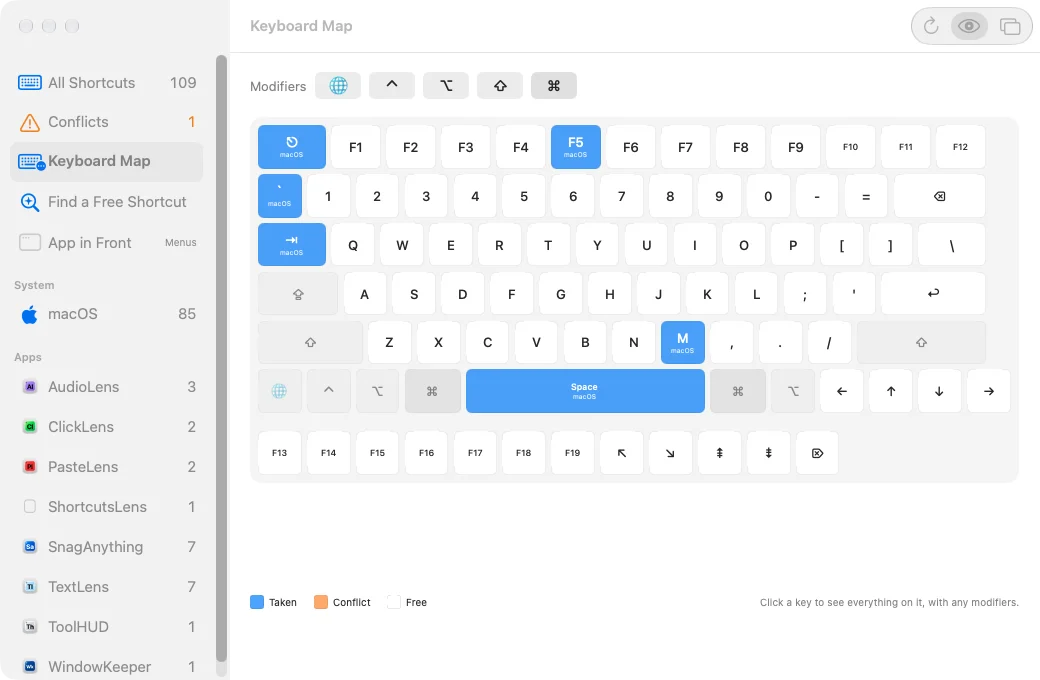
The Keyboard Map with Command chosen: the keys macOS uses are lit.
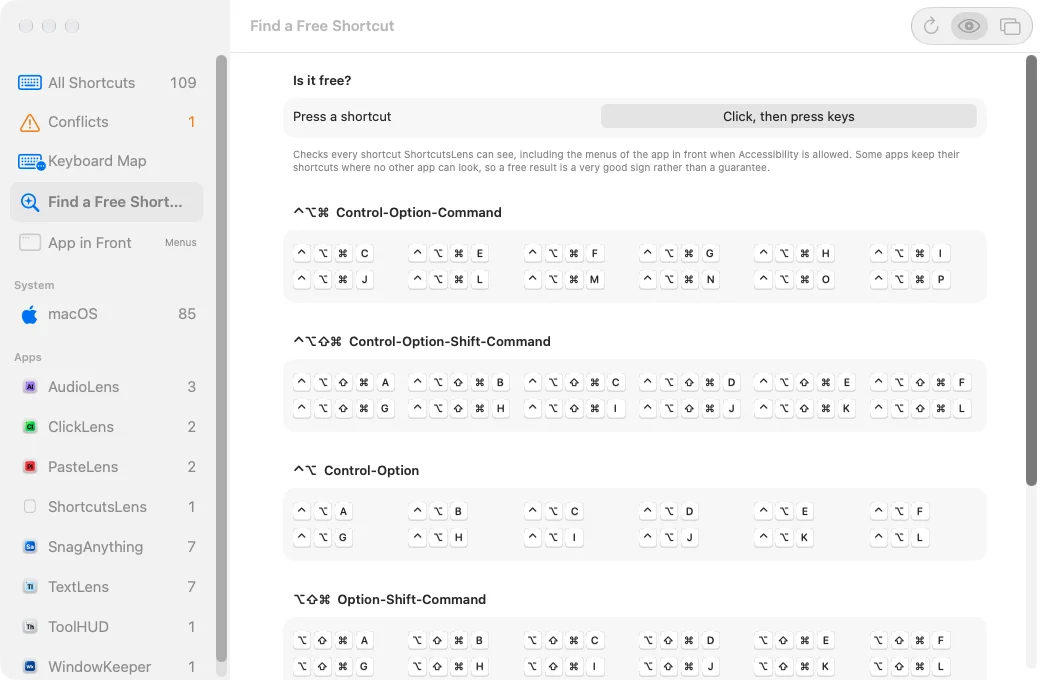
Find a Free Shortcut: test a shortcut, or pick one that's free.
A cheat sheet over any app
Press the Quick View shortcut in any app and a searchable cheat sheet floats over it: the menu shortcuts of the app you're using, every system-wide shortcut, and the conflicts. Press the shortcut again or Esc to close it. You can also have it appear while you hold ⌘ for a second, until you let go.
Reading another app's menus, and holding ⌘, need Accessibility permission, which is optional. ShortcutsLens only reads names and keys, never clicks anything, and never asks for Full Disk Access.
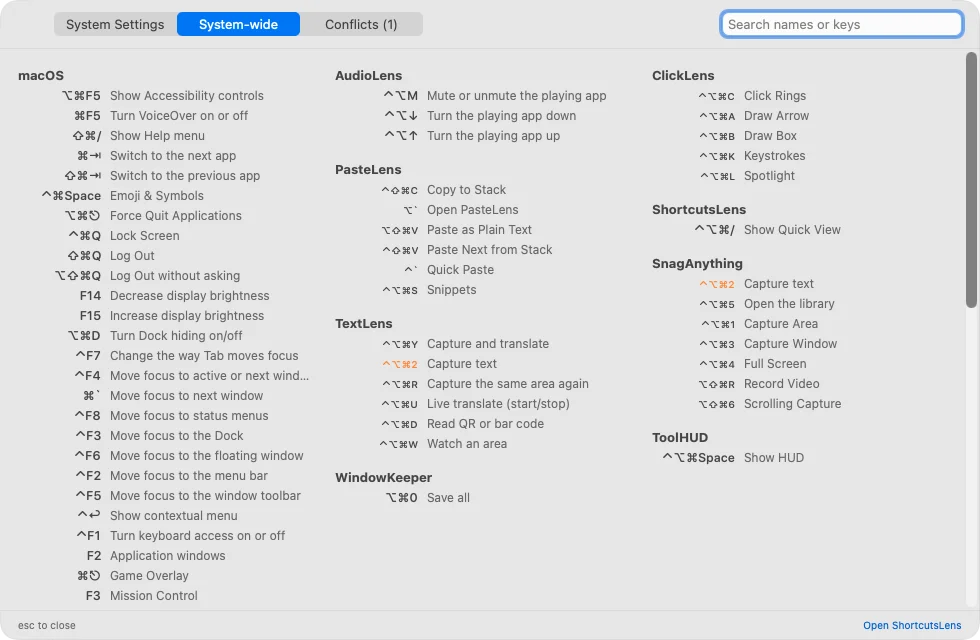
The Quick View on its System-wide tab, in columns you can take in at a glance.
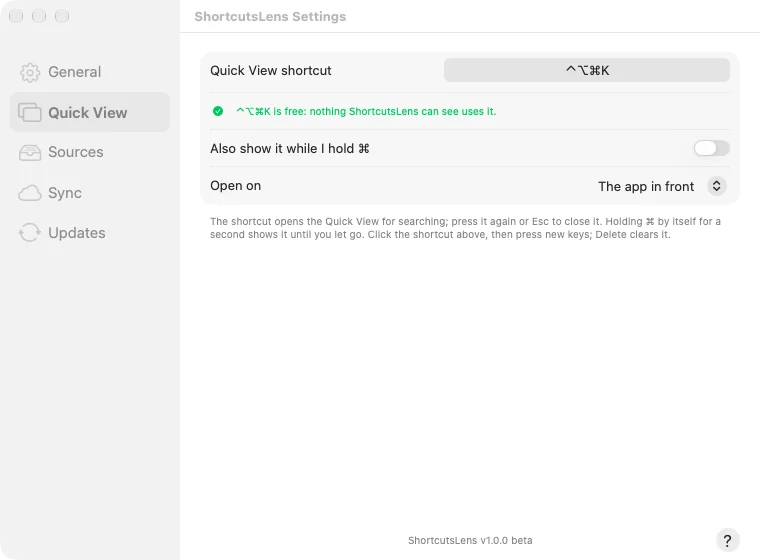
Settings, Quick View: pick the shortcut, turn on holding Command, and choose which tab it opens on.
Works with your other apps
TextLens, SnagAnything, PasteLens, ClickLens, AudioLens, ToolHUD, WindowKeeper and ExpansionLens tell ShortcutsLens their shortcuts directly while they run, so their entries are exact rather than read from settings files.
shortcutslens:// links open the Quick View, Conflicts, the Keyboard Map and Find a Free Shortcut from ToolHUD buttons, Shortcuts and scripts. While ToolHUD is running, ShortcutsLens's menu can move into ToolHUD's menu bar menu as a submenu.
What it does
All your shortcuts
macOS, Services, App Shortcuts and the global shortcuts apps register, in one list.
Conflicts
Shortcuts that share the same keys, with where to change each one.
Keyboard Map
What's taken for any set of modifiers, at a glance.
Free shortcuts
Test a shortcut before you set it, or pick a free one and copy it.
Quick View
A searchable cheat sheet over any app, one shortcut away.
The app in front
Its menu shortcuts and where each one sits, with Accessibility.
Search by keys
Type ⌘⇧4 or ⇧⌘4, either one finds it.
Hide what you skip
Right-click a shortcut or an app to hide it, and bring it back in Settings.
Help built in
Searchable Help on every page, with your own Quick View shortcut filled in.
Sync
Your options and hidden shortcuts follow you to every Mac through iCloud.
Automation
shortcutslens:// links for Shortcuts, scripts and ToolHUD.
Your Mac, your way
Show it in the menu bar, the Dock, both or neither, choose System, Light or Dark, and open it at login.
Getting started
Open the downloaded disk image and drag ShortcutsLens to Applications. Open it, and it lists your shortcuts right away; that needs no permission. To see the menu shortcuts of the app you're using, allow Accessibility when it asks, or later in Settings, General.
Open Help from the Help menu, the ShortcutsLens menu, or the ? button in any Settings pane. It covers every page, what the marks next to a shortcut mean, and what to do when an app's shortcut is missing.
Updates
ShortcutsLens checks for a new release once a day, or on a schedule you set in Settings, from every hour to once a year. You also choose what happens: Ask me first, where a notification and the menu offer it and nothing installs until you click, or Install automatically, where it waits until the Quick View is closed, no app is keeping the screen awake and your Mac has been idle for 2 minutes. Each download must be signed by the same developer and notarized by Apple before it is installed, and your settings carry over.
Under the hood
ShortcutsLens is a native Mac app written in Swift. It reads macOS's shortcuts from the table Keyboard settings is built from, merged with your changes and the live values the window server is using, and reads apps' global shortcuts from their settings files, looking only under settings whose names say hotkey or shortcut. Apps can also report their own shortcuts through a small protocol any app can copy in. An app that keeps its shortcuts in its own database leaves nothing to read, so a shortcut ShortcutsLens calls free is a very good sign rather than a guarantee. It reads only: it never changes another app's settings.