
CaptureLens
Requires macOS 26 or later
CaptureLens keeps every screenshot in a library instead of on your Desktop. Each capture is named from what's in it by Apple Intelligence on your Mac, so you can find it again by its name, the date, its tags or notes, or any word in the picture. Mark captures up with arrows, boxes, text and numbered steps that stay editable, change words and move parts right in the picture, record your screen as video, stitch scrolling pages into one tall capture, and keep the whole library in step across your Macs, encrypted end to end. No subscription, no license key, no account.
Free. Signed and notarized by Apple.
Now in beta. New: macOS screenshots and Snagit captures can come into the library as you take them; drag the lines between the library's panes, fold either side away, and have the layout follow you to your other Macs; and a clearer panel sets up each recording. Moving from Snagit? Import from Snagit brings your captures along, with their markup, tags and videos.
Works with ToolHUD
ToolHUD
Press one shortcut and pick from a ring of buttons around your pointer to capture an area, a window or the whole screen, start a recording, record steps or open the library, along with features of the other apps on this site. While ToolHUD runs, CaptureLens's menu bar menu moves into ToolHUD's menu too, so one icon holds them all.
Every capture in a searchable library
Press Option-Shift-Command-4 and click a window, drag over an area, or press Return for the whole screen. The capture goes straight into the library, and onto the clipboard if you like, and a preview slides into the corner: click it to open the capture, or drag it into another app. Other shortcuts capture the whole screen (Option-Shift-Command-3), a window even where others cover it (Option-Shift-Command-5) or a scrolling area (Option-Shift-Command-6), and presets add countdowns and exact sizes.
Search finds words in names, tags, notes and the text inside every picture, and understands tag:work, app:safari, site:example.com and dates such as yesterday or March 3. The sidebar lists your tags, the apps you captured and the websites you were on, and each list folds away with a click. Every capture remembers the app, the window and, in a browser, the web page it came from, and you can select and copy any text in a picture with Live Text.
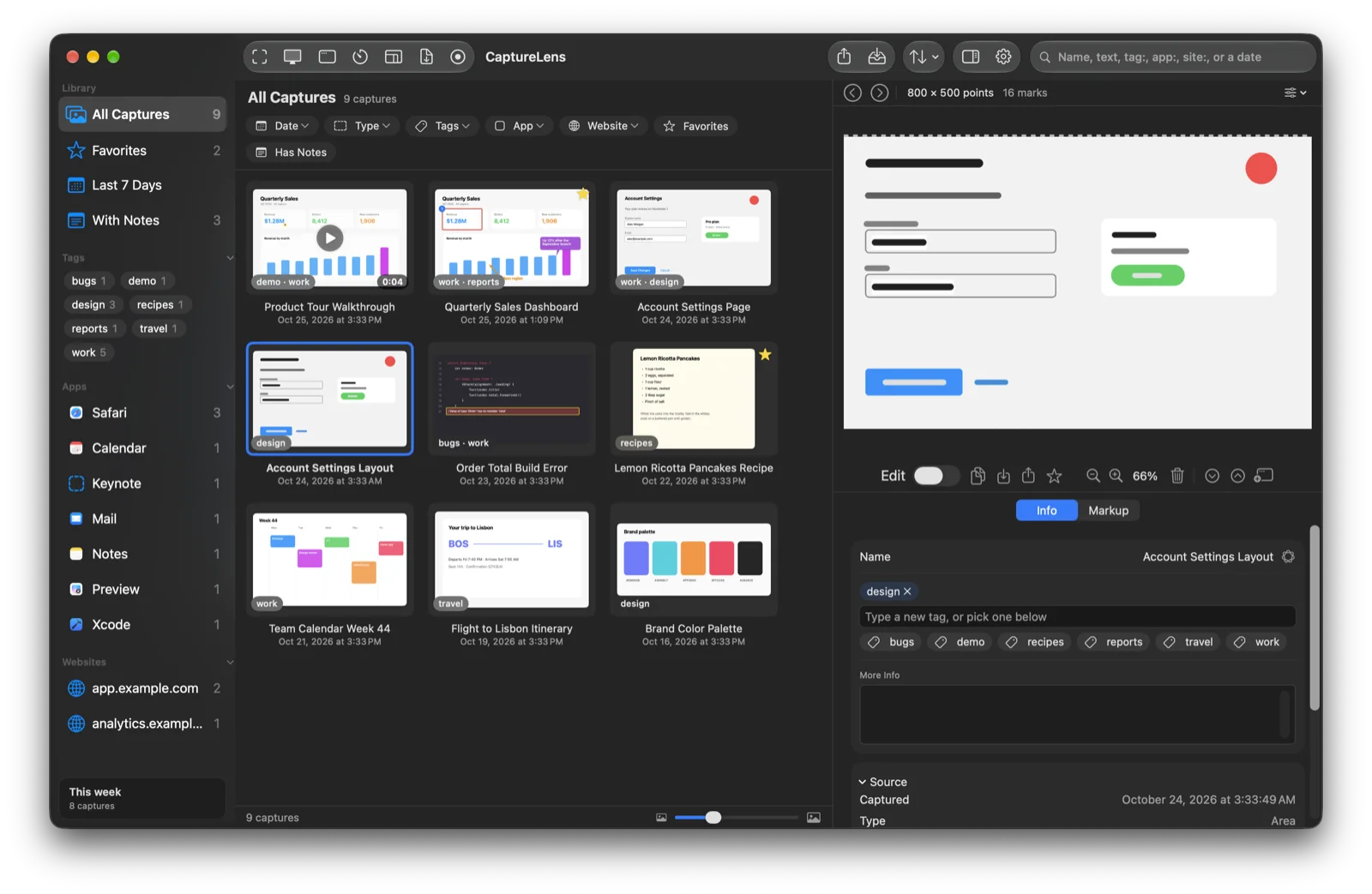
The library window keeps everything in view: tags sit in the sidebar as chips you click to filter, a This week card counts what you captured, and a title over the grid says what you're looking at. Drag the sidebar narrow and it becomes a column of icons. Drag the lines between the captures, the picture and its details to share the window as you like, or fold either side away with the arrows above the picture to give the other all the room. Double-click a capture to open it beside the captures or in a window of its own, as you choose; right-click it for either. Under each capture, the Info tab holds its name, tags, notes and where it came from.
Screenshots you take with macOS or Snagit can join the library too. Turn on Captures from other tools in Settings and each new one comes in as you take it, tagged OS Screenshot or SnagIt Screenshot so they're easy to filter, with the app and window it was of. Bring in the ones you already have from the last week, month or three months, or all of them. The original files stay where they are, and each comes in only once.

The library: tags as chips, apps and websites in the sidebar, and one capture open with the markup tools floating over it.
Markup that stays editable
Draw boxes, ellipses, arrows and lines, add text, callouts, numbered steps and stamps, highlight or draw freehand, dim everything but a spotlight, or magnify a detail. The marks stay separate from the picture, so you can move, resize, recolor or delete any of them later, and copying, dragging or saving draws them in. Quick styles keep your favorite colors and sizes one click away, and every change can be undone.
The tools float over the picture in a toolbar, each with its key letter; drag it to the left, right or bottom. Or switch them to a radial dial that opens around the pointer when you right-click or hold Command-Option: the tools you use most sit closest to the middle, with colors and line widths inside. Drag the dial anywhere, and pin it to keep it open while you draw. The Markup tab under the picture lays out colors, line and text sizes and styles in full. Hold Space and drag to move around a zoomed-in picture, Control-scroll to zoom, and hold Command for the select tool.
Adjust the picture without ever changing the original: crop, rotate and resize, cut strips out of the middle with torn, wavy or straight seams, add borders, rounded corners, shadows and torn or faded edges, or remove the background to keep just the subject. Blur, pixelate or black out anything private, or let Smart Redact find email addresses, phone and card numbers, keys and more and cover them for you. Save as PNG, JPEG, HEIC, TIFF, GIF, BMP or PDF.

A box, a numbered step, an arrow, text and a callout on a dashboard, with the floating toolbar below it.
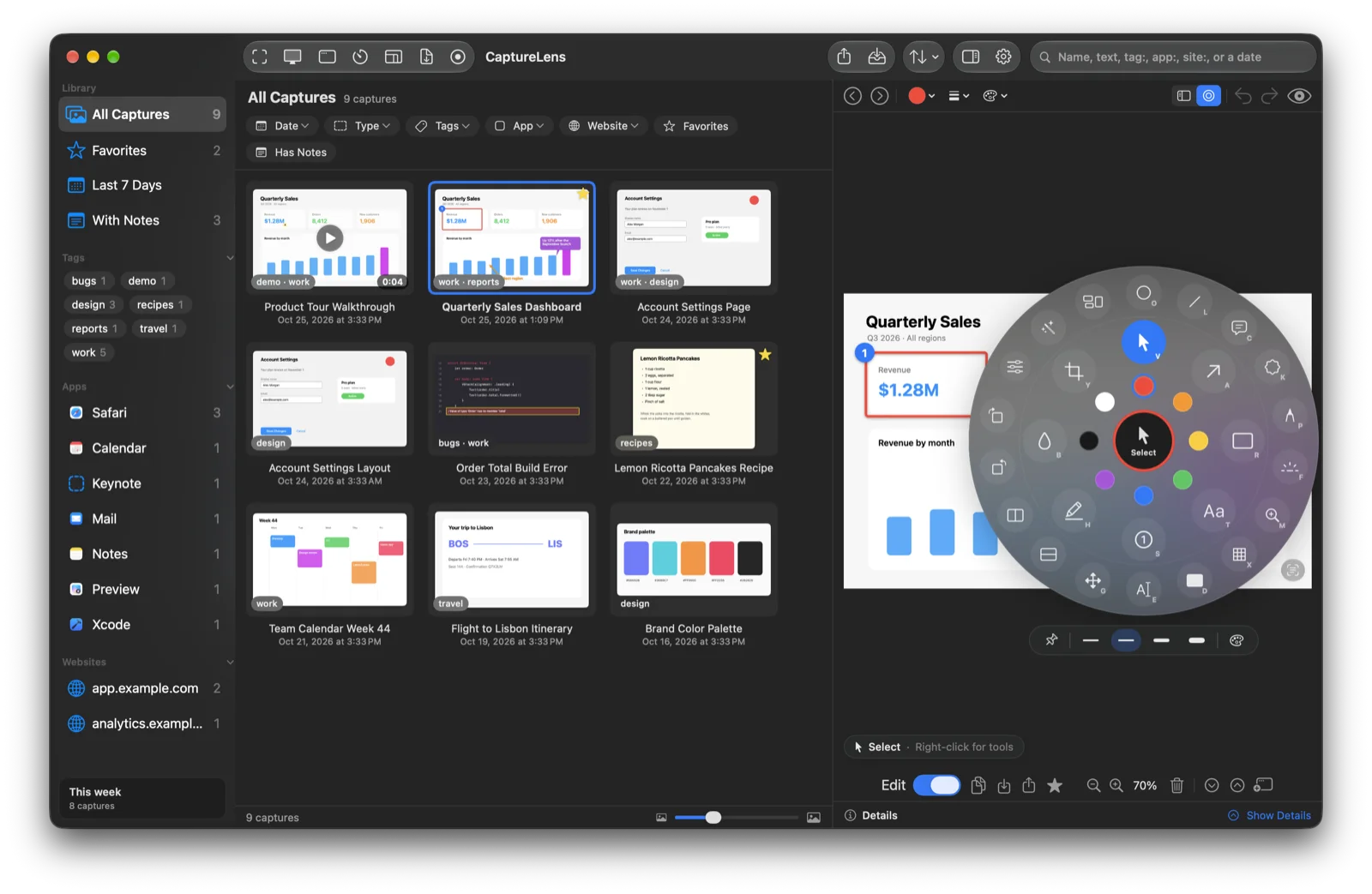
The tools as a dial, pinned open: the ones you use most closest to the middle, colors inside, and line widths and the pin below.

The Markup tab: how the tools are shown, colors, line and text sizes, and styles.
Change what's in the picture
Edit Text retypes words in the picture itself. Click a line and type: the old words are painted over with the background around them, and the new ones match the size, weight and color. Smart Move picks up buttons, icons and lines of text so you can drag them somewhere else or resize them, and fills in the spot they leave.
Simplify redraws a whole screenshot as plain bars, boxes and circles, in its own colors or in grays, which is handy for showing a layout without its details or keeping attention on one part. Like everything else in CaptureLens, these are marks you can change or remove, and the original is never touched.
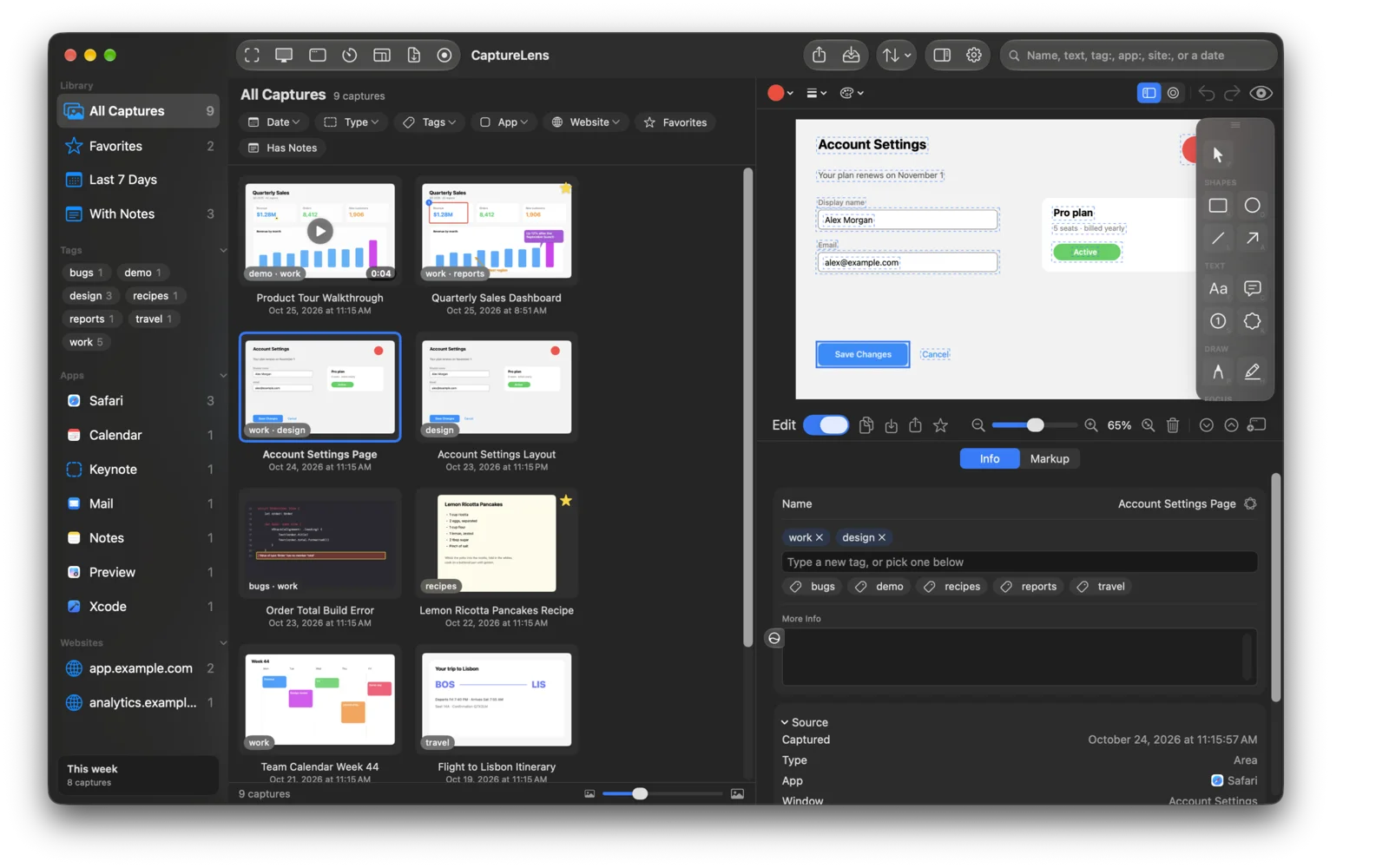
Smart Move outlines every part it can pick up. The one under the pointer is highlighted.
Simplify: a settings page redrawn as plain shapes.
Record your screen
Press Option-Shift-Command-R, pick a window, an area or the whole screen, and a panel of clear on and off switches sets what to record with it: the Mac's sound, your microphone, your camera in a round bubble you can drag anywhere, a ring wherever you click, and the shortcuts you press, never what you type, so passwords stay out of recordings. Pick which microphone and camera, 10 to 60 frames a second, since fewer make smaller videos, and a countdown of none, 3 or 5 seconds. The same choices are in Settings, and a change in one is a change in both. Pause and resume as often as you like, and press the shortcut again to stop.
Recordings land in the library beside your pictures, named from what's on screen and searchable by the words in them. With Edit on, trim the start and end with the yellow handles, cut sections out of the middle, or save any frame as a picture to mark up. Copy, drag or save the finished video as MP4 or an animated GIF. The recording itself is never changed.
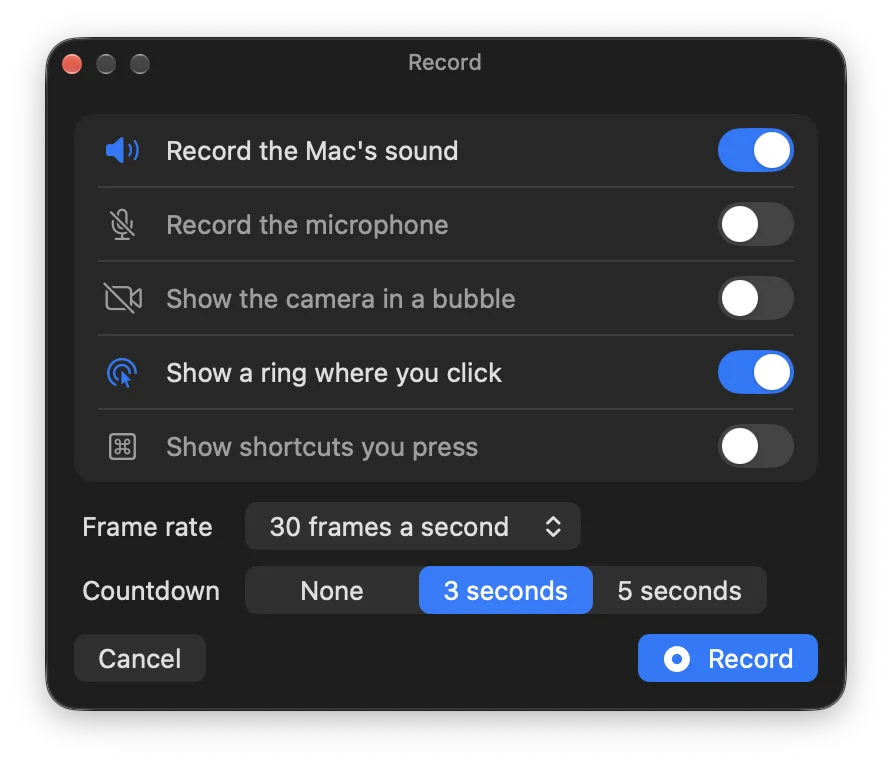
Before recording: a switch each for the sound, microphone, camera, clicks and keys, then the frame rate and countdown.

A recording in the library, with its trimmed ends and a cut section on the timeline.
Long pages, how-tos and guides
Scrolling capture stitches a long web page, document or list into one tall picture. Scroll it yourself or let CaptureLens scroll it for you, and toolbars that stay put appear only once. Record Steps captures the window at every click, numbers each step and names it from what you clicked, such as Click Save, ready to become a guide. Scroll for Me stops as soon as you move the pointer or press Esc, slows down when a page scrolls further than asked, and keeps stitching past a sidebar or scroll bar that stays still.
Select a few captures and Make a Guide lays them out as a step-by-step guide, a reference sheet or a timeline, as a PDF or a picture, with each capture's name as its heading and its notes beneath it. Export many captures at once with the same format, size and frame, and recordings go out as videos.
Moving from Snagit
Choose Import from Snagit and CaptureLens finds Snagit's folders, such as its autosave folder and a library kept in OneDrive or iCloud Drive, and brings every capture in with its date, app, window, web address, tags and favorites. Boxes, arrows, lines, text, steps, highlights, pen strokes, magnifiers, blur and callouts become CaptureLens marks you can edit whenever they draw exactly as they did in Snagit. Anything else comes in as Snagit drew it.
Videos can come too. They are copied to a folder of their own, play in the library and stay on that Mac. Empty placeholders, duplicates and captures you have already imported are skipped, so importing again only adds what's new, and Snagit's own files are never changed.
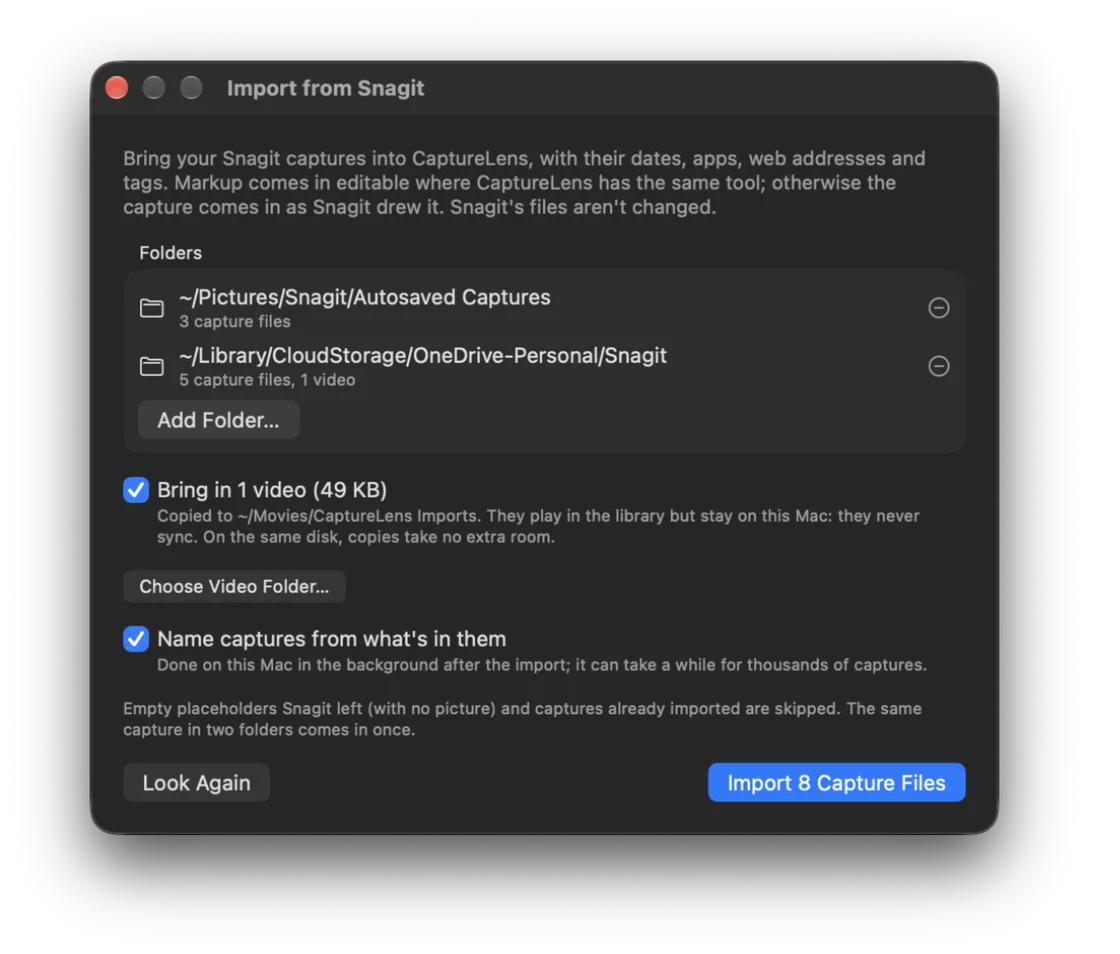
Import from Snagit finds Snagit's folders and counts what's in them.
Private, and on every Mac
The library is encrypted on your Mac with AES-256, using a key kept in your keychain, and can ask for Touch ID or your password before it opens. Turn on sync, choose a passphrase, and your captures, tags, notes and markup follow you to every Mac. They are encrypted before they leave, so neither Apple nor the developer can read them.
Sync through iCloud, or through a folder that Dropbox, OneDrive or Google Drive keeps on your Macs, while your settings keep syncing through iCloud. Settings and the library each have their own switch on every Mac, so a Mac can share one without the other. The library window's layout travels with your settings as proportions, so a pane that's half the window on a big screen is half on a small one. Recordings' names, tags and notes always sync. Turn on Sync video files to send the videos themselves too.

Settings, Library: the markup tools, what double-clicking a capture does, encryption, the lock, sync, video files and captures from other tools.
What it does
Capture anything
The whole screen, a window even where others cover it, an area, an exact size, or after a countdown, each from its own shortcut.
A library that names itself
Every capture saved and named by Apple Intelligence on your Mac, then found by name, date, tag, notes, app, website or the text in it.
Markup
Boxes, arrows, lines, text, callouts, numbered steps, stamps, pen, highlighter, spotlight and magnifier, all editable later.
Toolbar or dial
The tools in a toolbar you can move to any edge, or a dial around the pointer with your most-used tools, colors and line widths, that you can drag and pin open.
Adjustments
Crop, rotate, resize, cut out strips, borders, shadows, torn or faded edges and background removal, without changing the original.
Hide private details
Blur, pixelate or black out, or let Smart Redact find email addresses, phone and card numbers, keys and more.
Smart tools
Edit Text, Smart Move and Simplify change what's in the picture and stay editable.
Screen recording
The Mac's sound, your microphone, a camera bubble, click rings and shortcut keys, each a clear switch, with your choice of microphone and camera, 10 to 60 frames a second, a countdown, and pause and resume.
Video editing
Trim the ends, cut sections out, save frames as pictures, and share as MP4 or an animated GIF.
Scrolling capture and steps
Stitch long pages into one picture, or capture a numbered step at every click.
Guides and export
Step-by-step guides, reference sheets and timelines as PDF or pictures, and many captures exported at once.
Import from Snagit
Captures, markup, tags, favorites and videos, without changing Snagit's files.
Screenshots from any tool
macOS screenshots and Snagit captures come into the library as you take them, tagged so they're easy to find.
Encrypted sync
Your library and settings on every Mac, each switched on or off per Mac, through iCloud or a Dropbox, OneDrive or Google Drive folder, encrypted end to end.
Automation
capturelens:// links for Shortcuts, scripts and ToolHUD, and presets with their own shortcuts.
Your Mac, your way
Change every shortcut, show CaptureLens in the Dock, the menu bar, both or neither, choose System, Light or Dark, and size, fold and arrange the library's panes.
Getting started
Open the downloaded disk image and drag CaptureLens to Applications. Open it, and its icon appears in the menu bar. Press Option-Shift-Command-4 to take your first capture, or Option-Shift-Command-L to open the library.
To capture the screen, CaptureLens needs Screen Recording permission: turn on CaptureLens in System Settings, Privacy & Security, Screen & System Audio Recording. The microphone and camera ask the first time you turn them on for a recording, and showing the keys you press needs Accessibility. Automatic names need Apple Intelligence turned on.
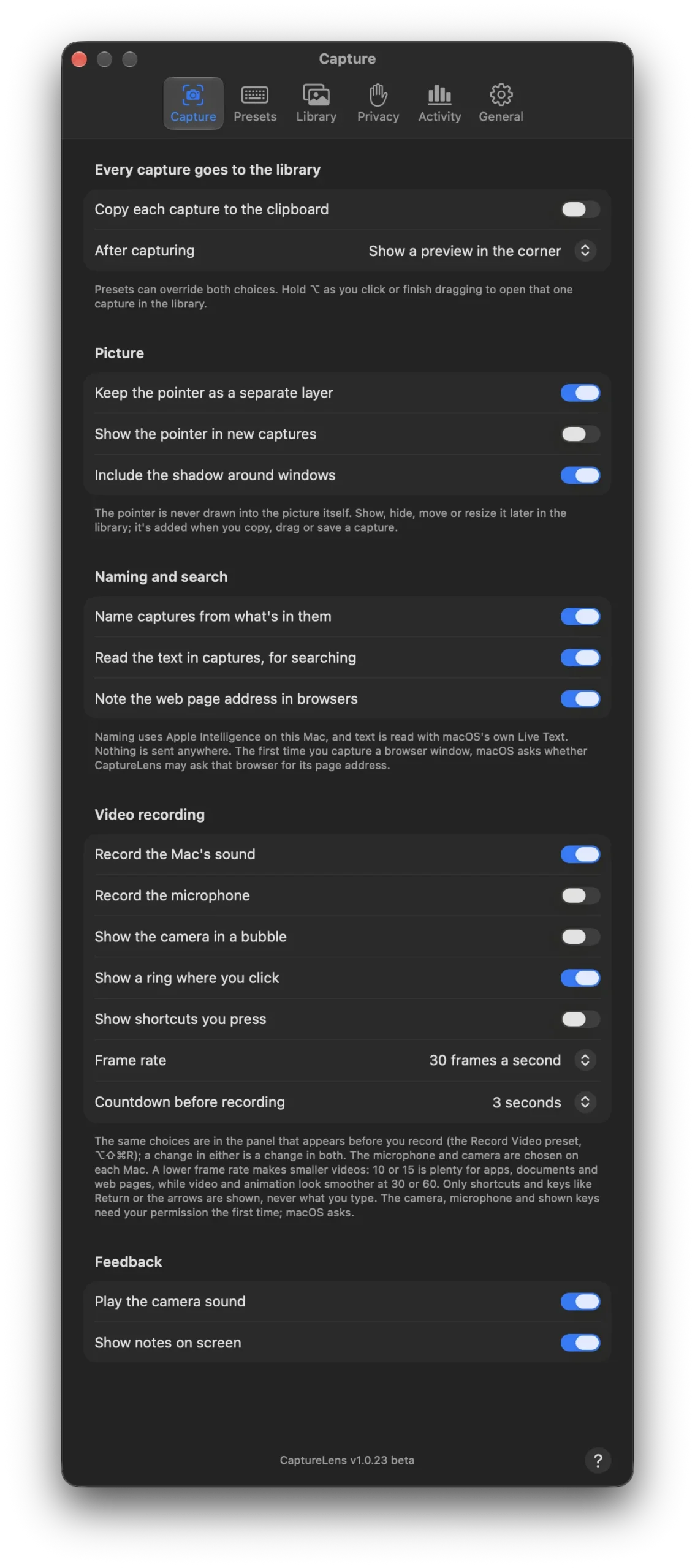
Settings, Capture: what happens after each capture, the pointer, naming, and video recording with its countdown.
Updates
CaptureLens checks for a new release once a day, or on a schedule you set in Settings, from every hour to once a year. You also choose what happens: Ask me first, where a notification and the menu offer it and nothing installs until you click, or Install automatically, where it waits until no capture or recording is under way, CaptureLens has not been used for 30 minutes and your Mac has been idle for 2 minutes. Each download must be signed by the same developer and notarized by Apple before it is installed, and your library and settings carry over.
Under the hood
CaptureLens is a native Mac app written in Swift. It captures and records with Apple's ScreenCaptureKit, reads text with the Vision framework and Live Text, names captures with Apple's on-device Foundation Models, and syncs through CloudKit. Your library lives on your Mac in an encrypted database, anything synced is encrypted before it leaves, and nothing is ever sent to the developer.