PasteLens
Requires macOS 26 or later
PasteLens remembers everything you copy, so you can find it and paste it again with one shortcut. It cleans up and transforms text before it's pasted, lines up several clippings to paste in order, expands snippets as you type, reads the text in screenshots, keeps your history in step across your Macs with end-to-end encrypted iCloud sync, and graphs how much you copy and paste on each one. No subscription, no license key, no account.
Free. Signed and notarized by Apple.
New: One menu bar icon for all your apps. While ToolHUD is running, PasteLens's menu bar menu moves into ToolHUD's menu. A checkbox in Settings keeps it in the menu bar instead.
Works with ToolHUD
ToolHUD
Press one shortcut and pick from a ring of buttons around your pointer to run Quick Paste, Snippets, or features of the other apps on this site. No hard-to-remember key combinations. While ToolHUD runs, PasteLens's menu bar menu moves into ToolHUD's menu too, so one icon holds them all.
Everything you copy, one shortcut away
Press Control-` (the key above Tab) in any app and Quick Paste opens where you're working. Start typing to search everything you've copied: text, links, colors, images and files. The search forgives typos and skipped letters, and it finds words inside screenshots too. Press Return to paste, or Command-1 through Command-9 to paste one of the first nine.
Shift-Return pastes plain text. Option-Return types the text out key by key, for fields that block pasting. Your pastebins run down the left side and Tab steps through them. Pinned, smart pastebins and snippets run across the top, and Shift-Tab steps through those. Command-click to pick several clippings, and Control-1 through Control-9 moves them into a pastebin. Turn on Release to paste and it works like the app switcher: hold the keys, press V to move down, and let go to paste. PasteLens never comes to the front, so the paste lands in the app you were using.
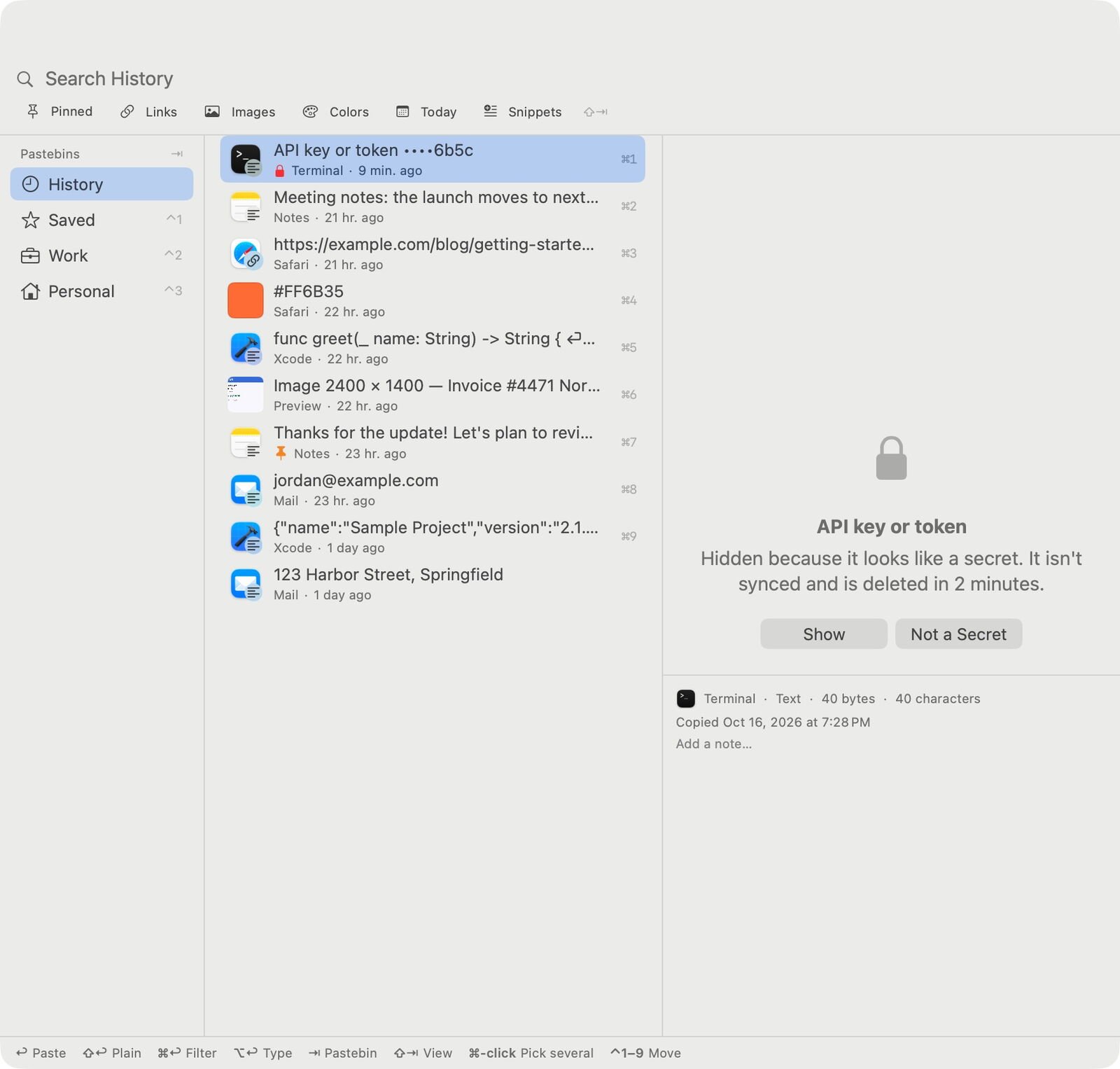
Quick Paste shows where each clipping came from. Colors appear as swatches, and an API key is hidden.

Snippets are one Shift-Tab away, with their abbreviations beside them.
Transform text before you paste
Press Command-Return on a clipping and choose a filter. The result appears beside the list before anything is pasted, so you see exactly what you'll get. More than 50 filters are built in: change case, clean up spacing, sort or number lines, remove duplicates, extract links, email addresses or phone numbers, encode and decode Base64, URLs and HTML, format JSON, convert Markdown to HTML, strip HTML, and more.
Some go further. Translate to English uses Apple's translation on your Mac. Apple Intelligence filters summarize, fix spelling and grammar, rewrite in a professional tone, shorten, or turn text into bullet points, all on device. Build your own from steps, including find and replace with a live regular expression tester, templates, JavaScript and shell scripts, and give any filter its own keyboard shortcut.
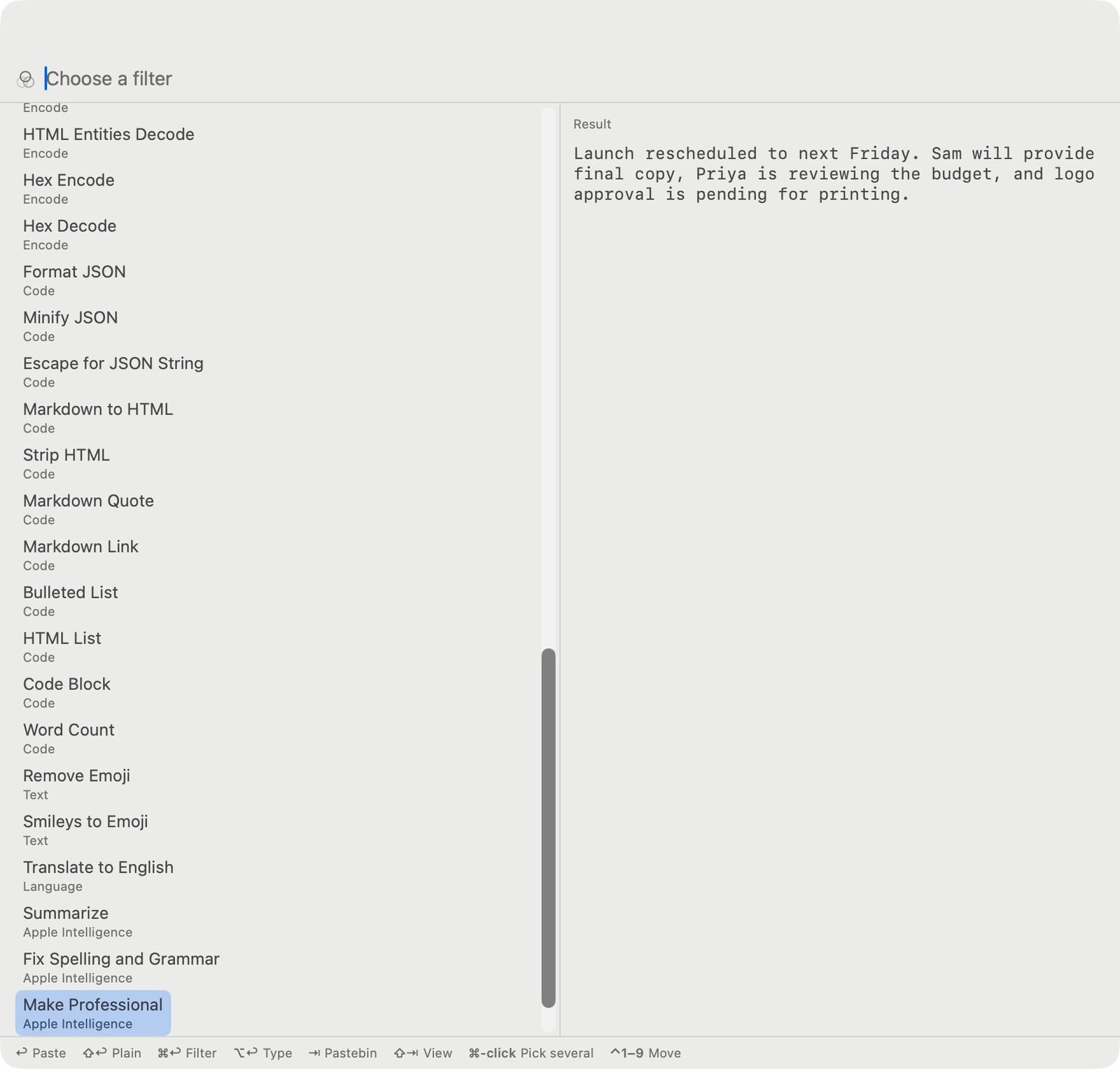
Make Professional, run by Apple Intelligence on the selected meeting notes.
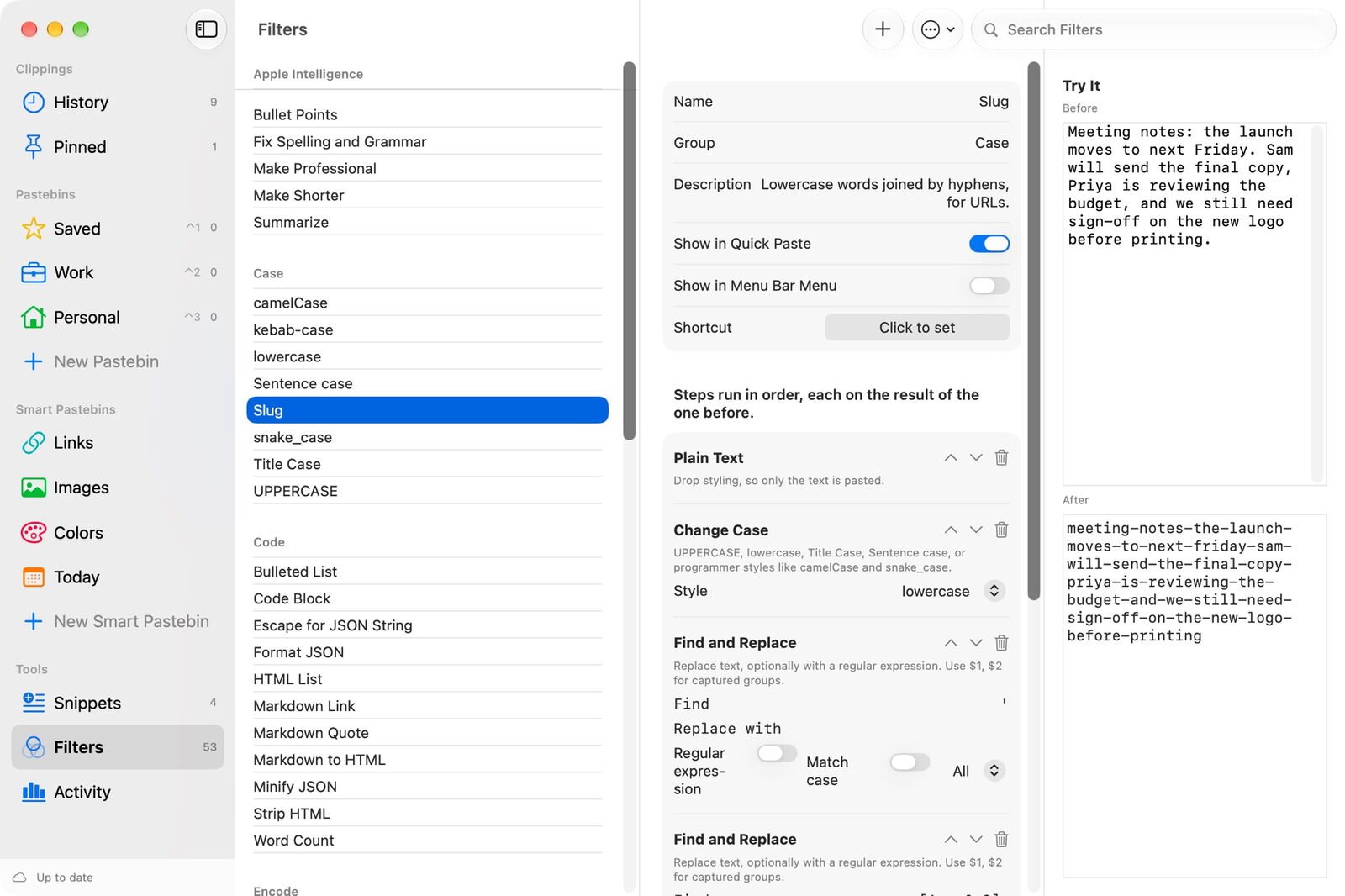
The filter editor tries every change on a sample as you build it.
A history you can browse, search and organize
Open PasteLens to see everything in one window. Move clippings you want to keep into pastebins, where they stay even when you clear History, pin the ones you use all the time, and add notes. Command-click to select several and move them together, or press Control-1 through Control-9. Smart pastebins collect clippings automatically by rules such as kind, text, source app, size or age, and Links, Images, Colors and Today are there to start.
Each kind of clipping gets a proper preview. Images show the text PasteLens recognized in them, ready to copy. Colors show a swatch with Hex, RGB, HSL and Swift values. Links show the page's title and picture, and files show where they are. Edit any text clipping in place, merge several into one, share them, or give one its own shortcut to paste it from anywhere. Double-click a clipping, or right-click it and choose Paste, to paste it into the app you were using; the window closes when you click away.
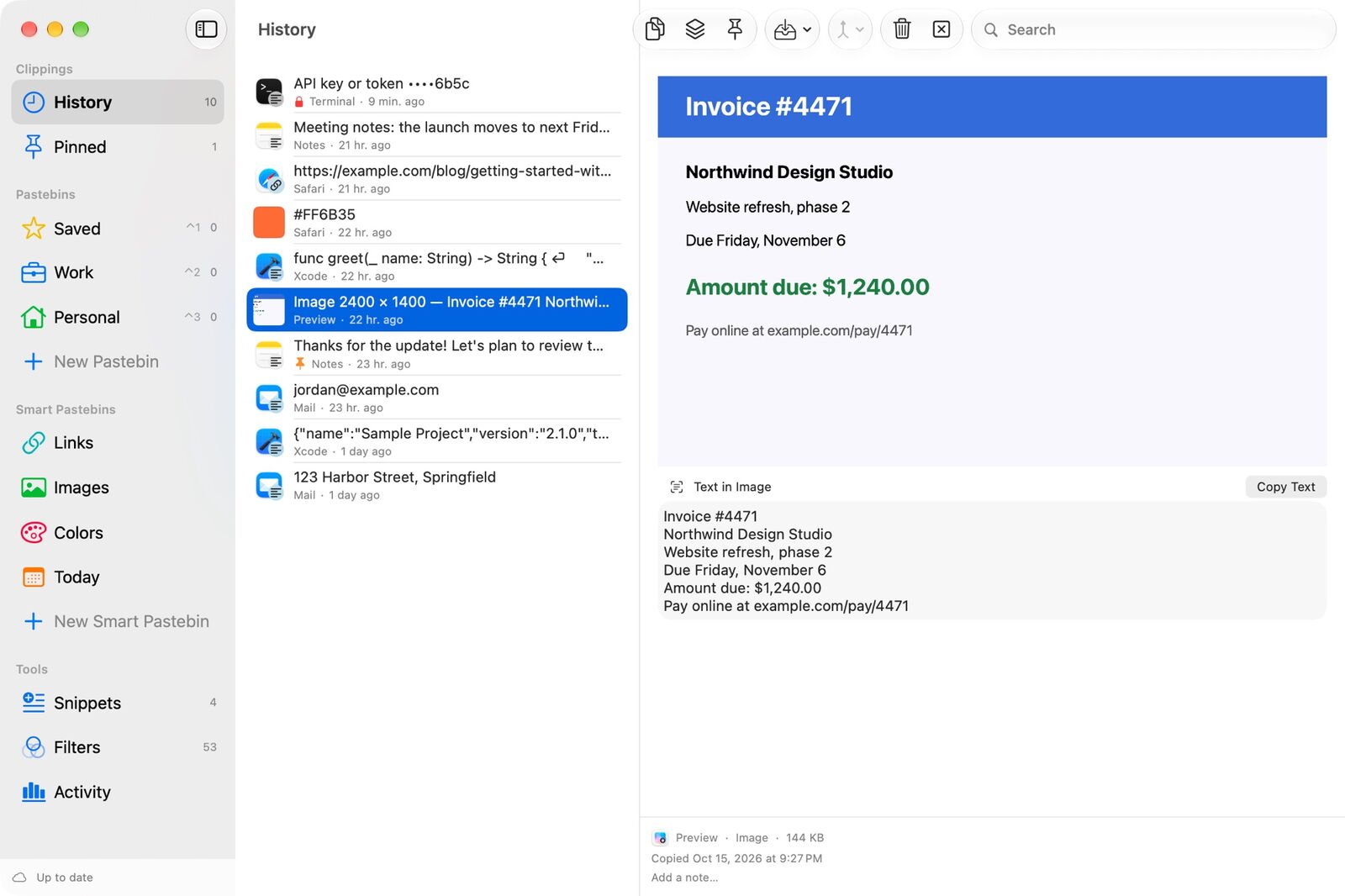
An invoice screenshot. The text in it was recognized on this Mac and is searchable.

A copied color, in every common notation.
Snippets and the stack
Snippets are text you use again and again, with placeholders that fill themselves in: today's date in any format, a date a week from now, the time, the weekday, whatever is on the clipboard, and fill-in fields that ask before pasting. A cursor placeholder puts the insertion point where you want it. Give a snippet an abbreviation such as ;sig and it expands as you type in any app.
The stack lines up clippings to paste one after another. Add a few from the list, or turn on Collect and copy things in order, then press Control-Shift-Command-V each time you want the next one. It's made for filling in forms and moving several values between apps.
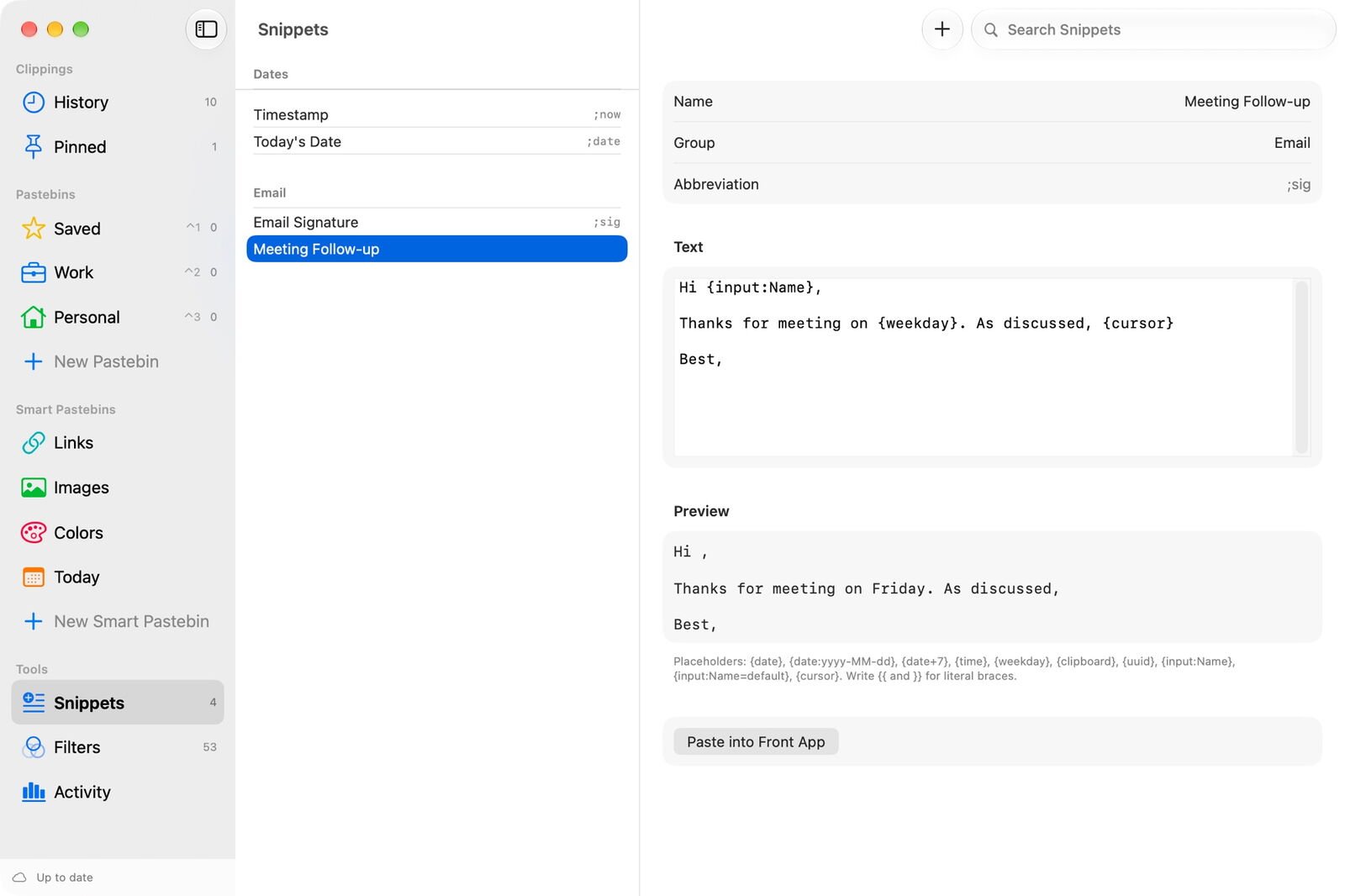
A snippet with a fill-in field, the weekday and the cursor position, with a live preview.

Three clippings waiting on the stack.
Sync your Macs, encrypted end to end
Turn on sync, choose a passphrase, and enter the same passphrase on your other Macs. History, pastebins, smart pastebins, filters, snippets and settings then stay in step through iCloud, one small encrypted record per change. Copy on one Mac and it's in Quick Paste on the other.
Everything PasteLens puts in iCloud is encrypted on your Mac with AES-256-GCM before it's uploaded. The key is protected by your passphrase, which never leaves your Macs, so Apple can't read your clippings. You can keep very large clippings on the Mac where they were copied, and secrets never sync at all.

Settings, Sync: up to date with a second Mac.
See how much you copy and paste
Settings and the History window both have an Activity view with two graphs: how many times you copied, and how many times you pasted. They start at a week and widen to 30, 90 and 180 days, then a year, as you keep using PasteLens. Hover over a bar to see its count.
With sync on, each bar is split by Mac, one color per Mac, so you can see where the work happened. In the History window, choose All Macs or a single Mac. The pastes counted are the ones PasteLens makes. Only the numbers are kept, never what you copied, and they sync encrypted along with everything else.
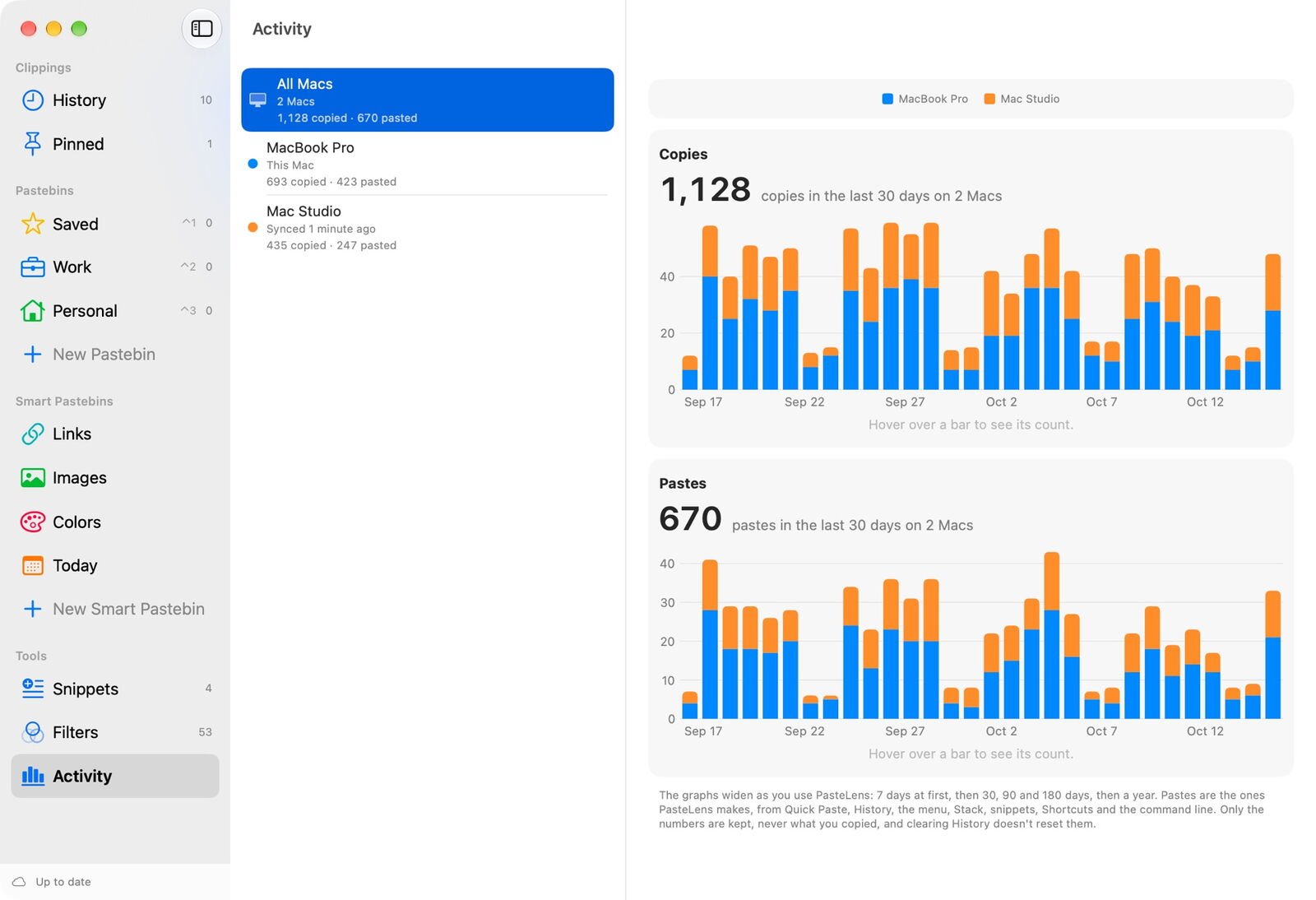
The History window, Activity: a month of copies and pastes on two Macs.
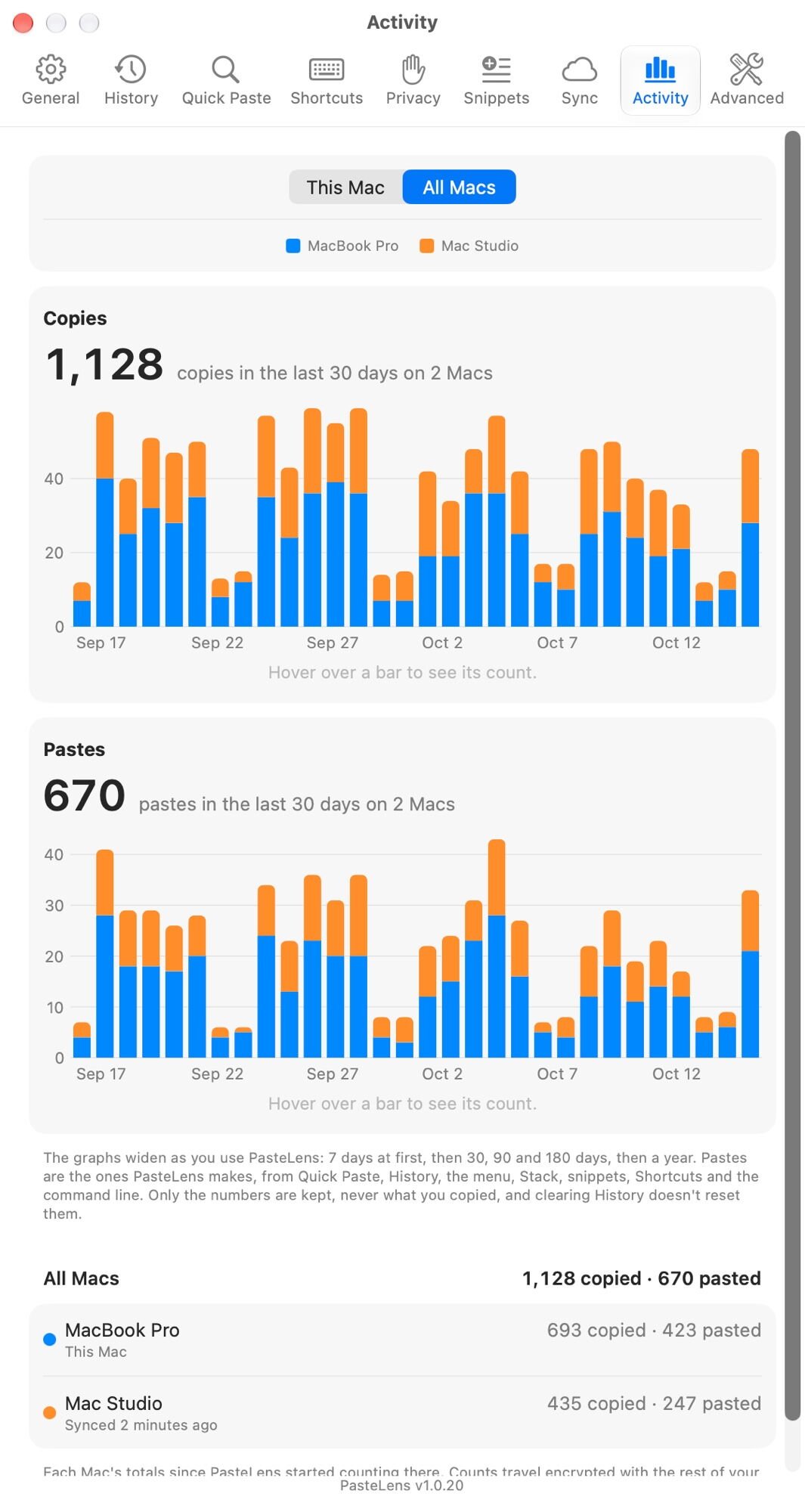
Settings, Activity: both graphs and each Mac's totals.
Private by design
PasteLens spots copied text that looks like a secret: API keys and tokens, private keys, card numbers, one-time codes and password-like text. Secrets are masked in every list, never synced, and deleted after a few minutes. Anything an app marks as private when it copies, as password managers do, is never recorded.
Password managers on your Mac, such as 1Password, Passwords, Keychain Access, Bitwarden and LastPass, are added to the ignore list automatically, and you can add any other app. Choose how many clippings to keep by typing a number, keep a set number of days, or turn on Unlimited history and keep everything.
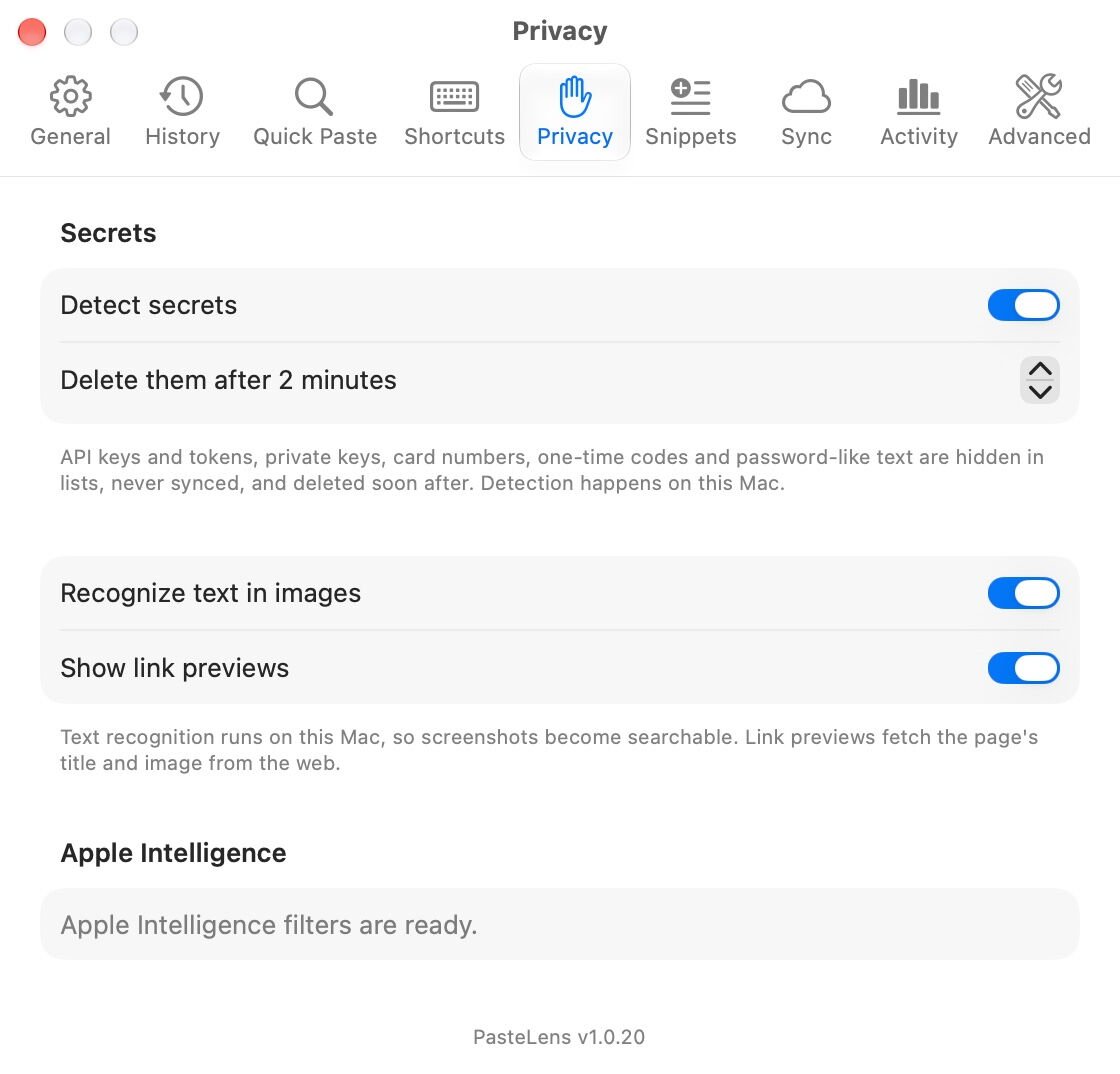
Settings, Privacy: secrets, text recognition and link previews.
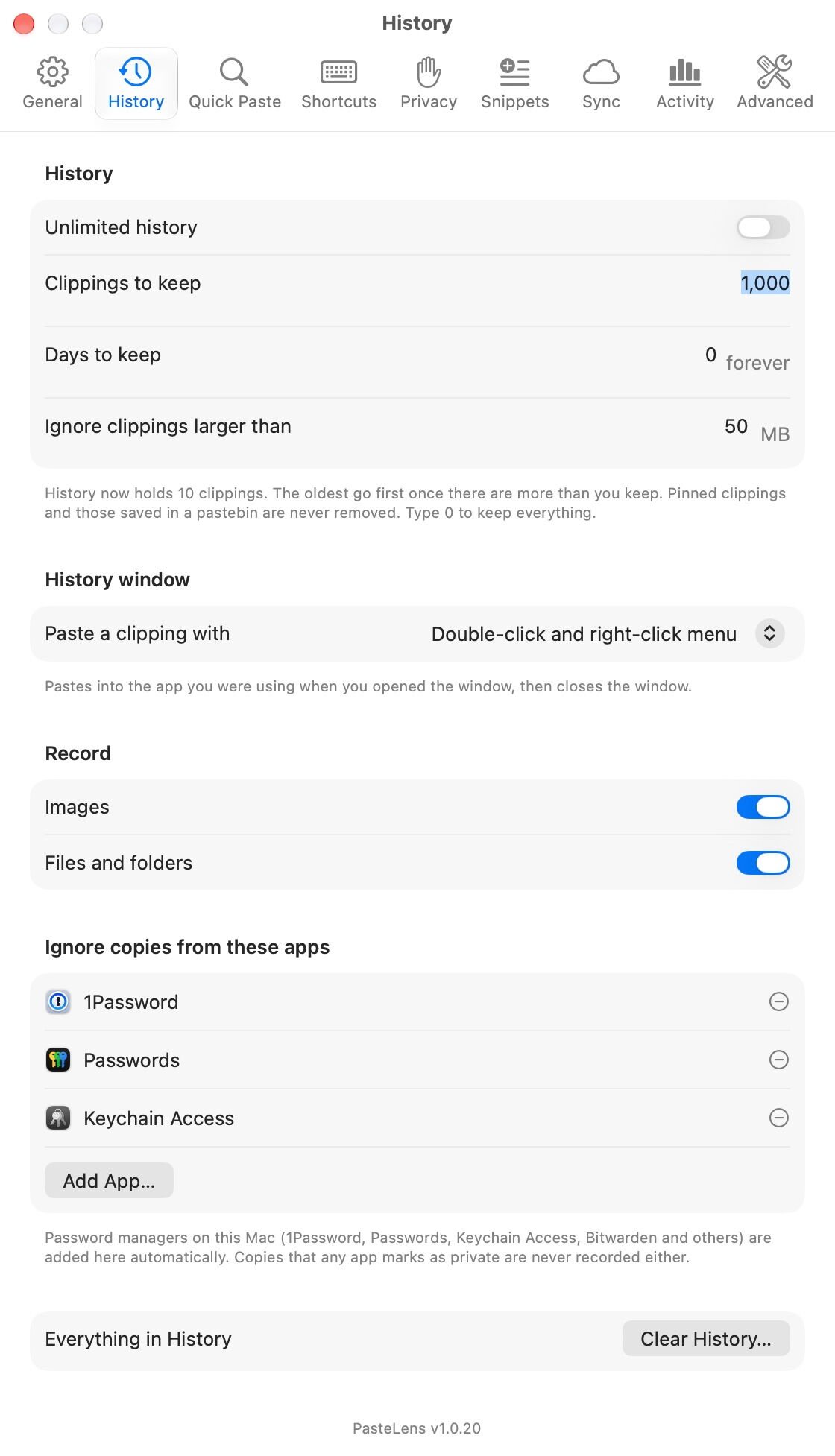
Settings, History: limits, how the History window pastes, what to record and apps to ignore.
What it does
Clipboard history
Text, rich text, links, colors, images and files, each with the app it came from. Keep as many as you like, for as long as you like.
Quick Paste
Search and paste from any app with Control-`. Paste plain, typed out or filtered, and use Command-1 to 9 for the most recent.
Pastebins and smart pastebins
Save clippings into your own pastebins, each with its own shortcut, and let rules collect the rest.
Filters
More than 50 built in, plus your own made from steps, JavaScript or shell scripts. Translation and Apple Intelligence included.
Snippets
Reusable text with dates, the clipboard, fill-in fields and the cursor position, pasted or expanded from an abbreviation.
Stack
Queue clippings and paste them in order, one keystroke at a time.
Text in images
Screenshots and copied pictures are read on your Mac, so their words are searchable and ready to copy.
Privacy
Secrets are masked and deleted, password managers are ignored, and nothing leaves your Mac unencrypted.
Encrypted sync
History, pastebins, filters, snippets, settings and activity counts on every Mac, encrypted with AES-256-GCM.
Automation
Shortcuts actions, a pastelens command-line tool, an MCP server for AI assistants such as Claude, and pastelens:// links.
Import
Bring your clippings, pastebins and filters over from Pastebot.
Your shortcuts, your way
Change every shortcut, show PasteLens in the Dock, the menu bar, both or neither, choose whether recent clippings appear in its menu, and open it at login.
Getting started
Open the downloaded disk image and drag PasteLens to Applications. When you open it, a short tour explains the basics and PasteLens appears in the menu bar. Press Control-` anywhere to start.
To paste into other apps for you, PasteLens needs Accessibility permission. Turn on PasteLens in System Settings, Privacy & Security, Accessibility. Without it, PasteLens still records and copies, and you press Command-V yourself. Typing abbreviations needs Input Monitoring, which PasteLens asks for when you turn that on.
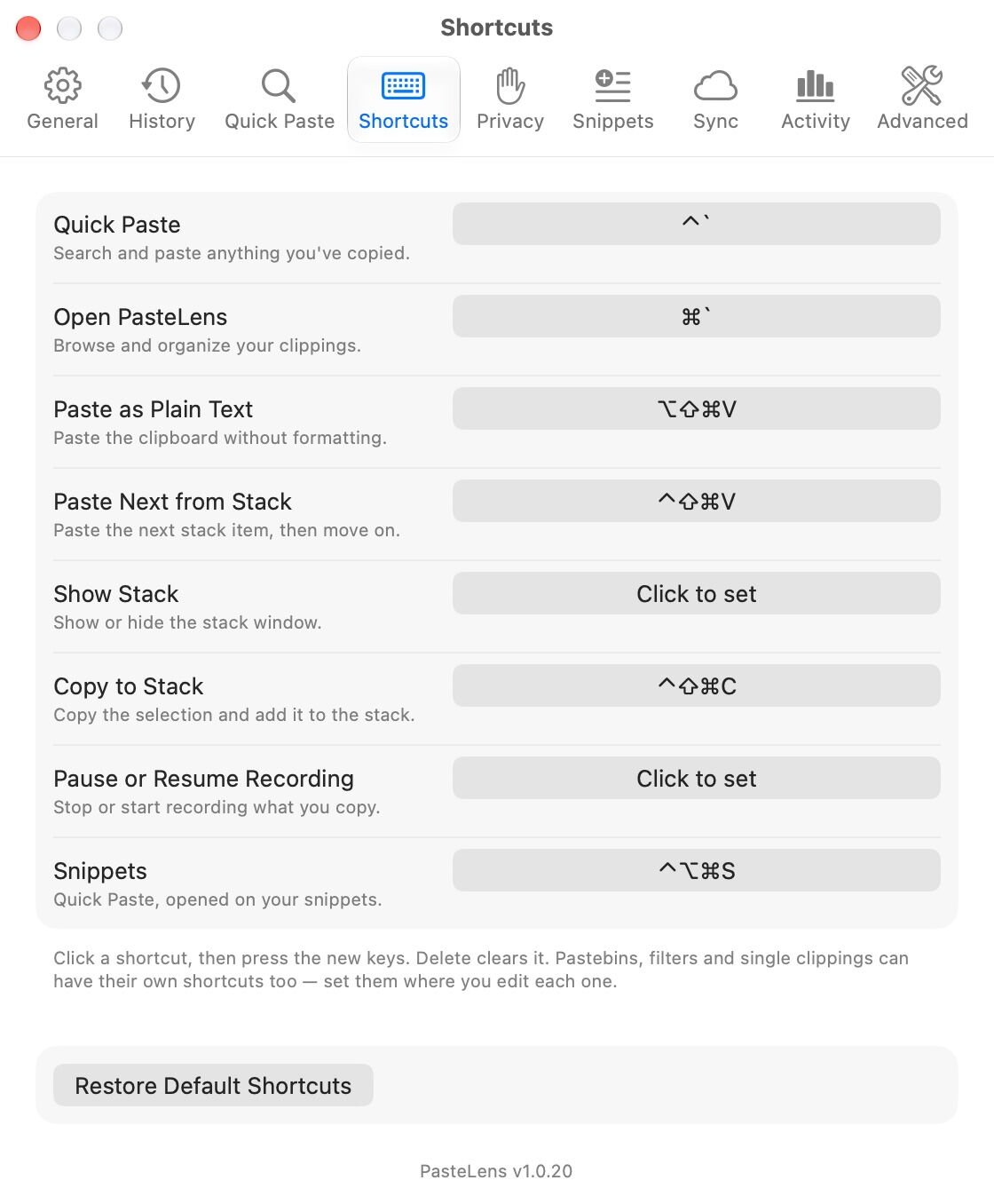
Settings, Shortcuts: change any shortcut by clicking it and pressing new keys.

Settings, Advanced: import, the command-line tool and the MCP server.
Updates
PasteLens checks for a new release once a day, or on a schedule you set in Settings, from every hour to once a year. You also choose what happens: Ask me first, where a notification and the menu offer it and nothing installs until you click, or Install automatically, where it waits until Quick Paste is closed, the stack is empty, nothing is syncing and your Mac has been idle for 2 minutes. Each download must be signed by the same developer and notarized by Apple before it is installed, and your settings and clippings carry over.
Under the hood
PasteLens is a native Mac app written in Swift. It reads text in images with Apple's Vision framework, translates with Apple's Translation framework and runs Apple Intelligence filters with Apple's on-device Foundation Models. Your clippings are stored on your Mac, and anything synced is encrypted before it leaves. The command-line tool and the MCP server talk only to PasteLens on your Mac.