
ClickLens
Requires macOS 26 or later
When you present, demo or record your screen, people lose track of the pointer and miss the shortcut you just pressed. ClickLens puts a spotlight on the pointer, draws a ring for every click, shows your keystrokes on screen and lets you draw boxes and arrows, each on its own shortcut.
Free. Signed and notarized by Apple.
New: One menu bar icon for all your apps. While ToolHUD is running, ClickLens's menu bar menu moves into ToolHUD's menu. A checkbox in Settings keeps it in the menu bar instead.
Works with ToolHUD
ToolHUD
Press one shortcut and pick from a ring of buttons around your pointer to turn on the spotlight, show your keystrokes or draw a box or an arrow, or to run features of the other apps on this site. No hard-to-remember key combinations. While ToolHUD runs, ClickLens's menu bar menu moves into ToolHUD's menu too, so one icon holds them all.
A spotlight on the pointer
Press Control-Option-Command-L and the screen dims everywhere except a circle around the pointer, which follows it as you move. Press it again and the spotlight zooms back out.
Set the size of the circle, how soft its edge is, and how dark and what color the rest of the screen becomes. It can also switch itself off after a set number of seconds.
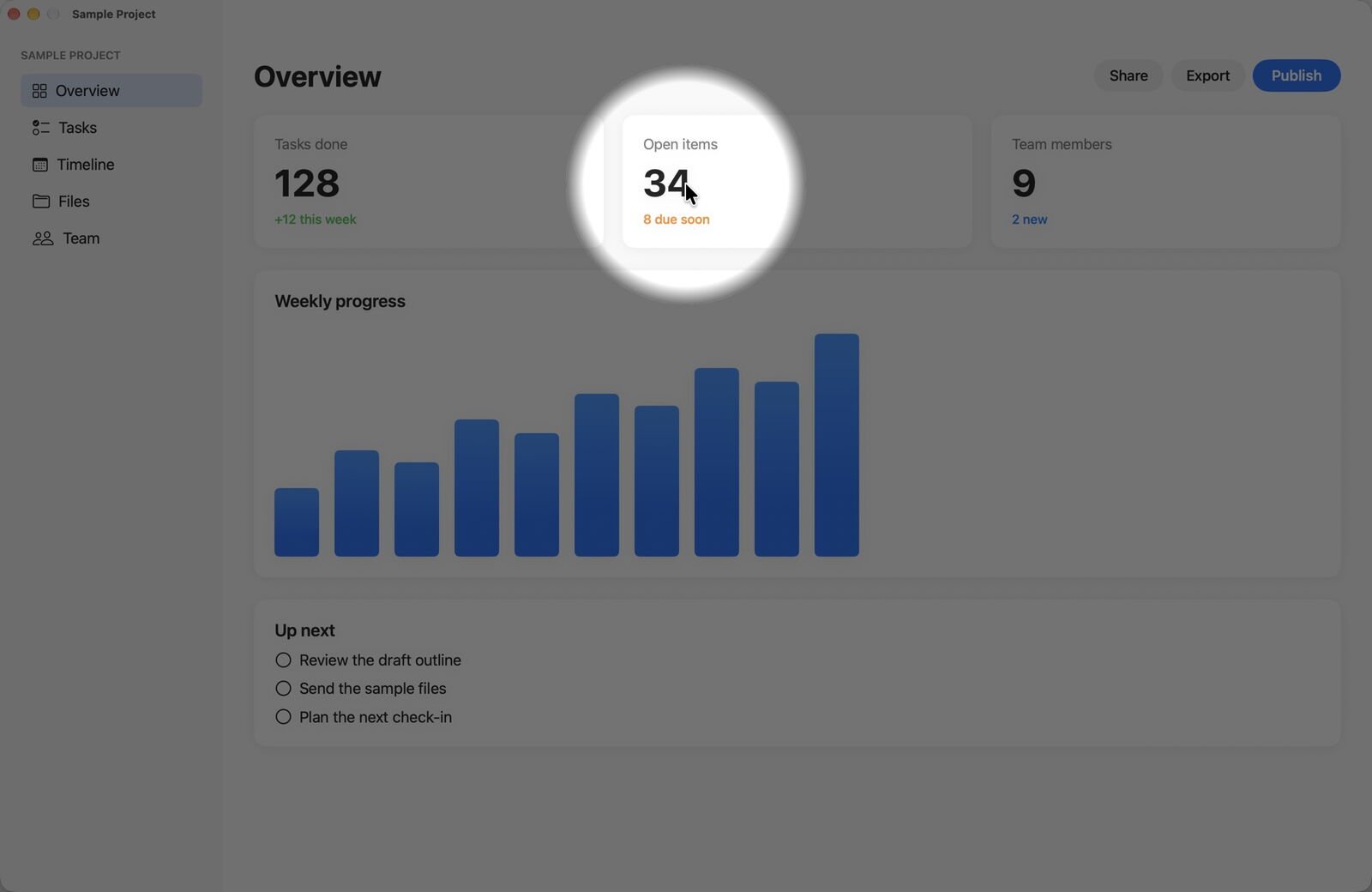
The spotlight follows the pointer. Everything else on every screen dims.
Every click, visible
Each click draws a ring at the pointer, in its own color for the left, right and other buttons. A double click draws a double ring, and a ring follows the pointer while you drag.
Rings can grow as they fade and play a soft click sound. Show them whenever the spotlight is on, on their own with Control-Option-Command-C, or both.

A double click on Share draws a double ring. A right click elsewhere fades out in its own color.
Show what you type
Press Control-Option-Command-K and your keystrokes appear at the bottom of the screen. Typing collects into one line and shortcuts appear the way menus show them, such as ⌘⇧K. Show everything you type, or only key combinations: keys pressed with Command, Option, Shift or Control, so ordinary typing stays private. It appears on the display you choose.

Key combinations only: shortcuts appear as you press them, while ordinary typing stays private.
Draw boxes and arrows
Press Control-Option-Command-B, then click and drag to draw a colored box around anything you want people to look at. When you let go, your Mac is back to normal. The box fades after the number of seconds you choose, when you press Esc, or whichever comes first. While a box waits for Esc, ClickLens takes that key, so your Keynote or PowerPoint slideshow keeps running. Pick the line color and thickness, or turn on Keep drawing until Esc to mark up several things at once. Arrows work the same way with Control-Option-Command-A: your click can mark where the arrow starts or the thing it points at, and you can choose from five shapes: classic, open, curved, double and block.

A box around the Open items card, a curved arrow pointing at it, and a block arrow pointing at the chart. Each one fades on its own.
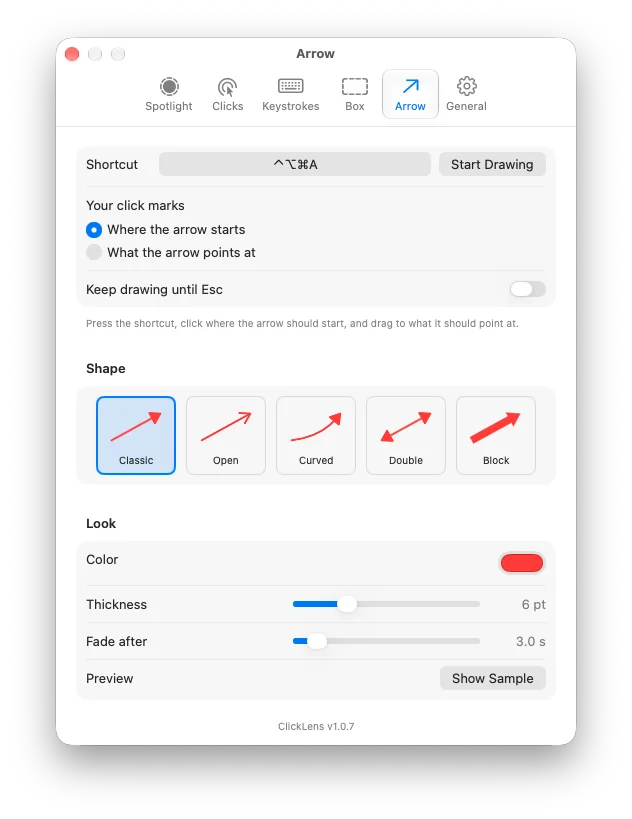
The Arrow tab: choose whether your click marks the start or the tip, and pick from five shapes.
Works where you present
The effects sit above full-screen apps, so they show during a Keynote or PowerPoint presentation and in screen recordings. Clicks pass straight through, and every screen is covered.
What it does
Spotlight
Dims every screen except a circle around the pointer. Radius, soft edge, dim color and strength, the zoom animation and an automatic turn-off are all adjustable, and dragging a slider shows the result live.
Click rings
A ring for every click, colored by button, with double rings for double clicks. Choose the size, whether rings grow as they fade, how long they last, and an optional click sound with its own volume.
Keystrokes on screen
What you type, shown large at the bottom of the screen. Show everything you type or only key combinations. Set the font size, background, how long it stays, and whether ClickLens hides its own shortcuts.
Your shortcuts, your way
Every shortcut can be changed, and a short note on screen confirms each switch. ClickLens lives in the menu bar, the Dock, both or neither, and can open at login. Turn on iCloud sync and your settings follow you to every Mac on your iCloud account.
Getting started
Open the downloaded disk image and drag ClickLens to Applications. When you open it, it appears in the menu bar, where each effect can be switched on and Settings opened.
To show keystrokes, turn on ClickLens in System Settings, Privacy & Security, Accessibility. The spotlight and click rings work without it.
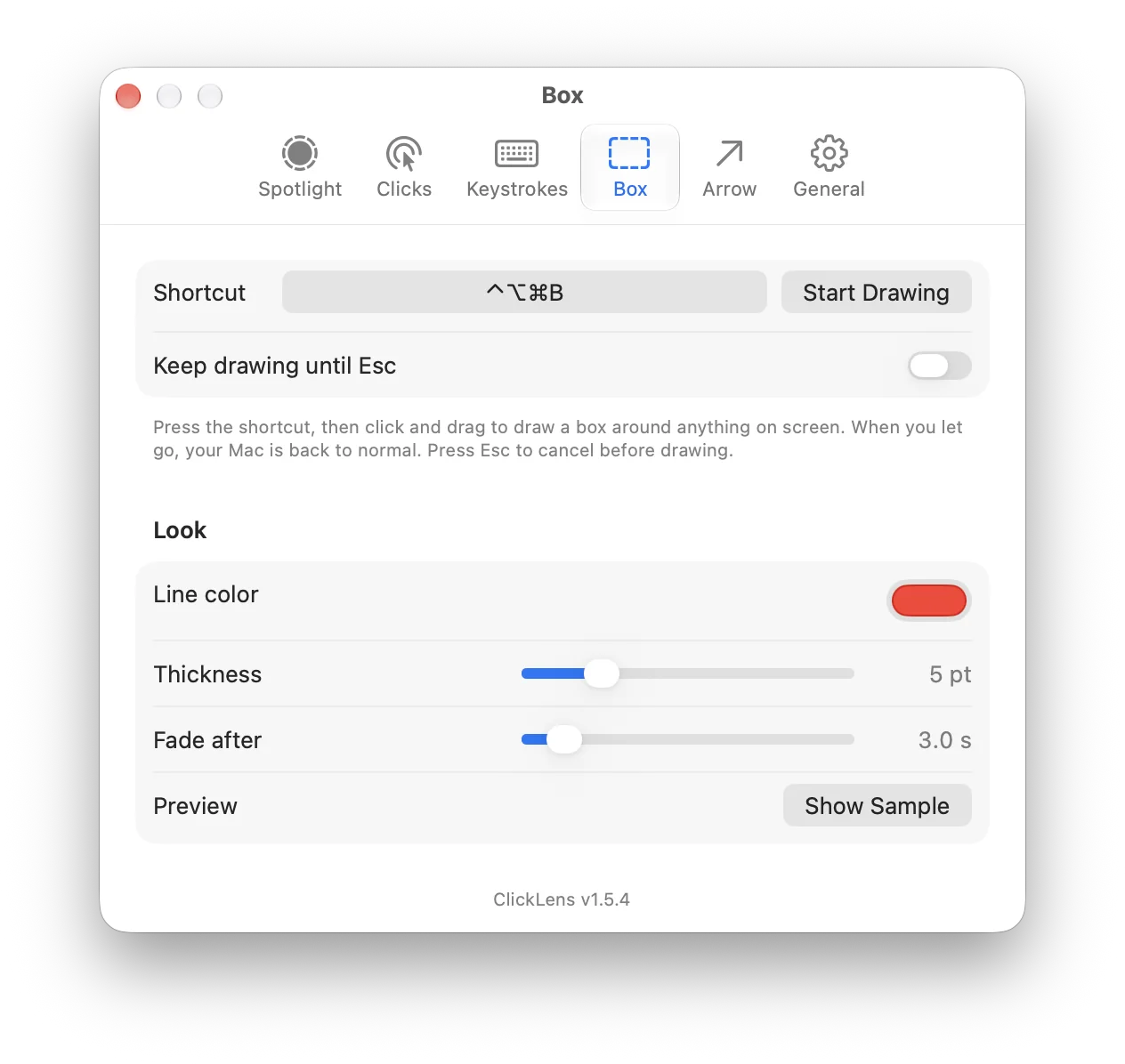
Settings has a tab for each tool, with the shortcut, look and timing for each.
Updates
ClickLens checks for a new release once a day, or on a schedule you set in Settings, from every hour to once a year. You also choose what happens: Ask me first, where a notification and the menu offer it and nothing installs until you click, or Install automatically, where it waits until ClickLens has not been used for 30 minutes, no app is presenting, and your Mac is idle. Or choose Don't check to turn checking off. Each download must be signed by the same developer and notarized by Apple before it is installed, and your settings carry over.
Under the hood
Each screen gets a see-through layer that clicks pass through, drawn with Core Animation in step with the display and idle whenever nothing is showing. Keystrokes are read only while the keystroke display is on, and nothing you type is stored or sent anywhere.