
M3 Tracker
Requires macOS 13 or later
How far does your mouse travel in a day? M3 Tracker shows the distance in your menu bar, in feet and then miles, and adds up every Mac you use into one running total. It counts clicks, keystrokes and how far you scroll, too.
Free. Signed and notarized by Apple. Runs on Intel and Apple silicon.
New: One menu bar icon for all your apps. While ToolHUD is running, M3 Tracker's menu bar menu moves into ToolHUD's menu. A checkbox in Settings keeps it in the menu bar instead.
Works with ToolHUD
ToolHUD
Press one shortcut and pick from a ring of buttons around your pointer to show today's mileage, your mileage by day or this year's total, or to run features of the other apps on this site. No hard-to-remember key combinations. While ToolHUD runs, M3 Tracker's menu bar menu moves into ToolHUD's menu too, so one icon holds them all.
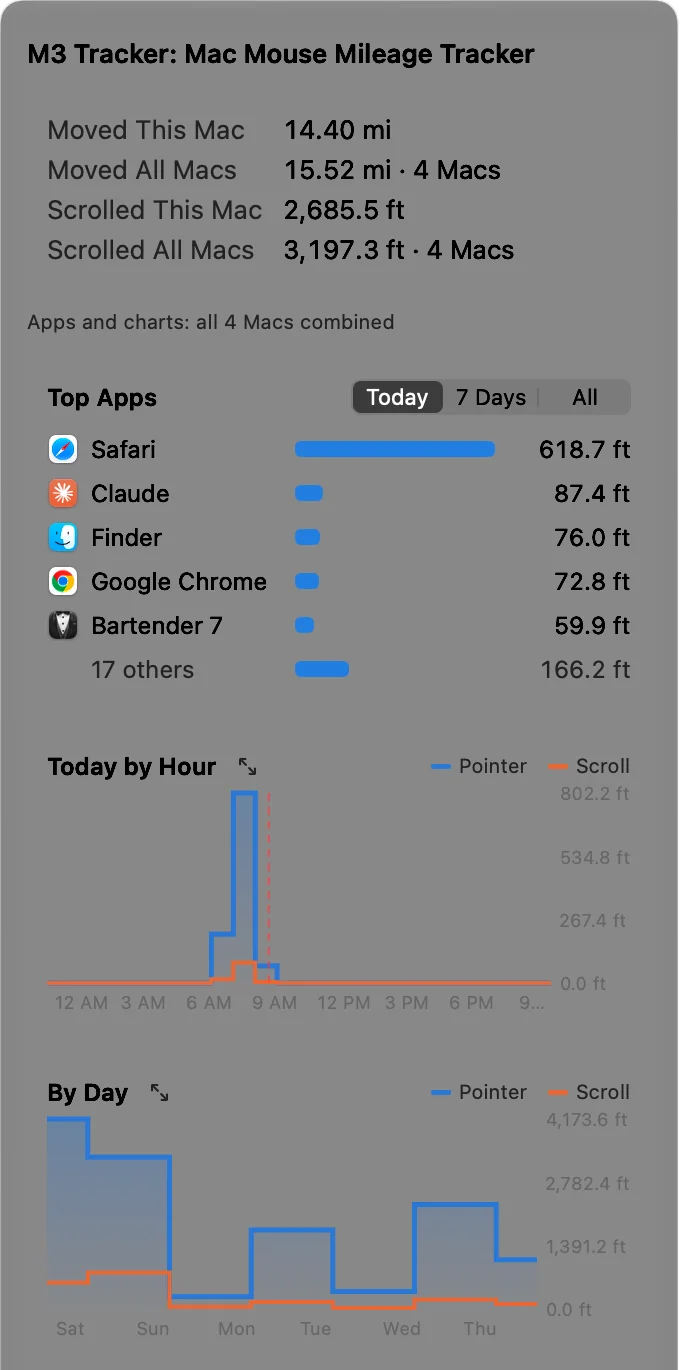
The menu: totals for this Mac and all Macs, your top apps today, and charts by hour and by day.
Everything is one click away
Click the distance in your menu bar and the whole picture opens: how far you have moved and scrolled on this Mac and across all of your Macs, the apps that kept your hand busiest today, and charts of your day and your week.
Blue is pointer distance and orange is scrolling, on every chart. Click any chart to open it in its own resizable window, then point at it to read the exact distance for that hour, day or month.
Every Mac you use, added together
Most people split their day between machines: a desktop at the desk, a laptop on the couch, maybe a mini running in a closet. M3 Tracker treats them as one. Every Mac signed in to the same Apple Account shares its totals, so the menu shows This Mac and All Macs side by side.
One total, every machine
The All Macs figure adds up distance, scrolling, clicks and keystrokes from each Mac, and Settings lists every Mac with its own share and when it last synced.
Charts and apps combine too
Top Apps and every chart merge all your Macs. A Mac in another time zone is lined up on your own calendar, so a day stays a day.
Show it in the menu bar
Choose whether the menu bar shows this Mac or all of them. The combined figure can carry a Σ so you always know which one you are looking at.
Your settings follow you
Turn on settings sync and your menu bar, menu card and app list choices, low-battery warning and update preference match on every Mac. A new Mac picks them up as soon as M3 Tracker is installed. Battery tracking and open at login stay set on each Mac.
No account to create
It syncs through your own iCloud Drive. There is no server, no sign-up, and your numbers never go anywhere else.
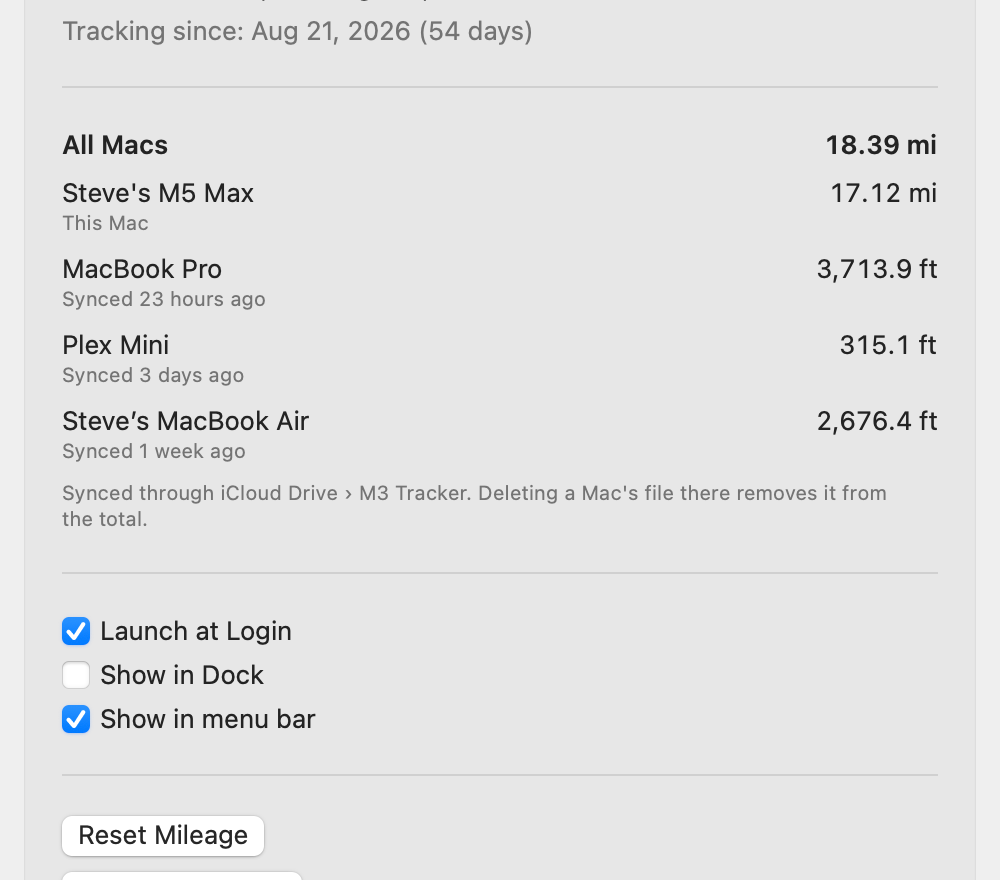
Settings lists each Mac with its own distance and the combined total for all of them.
See your day, your week and your year
Three charts, each drawn as steps so every hour or day shows exactly what happened in it and nothing more. Today by Hour shows when you were busiest. By Day covers the past week. Year to Date shows the whole year at a glance.
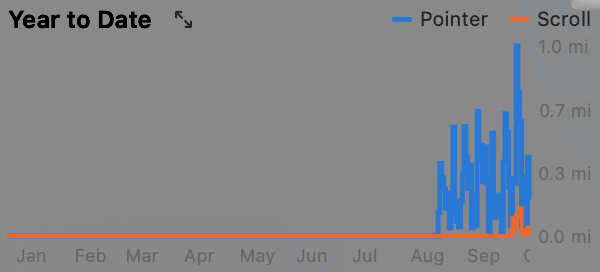
Year to Date: every month so far, with pointer distance in blue and scrolling in orange.
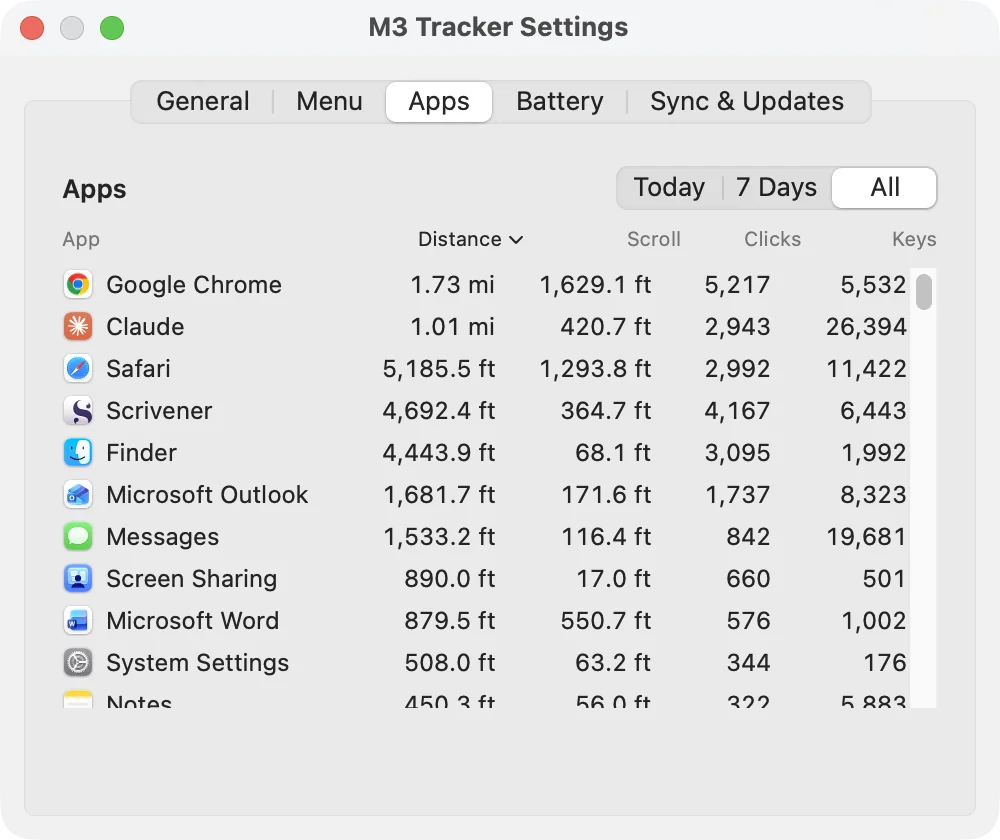
Settings, Apps: distance, scroll, clicks and keystrokes for every app, sortable by any column.
It counts scrolling too
Pointer distance is only half of it. M3 Tracker also measures how far content scrolls under your fingers: pages, documents, long lists, including the glide after a flick on a trackpad or Magic Mouse.
Scrolling is kept separate from pointer mileage and never added into it. It has its own totals for this Mac and all Macs, its own orange line on every chart, and its own Scroll column in the Apps table. It is credited to the app under the pointer, since that is the window that actually moves, and it syncs across your Macs like everything else.
Which apps keep you moving
Distance, clicks and keystrokes are credited to the app you are working in. The Top Apps card in the menu ranks your top five for today, the past week or all time, and Settings lists every app.
Miles per battery charge
Turn on Mileage per Charge and M3 Tracker reads the battery level of supported Logitech mice, tracks how far each one has gone on its current charge, and estimates how far a full charge will take you. It can warn you when a mouse drops below 5%. This feature asks for Input Monitoring permission, and only when you turn it on.
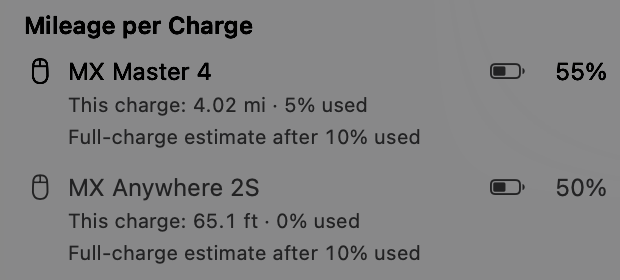
Mileage per Charge for two mice, with each battery level.
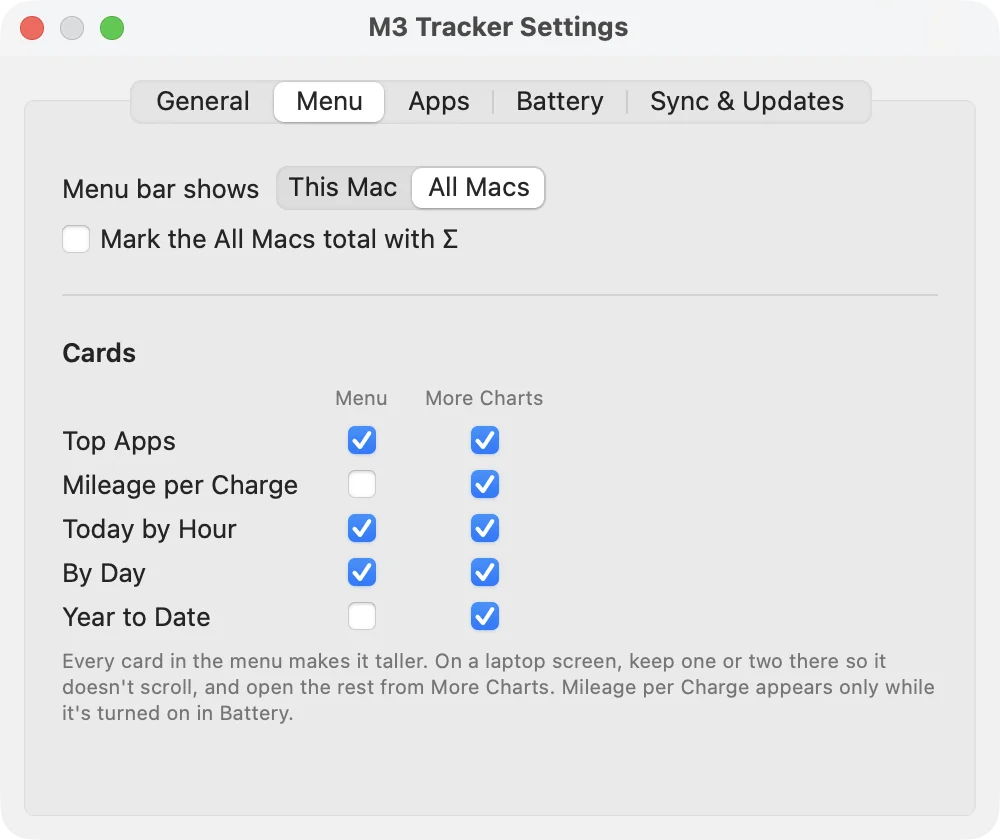
Choose what the menu bar shows and which cards appear in the menu or the More Charts flyout.
Make the menu yours
Each card, Top Apps, Mileage per Charge, Today by Hour, By Day and Year to Date, can go in the menu, in the More Charts flyout, in both, or nowhere. Keep the menu short enough for a laptop screen and open the rest from the flyout.
M3 Tracker can sit in the menu bar, the Dock, both, or neither, and it can open at login.
Getting started
Open the downloaded disk image and drag M3 Tracker to Applications. Open it, and the distance appears in the menu bar right away.
macOS will ask for Accessibility access. Distance, clicks and scrolling work without it, but keystrokes are only counted with it, and Settings warns you if it is missing. Keystrokes are counted, never recorded. To combine your Macs, install it on each one and make sure iCloud Drive is turned on.
Updates
M3 Tracker checks for a new release once a day, or on a schedule you set, from every hour to once a year. You choose this and what happens in Settings, Sync & Updates. Ask me first sends a notification and nothing installs until you confirm. Install automatically downloads and checks the update, then installs it only while your Mac is not in use and nothing is being presented, saving your counts first. Either way, each download must be signed by the same developer and notarized by Apple, and your permissions and settings carry over.
Under the hood
Distance is measured in screen points and converted at 72 points per inch, the same convention macOS itself uses. Each Mac writes only its own file to iCloud Drive and reads the others, so syncing never conflicts. Files hold running totals, so a late or repeated sync can never count anything twice. Resetting a counter affects only the Mac you reset it on.