
DockMirror
Requires macOS 13 or later
If you use more than one Mac, their Docks drift apart, and your muscle memory stops working whenever you switch. DockMirror syncs the apps pinned in your Dock through iCloud Drive. Add, remove or move an app on any Mac, and the others follow.
Free. Signed and notarized by Apple.
New: One menu bar icon for all your apps. While ToolHUD is running, DockMirror's menu bar menu moves into ToolHUD's menu. A checkbox in Settings keeps it in the menu bar instead.
Works with ToolHUD
ToolHUD
Press one shortcut and pick from a ring of buttons around your pointer to sync your Dock now, pause syncing or open setup, or to run features of the other apps on this site. No hard-to-remember key combinations. While ToolHUD runs, DockMirror's menu bar menu moves into ToolHUD's menu too, so one icon holds them all.
Every Mac, one Dock
Click DockMirror in the menu bar to see when it last synced, how many apps are shared and across how many Macs. Sync now, pause, or restore the Dock from any of its recent backups.
The Macs menu lists every Mac that has joined, its role, and when it was last seen. A Mac that has not been seen in 30 days stops limiting which apps are synced, and you can forget one at any time.
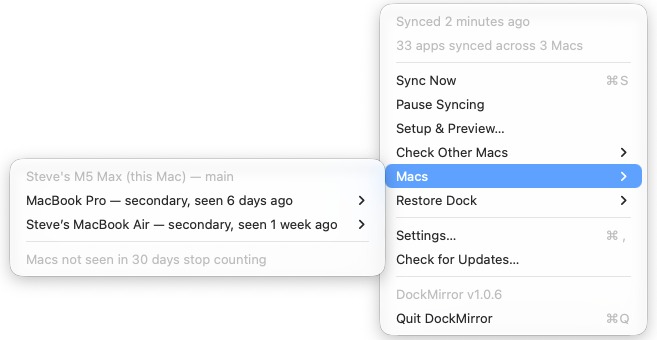
The menu and its Macs submenu.

Setup, with sample Macs. A green plus marks an app that will be added to this Dock.
See the result before anything changes
Choose whether this Mac is the main Mac, whose Dock is the starting layout, or a secondary Mac that adopts the main Mac’s layout. The setup window previews exactly how this Dock will look afterward, with added and removed apps marked.
Nothing changes until you click Start Syncing, and the Dock is backed up before every change.
Quiet in the background
Changes to this Dock are shared right away. Choose how often DockMirror checks for changes from your other Macs: every minute, 5, 15 or 30 minutes, hourly, or only when you click Sync Now.
Show DockMirror in the menu bar, the Dock, both or neither, and have it open at login. Turn on iCloud sync and these settings follow you to your other Macs.
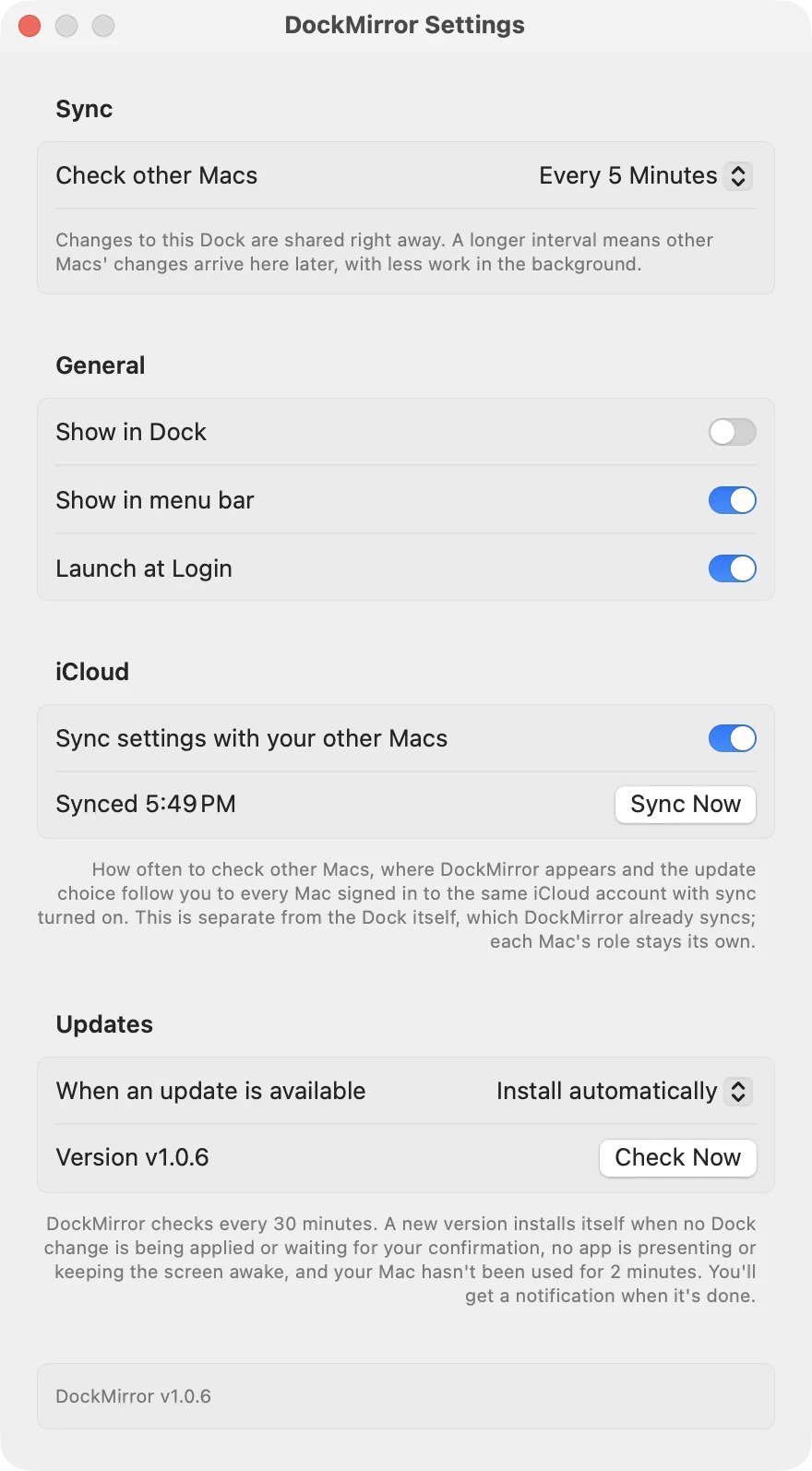
Settings: how often to check other Macs, where DockMirror appears, iCloud sync and updates.
What it does
Only apps every Mac has
Apps installed on only one Mac stay where they are on that Mac. Recents, folders, spacers and Dock settings are never touched.
Backed up before every change
The Dock is backed up before each change, and the last 50 backups are kept. Restore Dock in the menu puts any of them back.
Big removals wait for you
If five or more apps disappear at once, DockMirror holds the change until you confirm it. That is more likely macOS resetting the Dock than a deliberate edit, and passing it on would empty every Mac’s Dock.
Getting started
Open the downloaded disk image and drag DockMirror to Applications. Open it on your main Mac first and choose Main Mac. Its Dock becomes the starting layout.
Repeat on each other Mac and choose Secondary Mac. The setup window previews the result, and nothing changes until you click Start Syncing.
Every Mac must be signed in to the same Apple Account with iCloud Drive turned on.
Updates
DockMirror checks for a new release once a day, or on a schedule you set in Settings, from every hour to once a year. You also choose what happens: install automatically, ask first, or never check. An automatic update never interrupts a sync and waits until your Mac is idle. Each download must be signed by the same developer and notarized by Apple, and your settings carry over.
Under the hood
Each Mac writes one file to iCloud Drive and reads the others, so iCloud never has conflicting copies to resolve. Every app has its own entry with a position key, and the most recent change to an app wins, so edits to different apps on different Macs never collide.