

WindowKeeper
Requires macOS 26 or later
A restart, waking from sleep, or plugging a laptop into a different set of monitors leaves windows piled onto one screen. WindowKeeper saves your layout for each monitor setup and puts every window back.
Free. Signed and notarized by Apple.
New: One menu bar icon for all your apps. While ToolHUD is running, WindowKeeper's menu bar menu moves into ToolHUD's menu. A checkbox in Settings keeps it in the menu bar instead.
Works with ToolHUD

ToolHUD
Press one shortcut and pick from a ring of buttons around your pointer to save or restore your windows, restore desktop icons or undo the last restore, or to run features of the other apps on this site. No hard-to-remember key combinations. While ToolHUD runs, WindowKeeper's menu bar menu moves into ToolHUD's menu too, so one icon holds them all.

The menu, showing sample profile “Home Office”.
Save and restore from the menu
The menu bar menu shows which desk you are at and what it last did. Save or restore every window, or just the frontmost app’s.
Restore from any desk
Put windows back from the current profile or from any other saved one. Windows from another desk are mapped onto this desk’s monitors, left to right.
Undo Last Restore
Puts windows and desktop icons back where they were just before the last restore, whether it was automatic or not.
A layout for each desk
Each set of monitors is its own profile, so a laptop that moves between desks keeps a separate layout for each one. Monitors are recognized by serial number, so two identical models are never confused, and rearranging them in System Settings changes nothing.
A new set of monitors becomes a profile automatically. Rename it to the desk it belongs to, and lock any profile so auto-save never changes a layout you like.
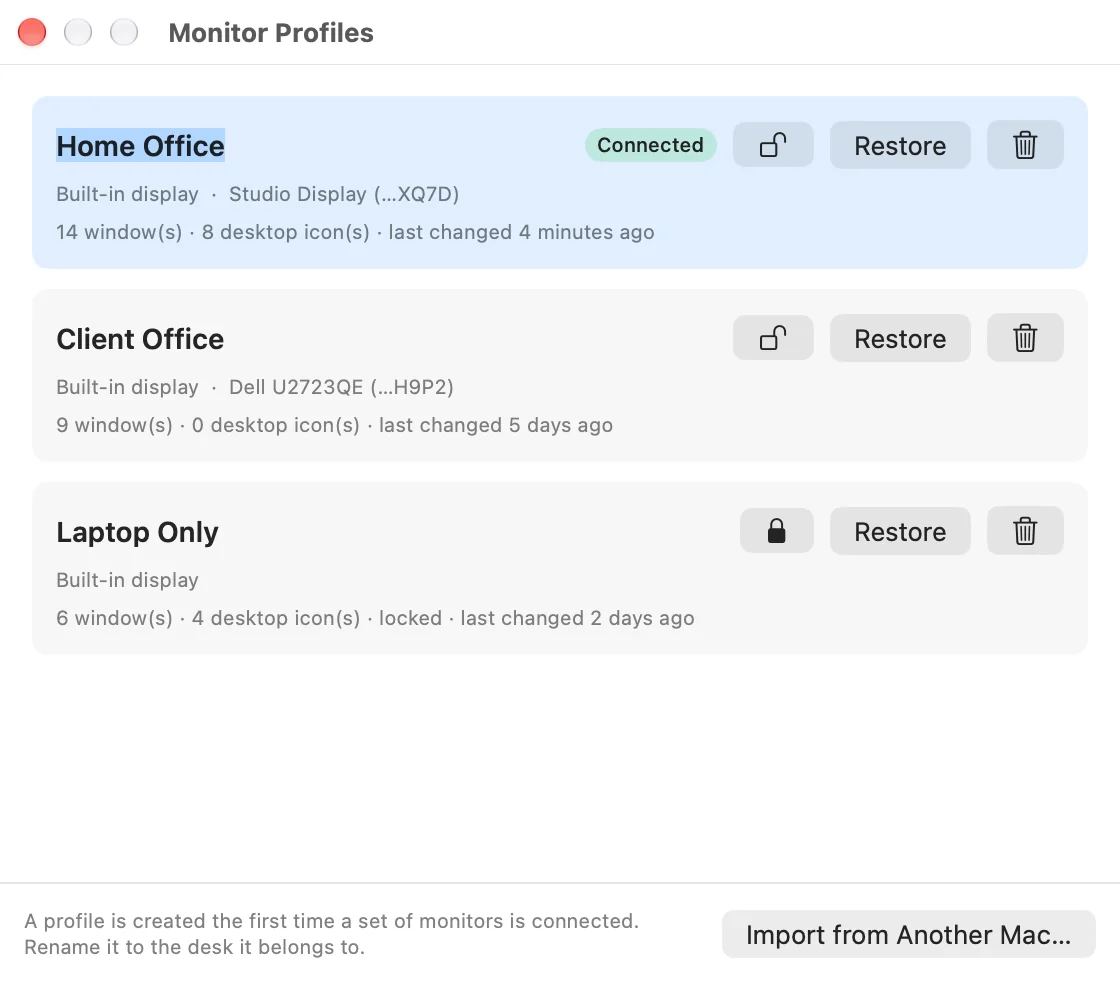
Monitor Profiles with sample desks. The connected one is marked, and the lock keeps a layout from changing.
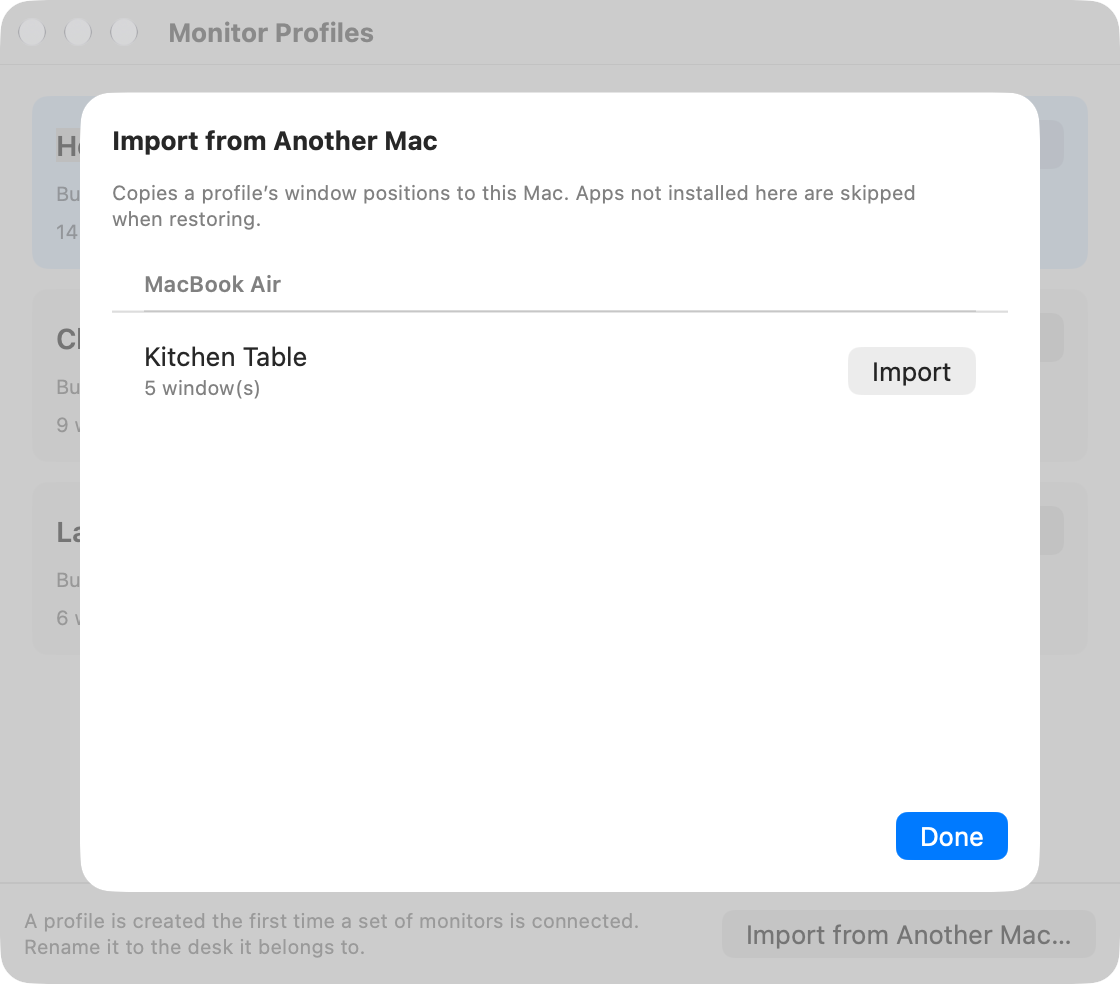
Importing a sample profile saved by another Mac.
Bring a desk from another Mac
Profiles are kept on this Mac and copied to your iCloud Drive, in a folder for this Mac only. If you work at the same desk from two Macs, import the other one’s profile and its windows go to this Mac’s monitors. Apps that are not installed here are skipped.
You choose when it acts
Save automatically on an interval you pick, from seconds to hours. Restore when you dock at a desk WindowKeeper has seen before, when WindowKeeper opens, or when an app reopens. Each one can be turned off.
Keep desktop icon positions with each desk, set keyboard shortcuts for Save All and Restore All, and choose whether WindowKeeper lives in the menu bar, the Dock, or both. Turn on iCloud sync and these settings follow you to your other Macs, while each Mac keeps its own window profiles.
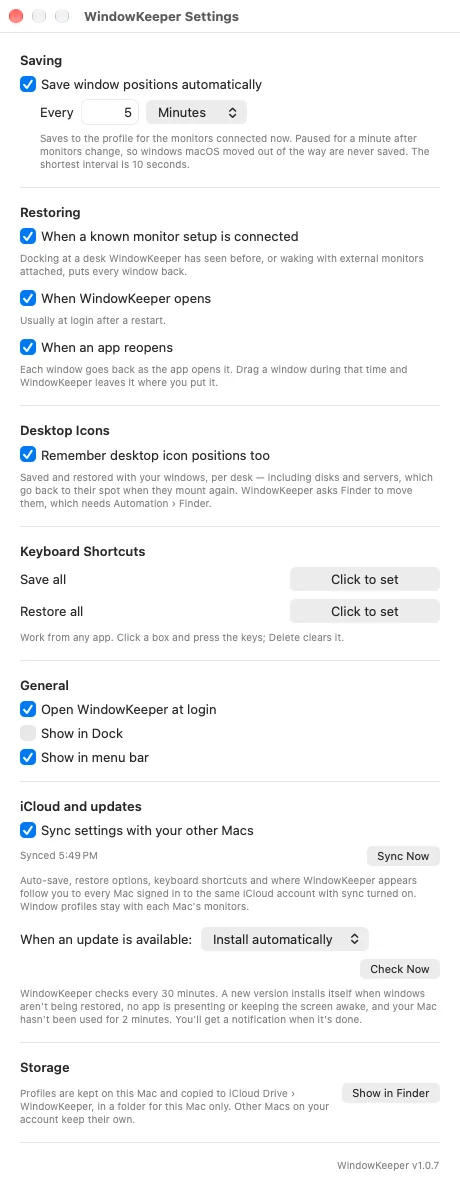
Settings, including iCloud sync and the update choice.
What it does
A layout for each desk
Each set of monitors is its own profile, so a laptop that moves between desks keeps a separate layout for each. Monitors are recognized by serial number, so two identical models are never confused.
Restores on its own
Windows go back when you dock at a known desk, when WindowKeeper opens after a restart, and when an app reopens. Each of these can be turned off in Settings.
Desktop icons too
Icon positions are saved and restored with the windows, including disks and servers, which go back to their spot when they mount again.
Undo and lock
Undo Last Restore puts windows and icons back where they were just before. Lock a profile so automatic saves never change a layout you like.
Getting started
Open the downloaded disk image and drag WindowKeeper to Applications, then open it.
macOS will ask for Accessibility access, which WindowKeeper needs to read and move other apps’ windows. The first time, it also asks to control Finder, which it uses to save and restore desktop icon positions. You can turn that off in Settings.
Updates
WindowKeeper checks for a new release once a day, or on a schedule you set in Settings, from every hour to once a year. You also choose what happens: install automatically, ask first, or never check. An automatic update never interrupts a restore and waits until your Mac is idle. Each download must be signed by the same developer and notarized by Apple, and your Accessibility permission carries over.
Under the hood
WindowKeeper never launches apps and does not move windows between Spaces. After a restore it watches for about 20 seconds and undoes any moves macOS makes, but leaves alone any window you drag yourself. Its log records counts only, never window titles.