
NetworkToggle
Requires macOS 26 or later
Plug a Mac into a dock with wired Ethernet and it often keeps running over Wi-Fi anyway. NetworkToggle puts the connection actually carrying your traffic in the menu bar, and moves you onto the fast wired one when you dock.
Free. Signed and notarized by Apple.
New: One menu bar icon for all your apps. While ToolHUD is running, NetworkToggle's menu bar panel moves into ToolHUD's menu. A checkbox in Settings keeps it in the menu bar instead.
Works with ToolHUD
ToolHUD
Press one shortcut and pick from a ring of buttons around your pointer to switch to the wired connection, turn Wi-Fi on or off or undo the last switch, or to run features of the other apps on this site. No hard-to-remember key combinations. While ToolHUD runs, NetworkToggle's menu bar panel moves into ToolHUD's menu too, so one icon holds them all.
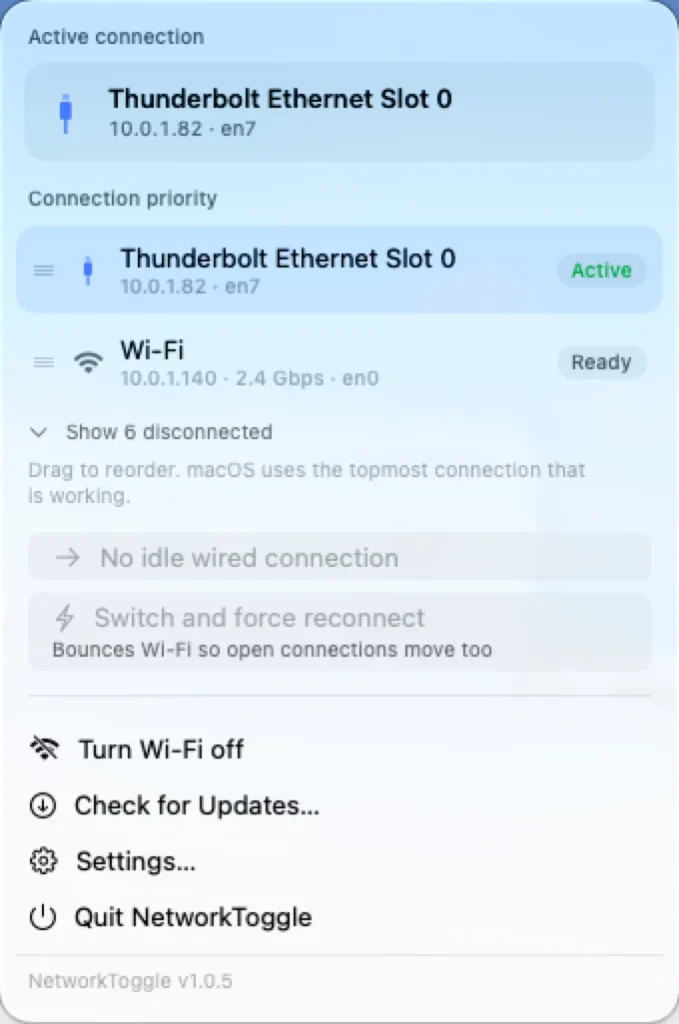
The menu shows the connection in use now, its live speed, and the order macOS tries the others in.
What it does
It tells you when a dock appears
Plug in a dock and a small panel says whether macOS switched you to the wired connection. Choose Switch or Stay on Wi-Fi, or set it to switch automatically.
It checks the connection works first
A dock with a dead uplink looks healthy from the outside. NetworkToggle waits for the link to settle and confirms the router answered before it offers the switch.
It moves connections left behind
macOS never moves connections that are already open, so a file share mounted over Wi-Fi keeps copying over Wi-Fi. NetworkToggle lists them and can move them to the wired connection.
It knows about your VPN
With a VPN connected, the menu shows the tunnel and the connection carrying it. NetworkToggle asks before any change that would pull a running VPN off its connection.
Getting started
Open the downloaded disk image and drag NetworkToggle to Applications. Open it, click Install helper in its menu, and approve the helper in System Settings when asked.
Changing the connection order is a system setting, so a small helper does that one job. The app itself holds no elevated rights.
Updates
NetworkToggle checks for a new release once a day, or on a schedule you set in Settings, from every hour to once a year. You also choose what happens: install automatically, ask first, or never check. An automatic update never interrupts a switch and waits until your Mac is idle. You can also choose Check for Updates in the menu. A download is refused unless it is signed by the same developer and notarized by Apple. Settings also has open at login, where NetworkToggle appears, and iCloud sync, which carries your choices to your other Macs.
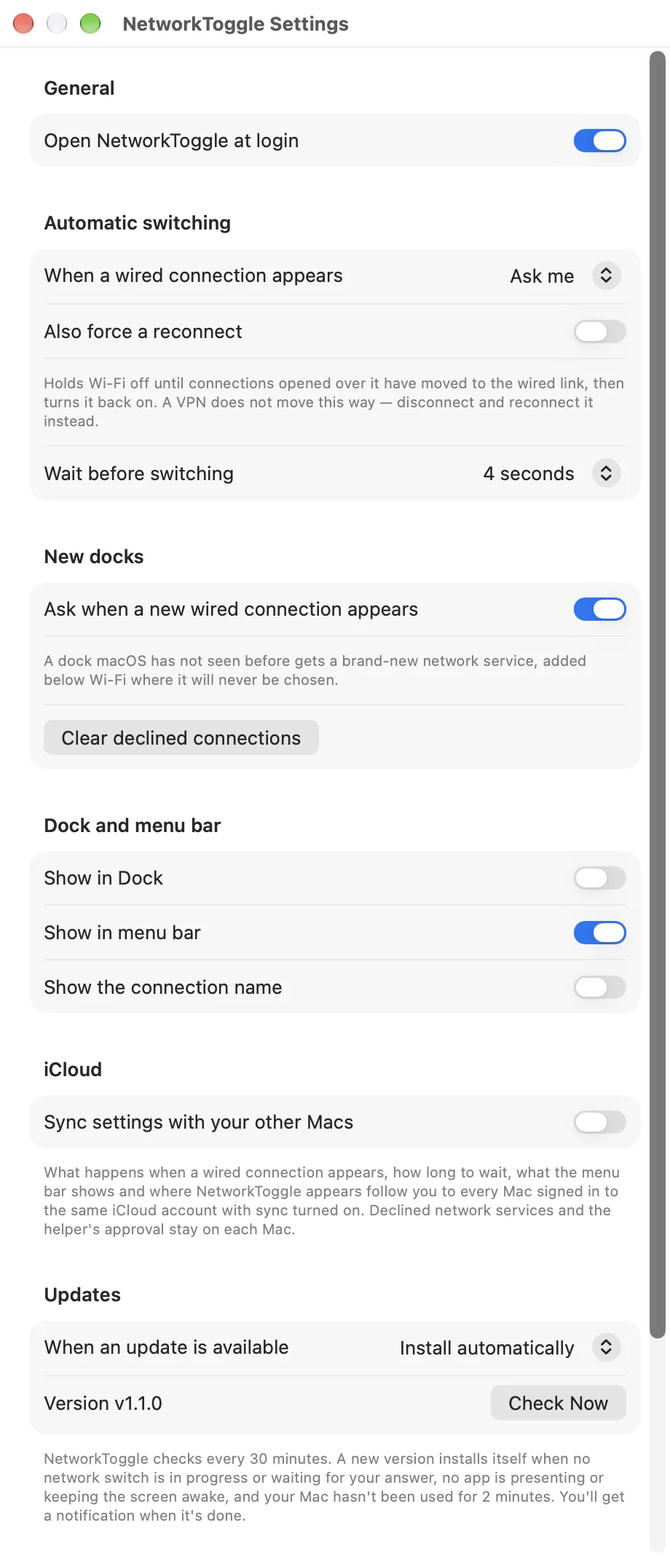
Settings: open at login, how automatic switching works, new docks, where NetworkToggle appears, iCloud sync and updates.
Under the hood
The menu bar app runs as you and does all the reading. A privileged helper, registered through macOS service management, does only the reordering, and each side checks the other is signed by the same developer before acting on a request.